Appearance
Template Creation Tutorial
Below is a quick-start guide to help you learn the template creation workflow in about one minute.
- Create a standard-width borderless table with 2-3 rows. Put the assets you want in rows 1 and 3, and reserve row 2 for text input.
- Adjust styles: you can modify the table background color, border settings, and add decorative blocks.
- Create a macro command and save it as a template.
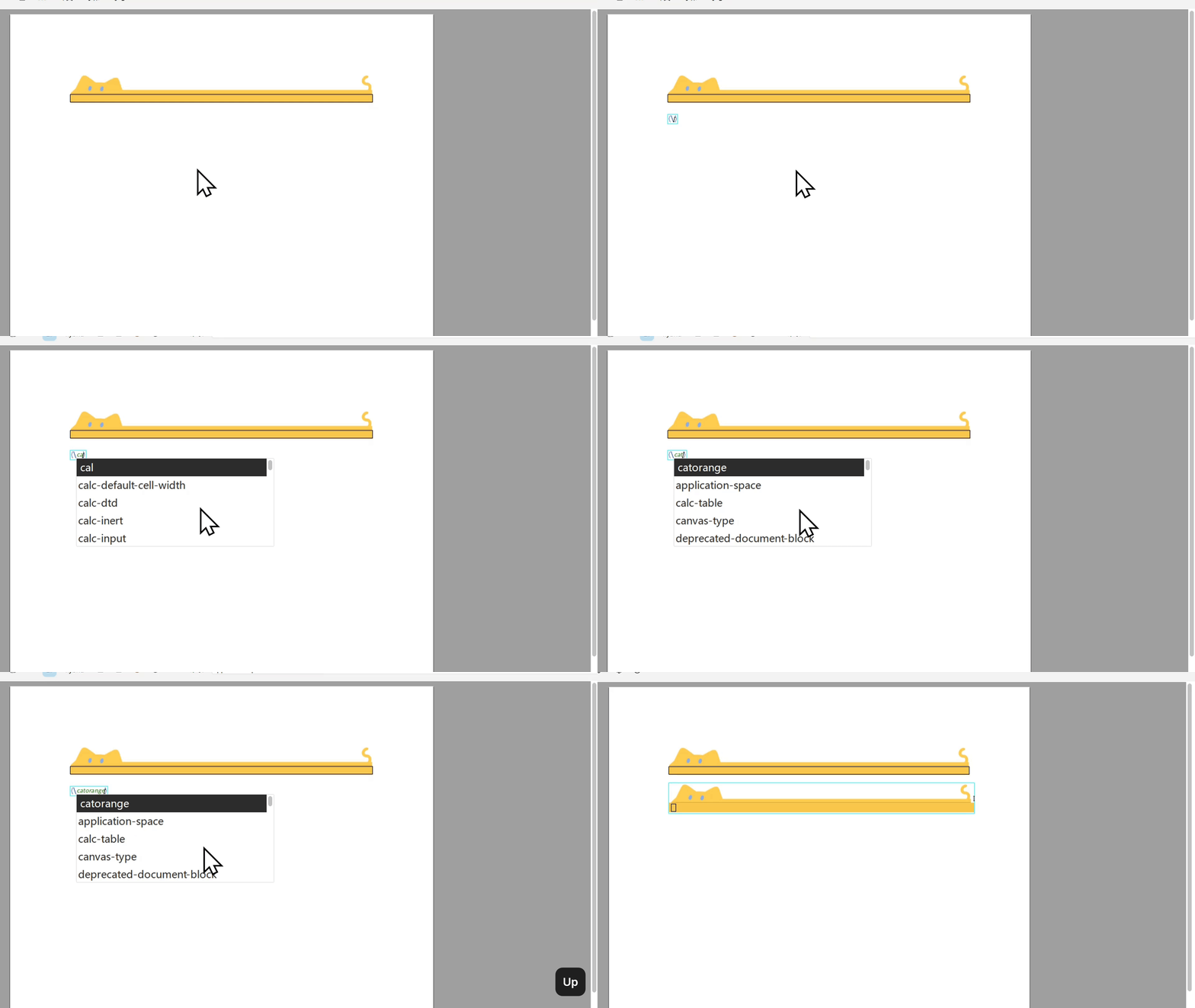
The example below shows a built-in cat box style, which you can insert with the macro command \\catbox-yellow.

Detailed Workflow
Let's make a simple cat box first to get familiar with the process. If you want the exact same result as the existing built-in template, you will need more fine-tuning.
- Create a standard-width borderless table with two rows, and place your planned asset in the first row.
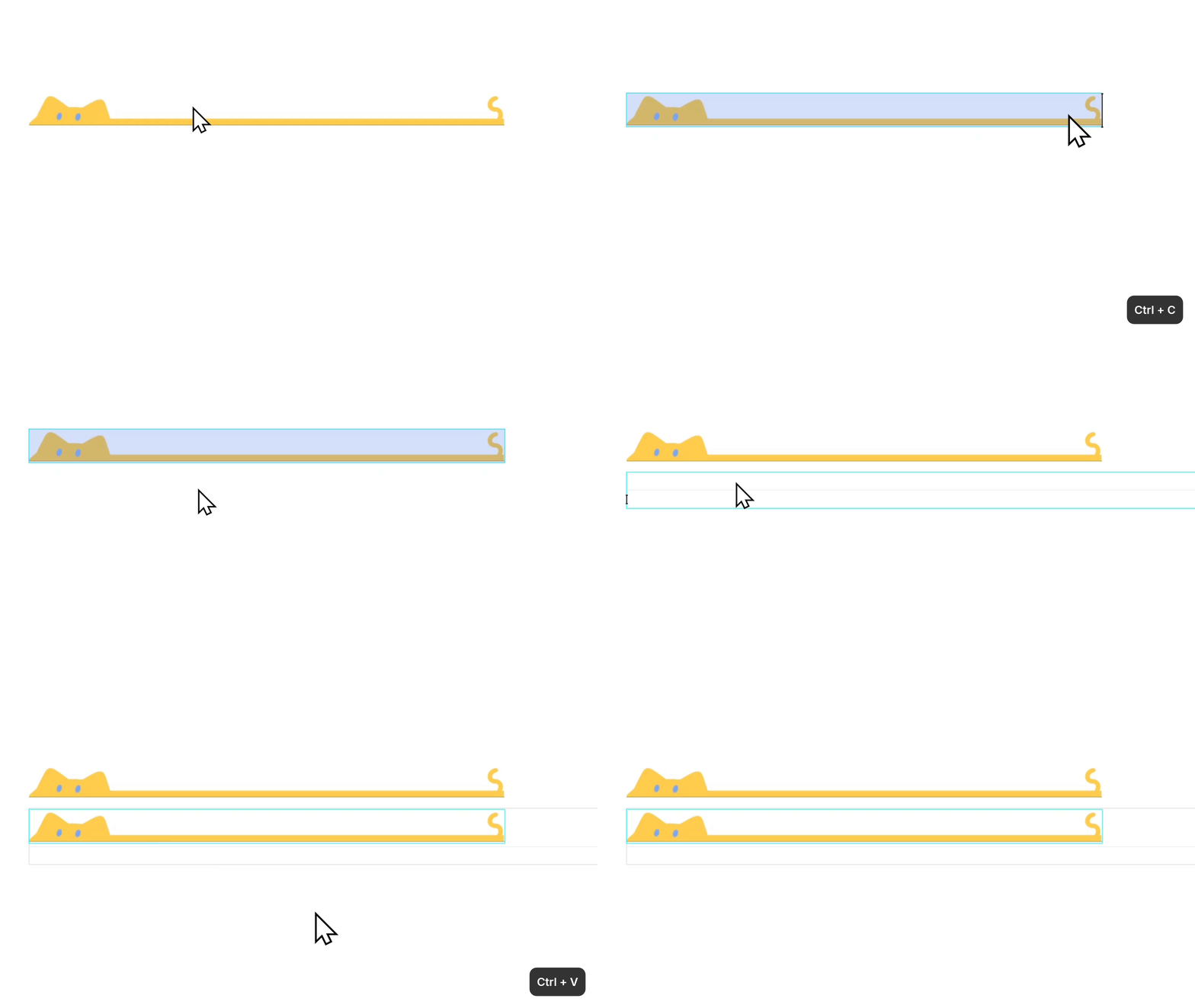
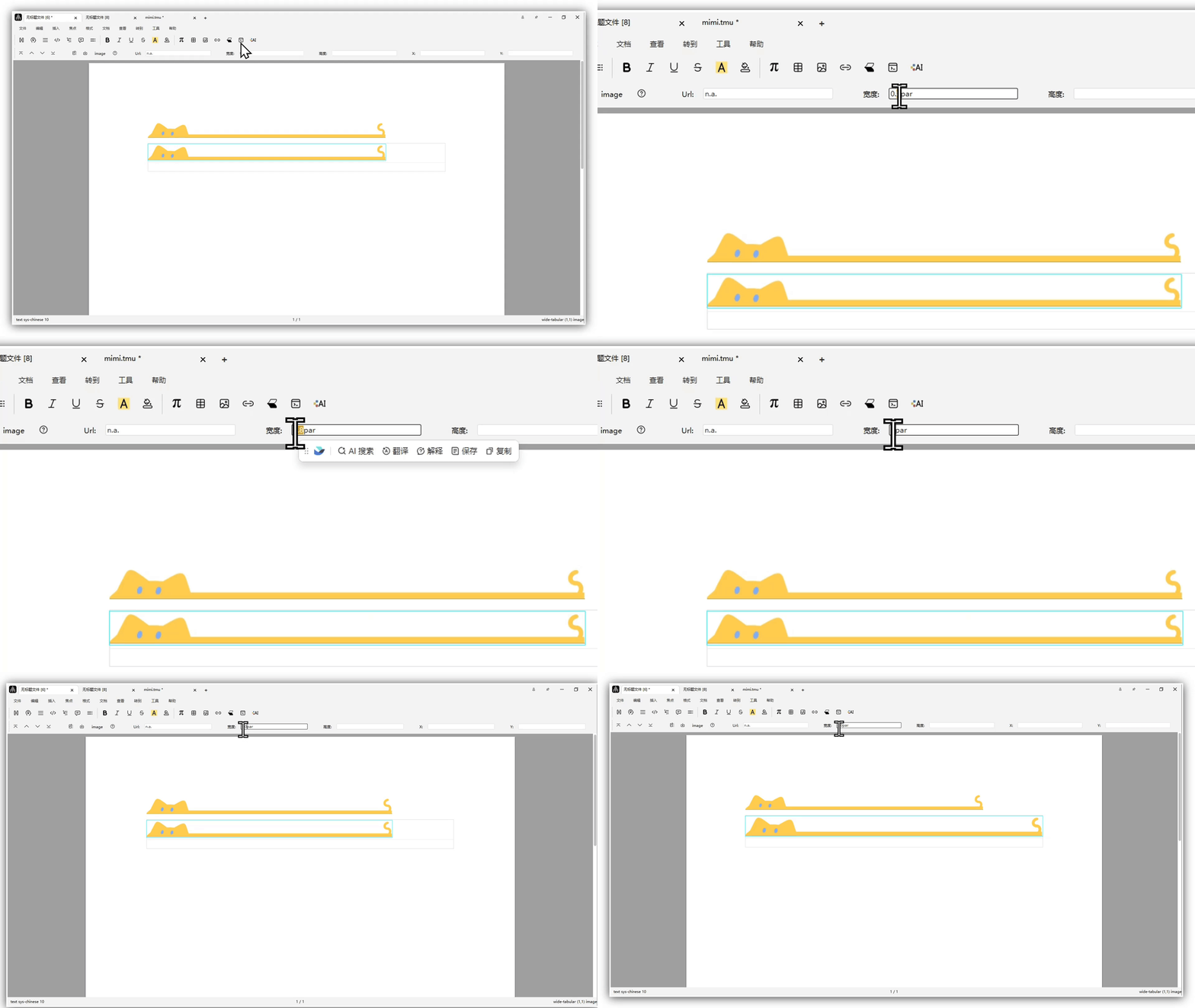
- Resize the image to fit the text box.
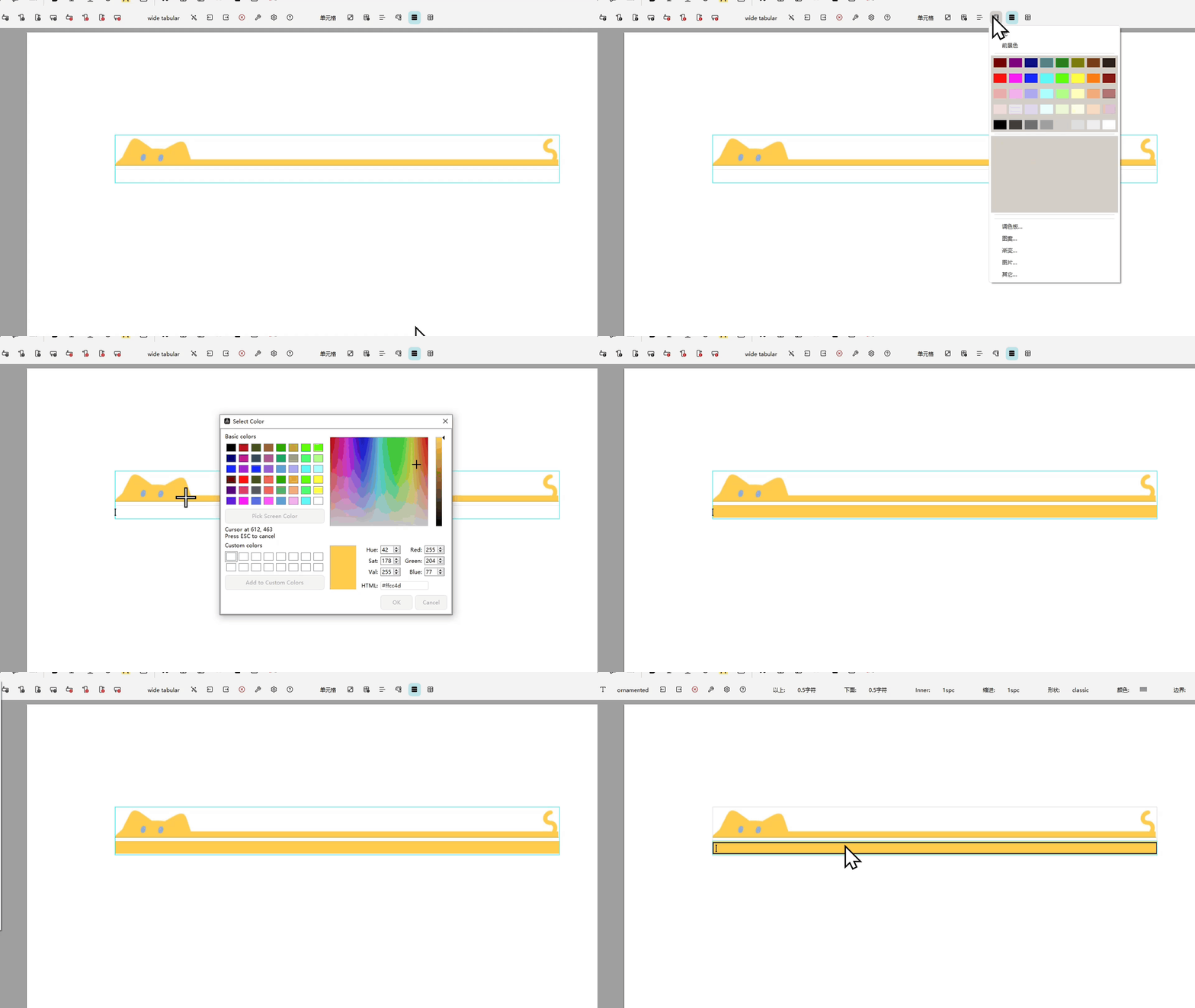
- Adjust the second-row text box: change its background color and insert decorative blocks to achieve the style you want.
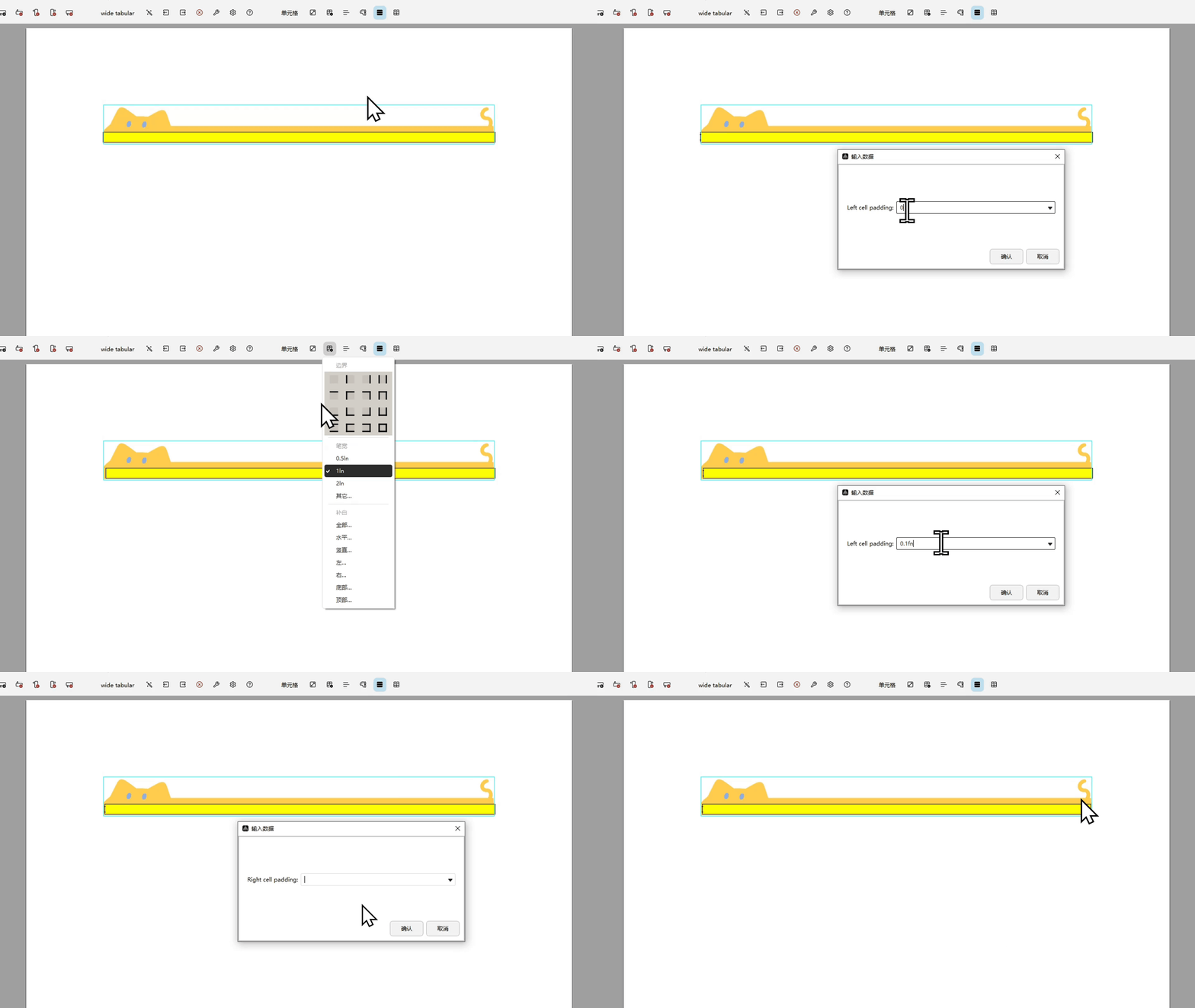
- Use padding to adjust the text-box spacing for a cleaner result. Select the first-row cell, then in the focus toolbar choose
Change border of cell->Padding->Bottom.

Note:
0.1fnis a custom unit in Liii STEM. It is equivalent to0.1em, and with a global font size of12pt, it is approximately1.2pt.
- Add left and right padding to the second row.
- Set the background color and border color for the decorative frame.

- Save and create the macro command.
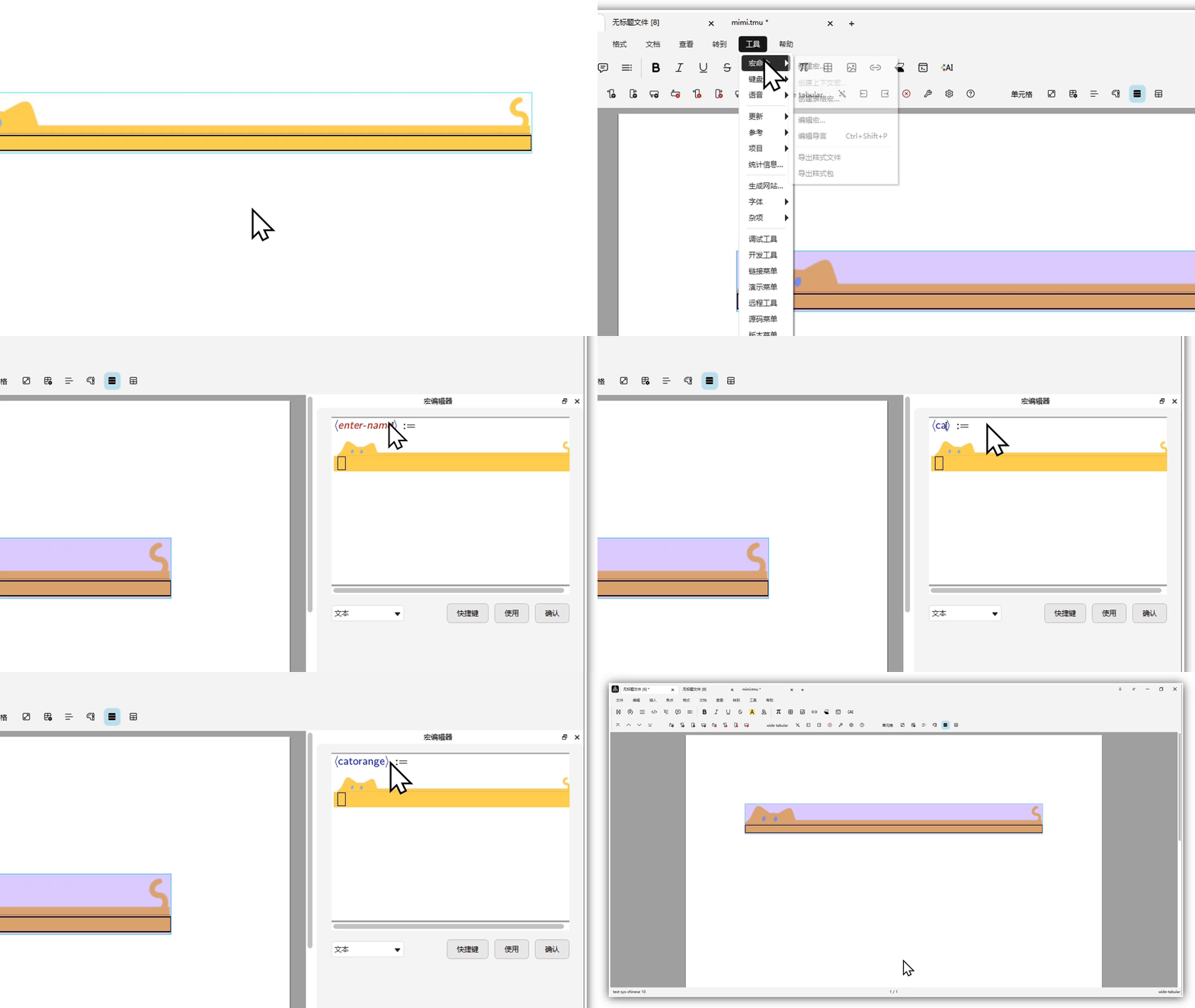
Your basic template is now complete.
- Preview the final result.