Appearance
Quick Formula Editing
Liii STEM provides a dedicated Math Mode that supports formula editing, numbering, and referencing. It also integrates LEGO symbols and Tab cycling together with shortcuts such as Magic Paste, helping you write formulas more efficiently.
What Is Math Mode
Liii STEM's Math Mode provides a complete environment for mathematical input. All mathematical content should be entered in this mode.
In text mode, the toolbar is mainly used to insert text structures such as chapters, sections, and semantic blocks. In Math Mode, the toolbar provides more mathematical symbols. The image below shows the toolbar in the two modes under the default theme.

Enter Math Mode
Use the mode toolbar
In text mode, click the π button on the mode toolbar to choose inline formulas, single-line formulas, or multi-line formulas.
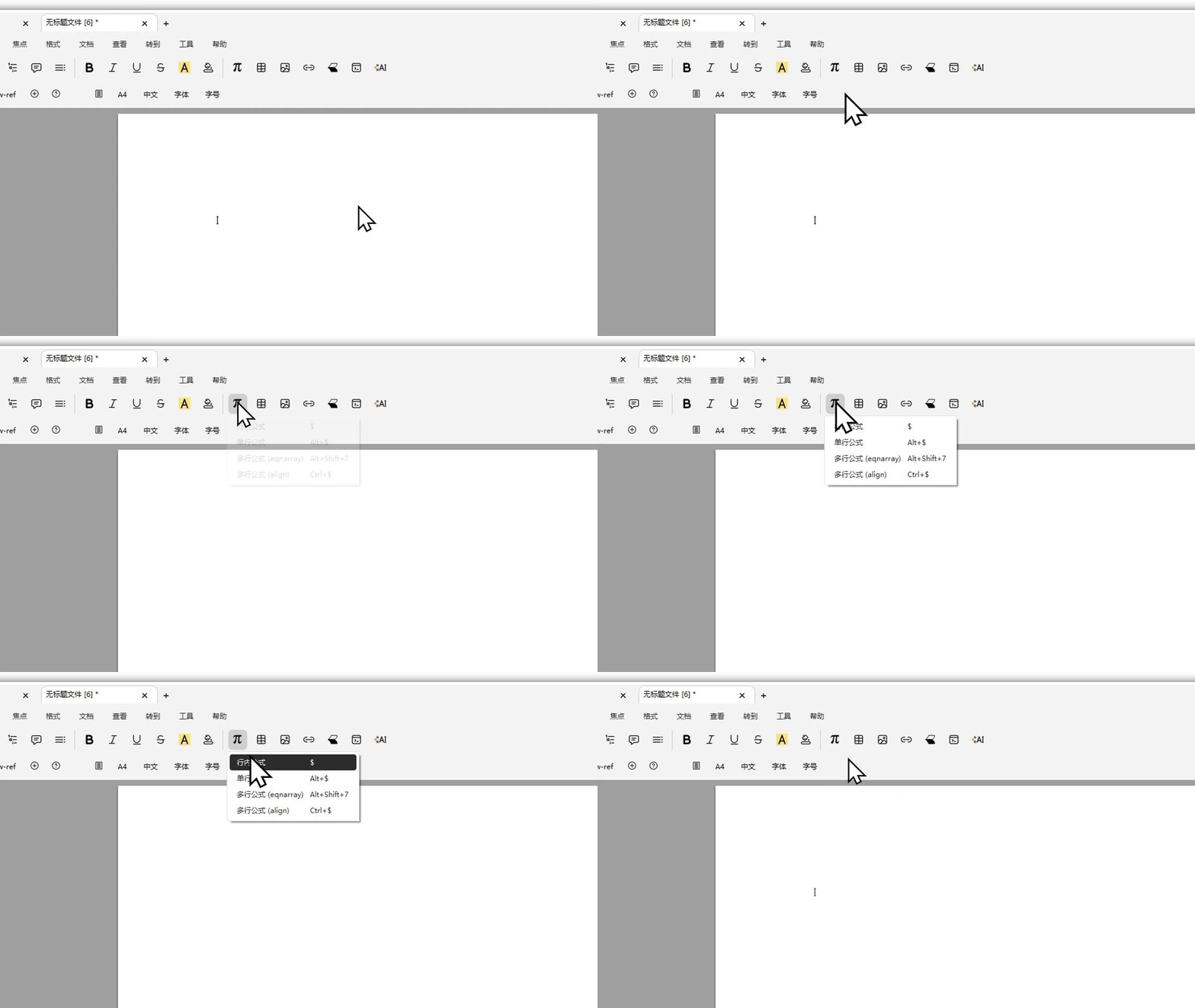
Note: this
πbutton appears only in text mode. If your cursor is already inside a single-line formula, thisπbutton will not appear. In that case, the shortcuts mentioned below also cannot be used to insert a multi-line formula. At present, multi-line formulas in this situation can only be inserted through the corresponding commands, such as\alignand\eqnarray.
Use keyboard shortcuts
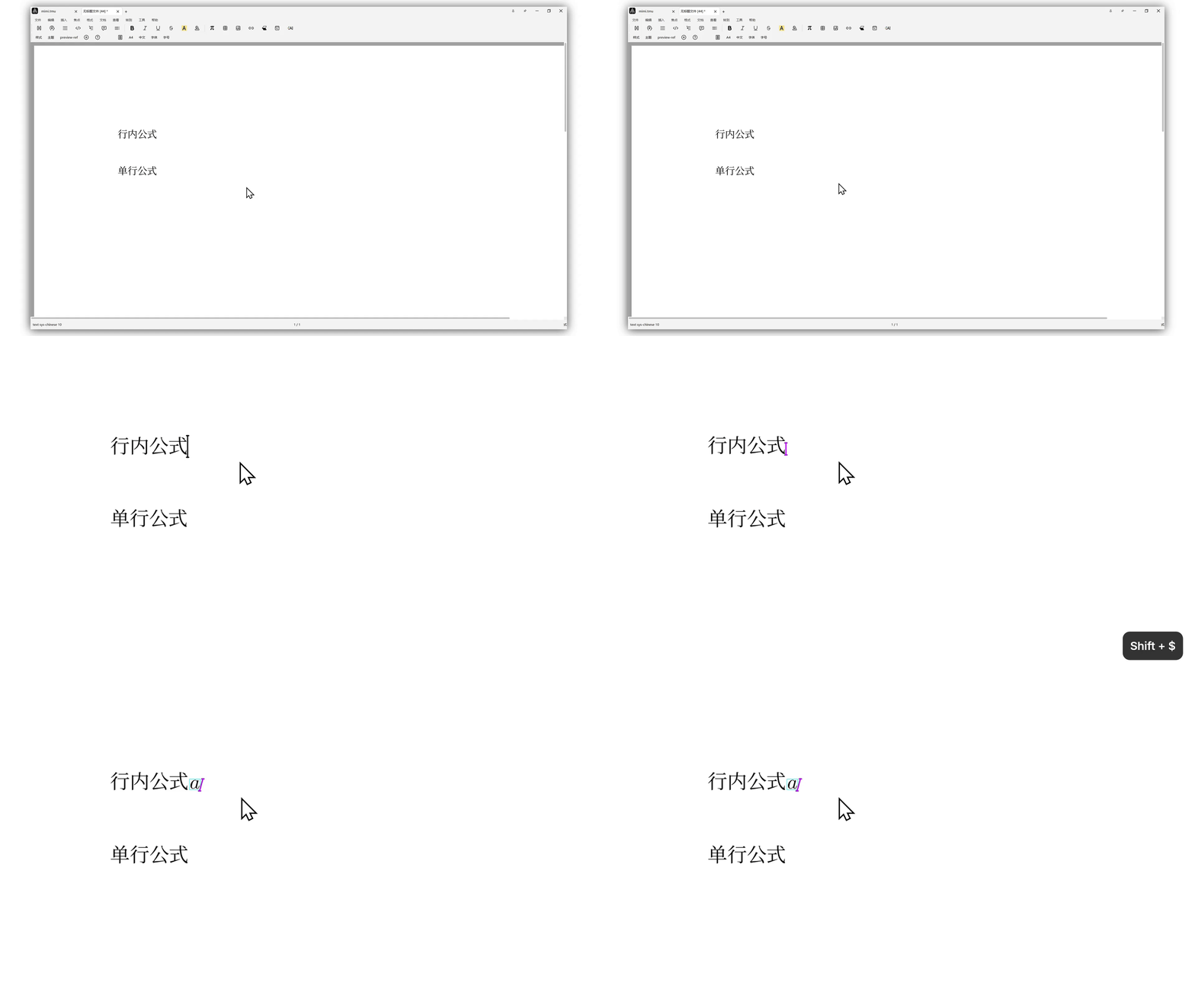
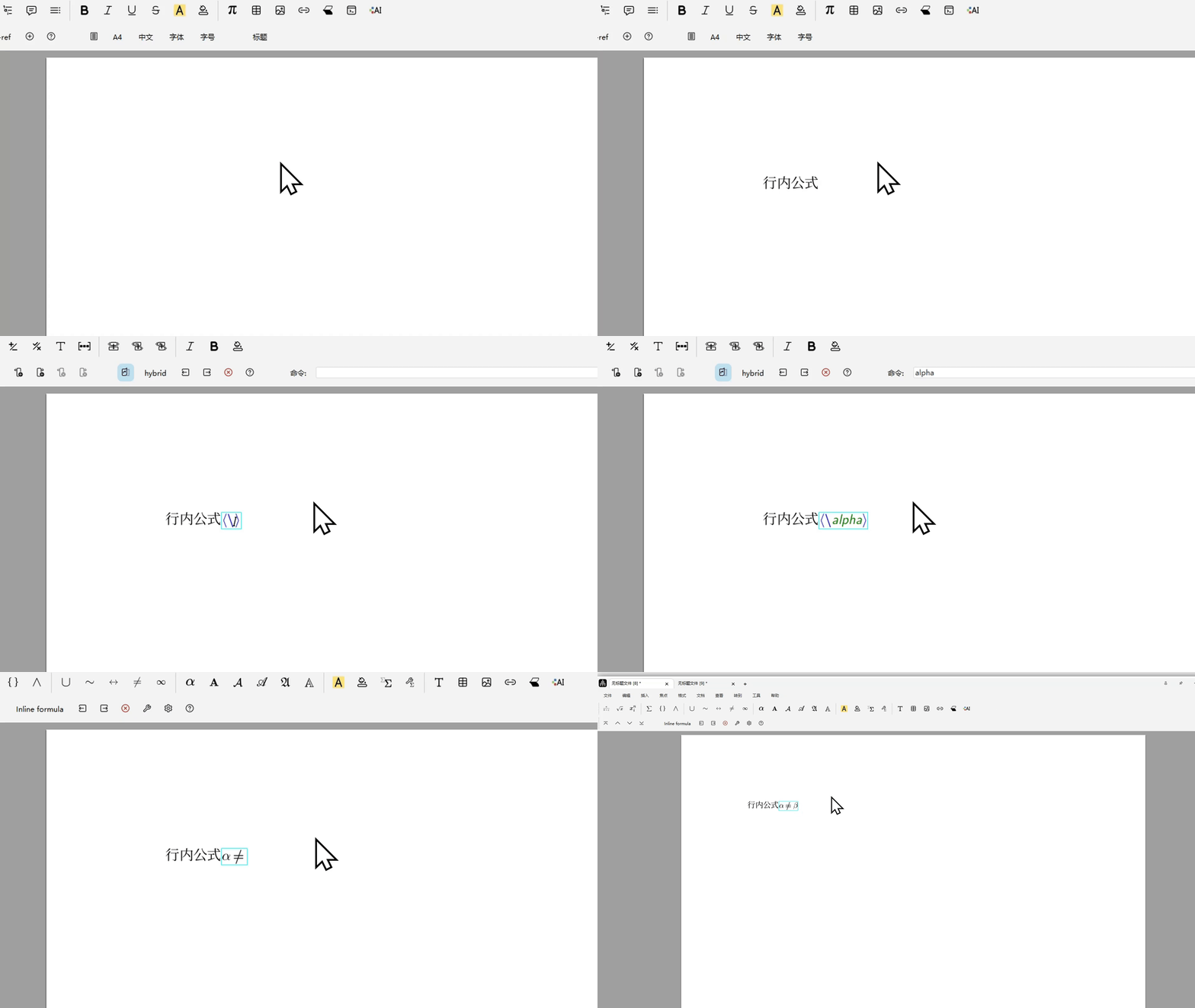
Inline formula:
$.
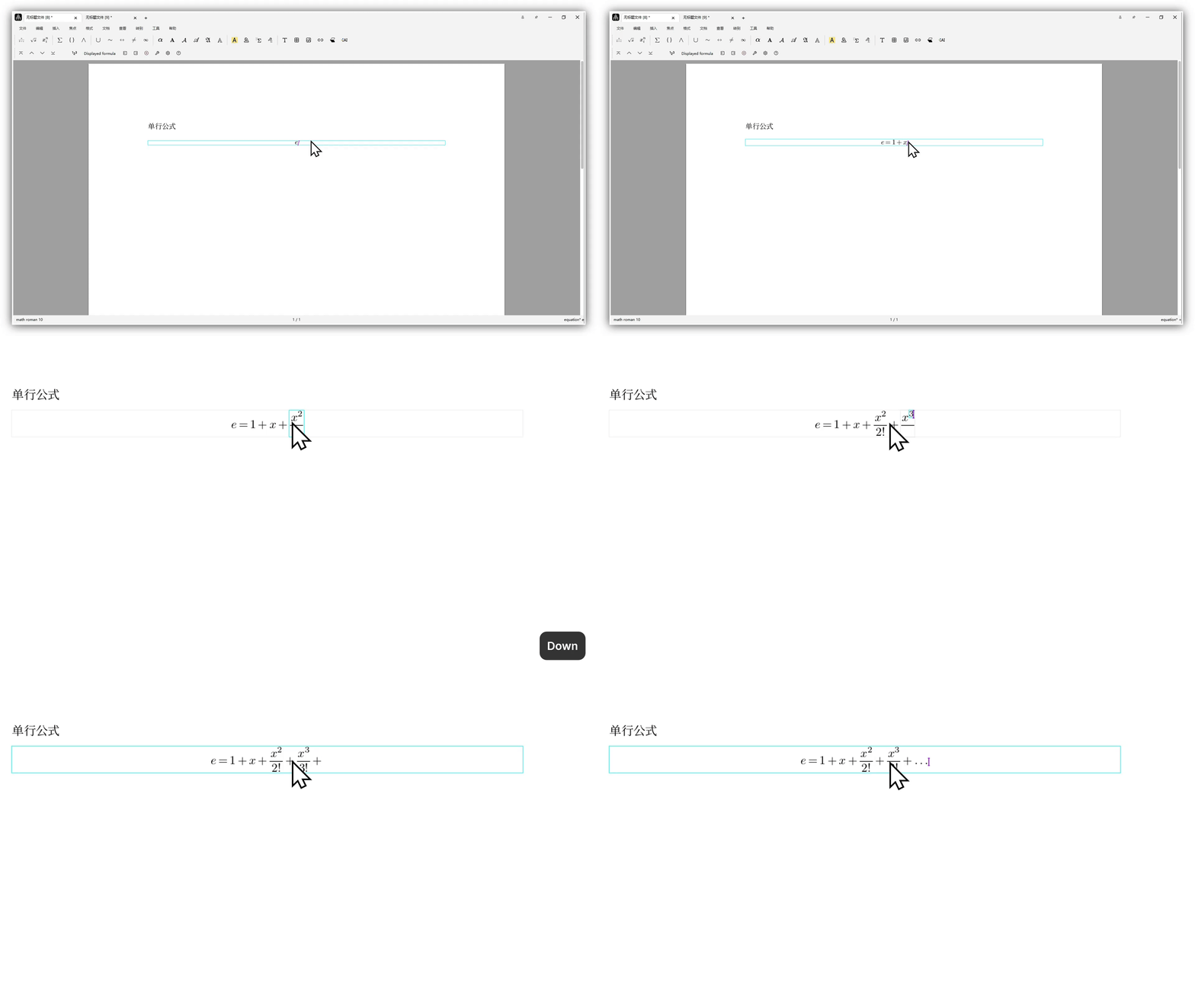
Single-line formula:
Alt+$/Option+$.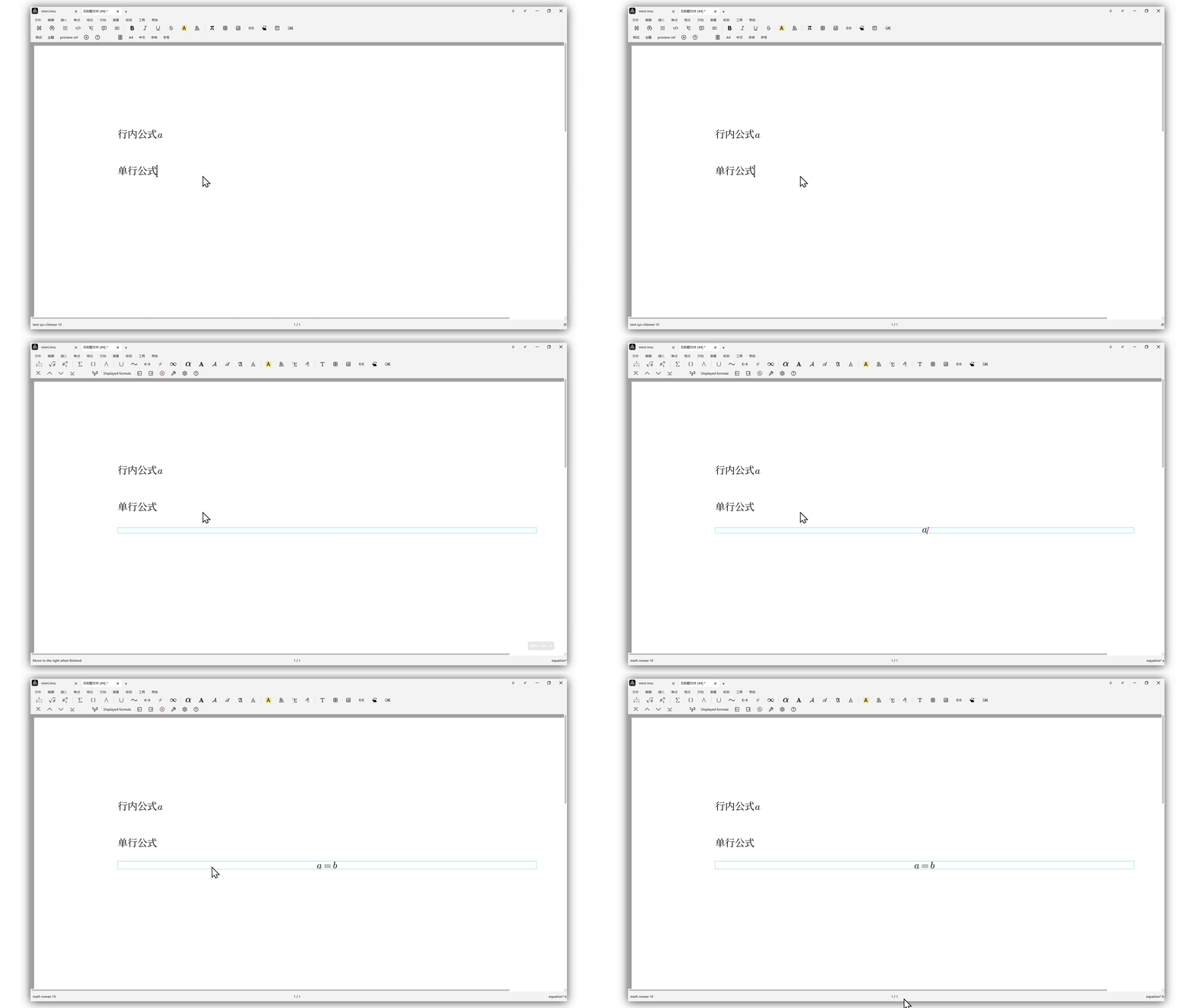
Multi-line formulas:
Multi-line formulas in \eqnarray format: Alt + & / Option + &. 
Multi-line formulas in \align format: Ctrl + $ / Command + $. 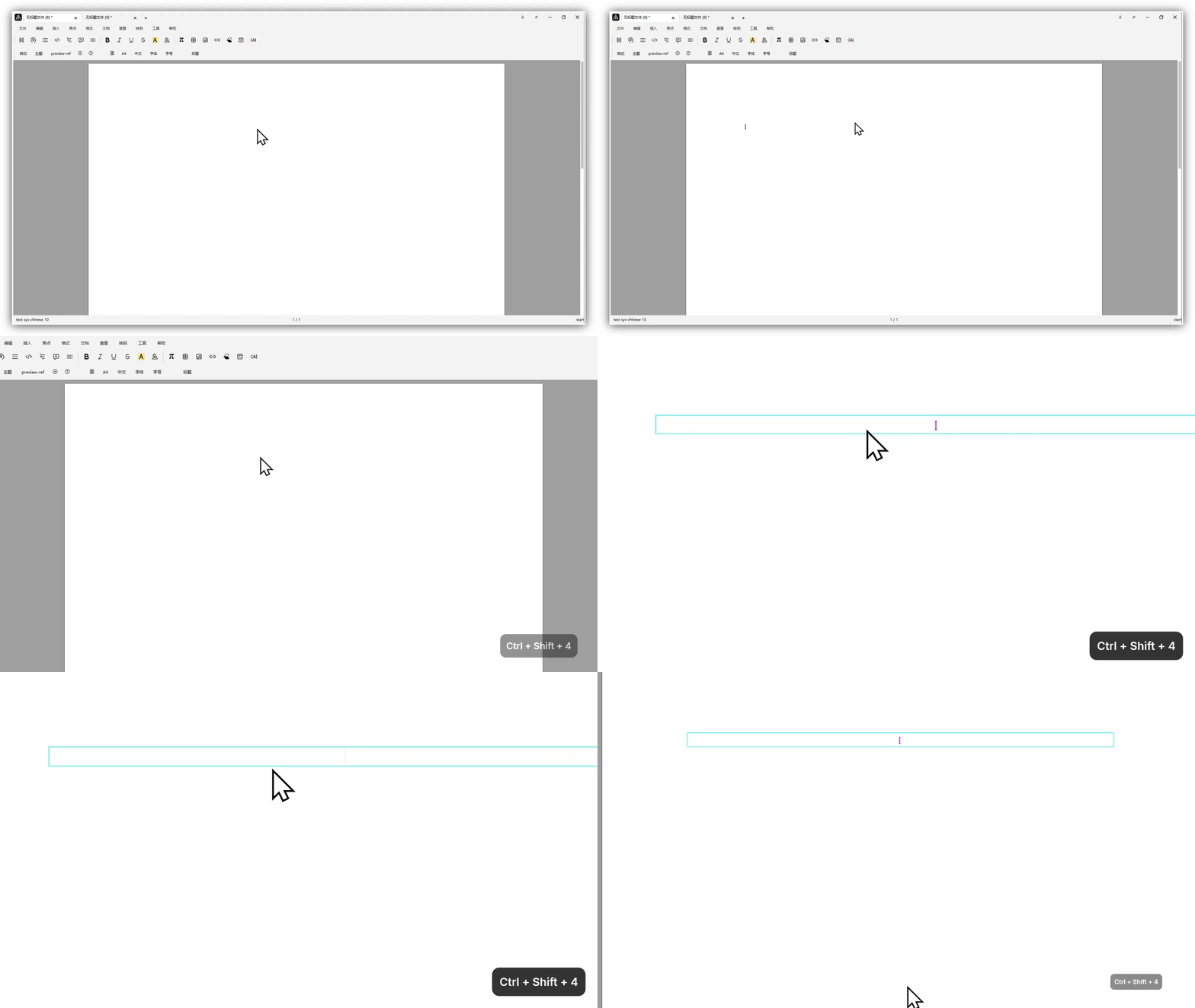
Common Questions and Notes
How to physically press these shortcuts
Inline formula: press
Shift+4at the same time.Single-line formula: hold
Alt/Option, then pressShift+4.Multi-line formula in
\eqnarrayformat: holdAlt/Option, then pressShift+4.Multi-line formula in
\alignformat: holdCtrl/Command, then pressShift+4.
What if I forget the shortcuts
If you forget a shortcut, go to Insert -> Mathematics -> Inline formula. The shortcut hint is also shown in that menu.
Why does a shortcut stop working
Shortcuts work only when you are using an English input method. If your cursor is already inside a single-line formula, these shortcuts also cannot be used to insert formulas.
Final Rendering
Inline formula
Single-line formula
Multi-line formulas:
eqnarrayandalignuse different alignment styles
Multi-line formulas in eqnarray format 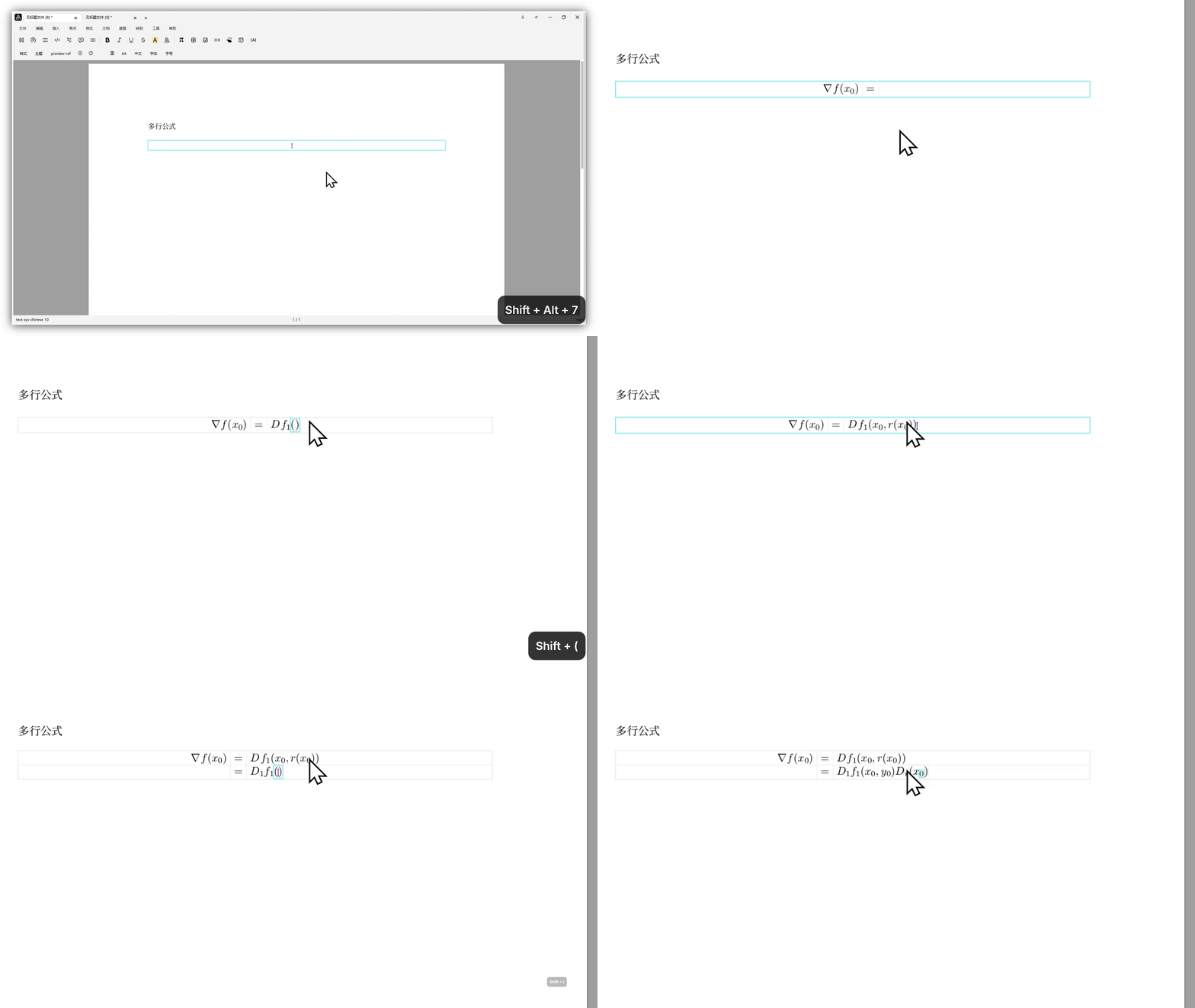
Multi-line formulas in align format 
Equation Numbering and Referencing
Number equations
In Math Mode, click 123 on the focus toolbar, or use the \eq-number command to number formulas.
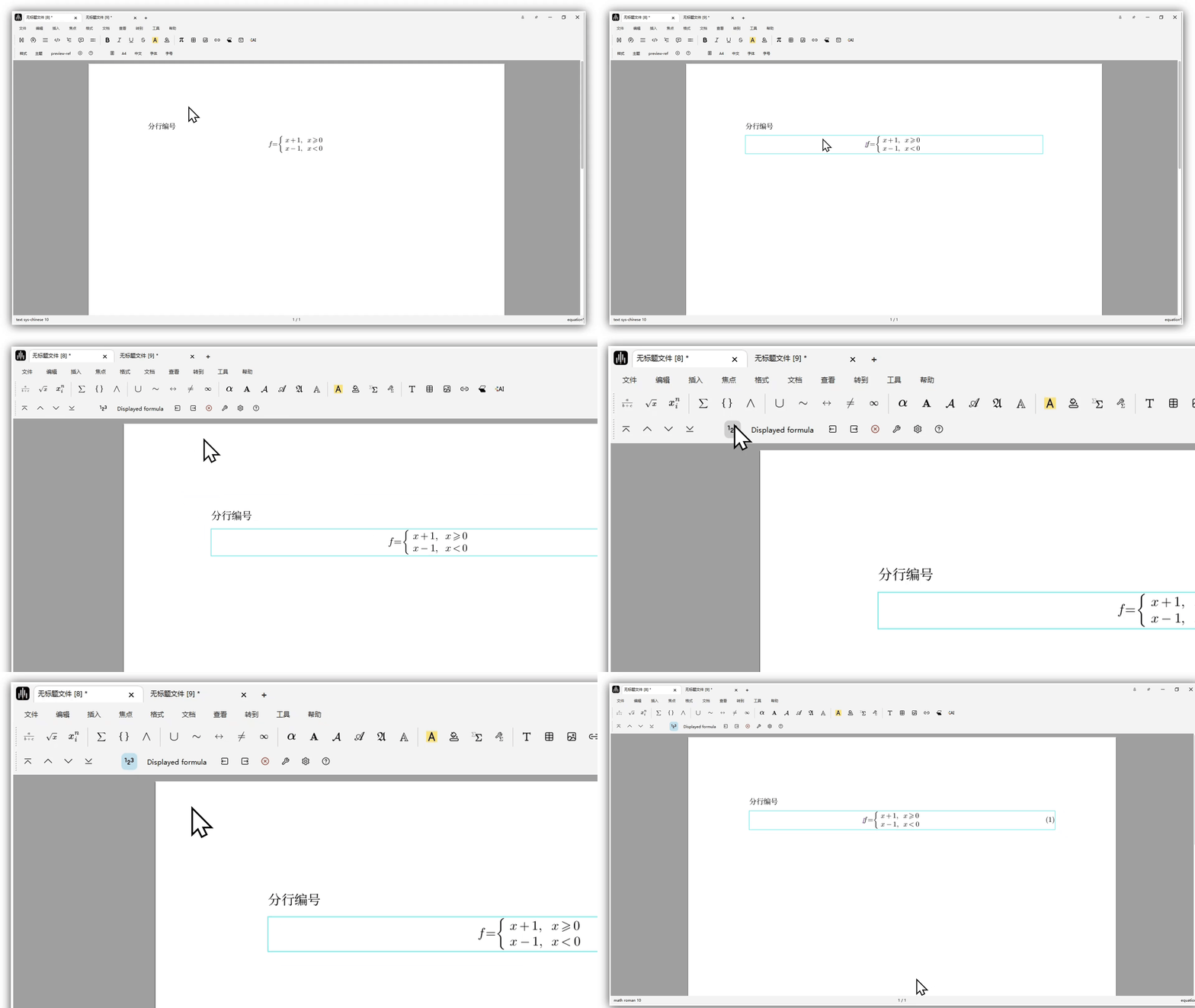
Piecewise functions can be numbered either as a whole formula or line by line. If you directly select the formula and click
123on the focus toolbar, the whole multi-line formula will be numbered.

eqnarrayformat supports only line-by-line numbering.
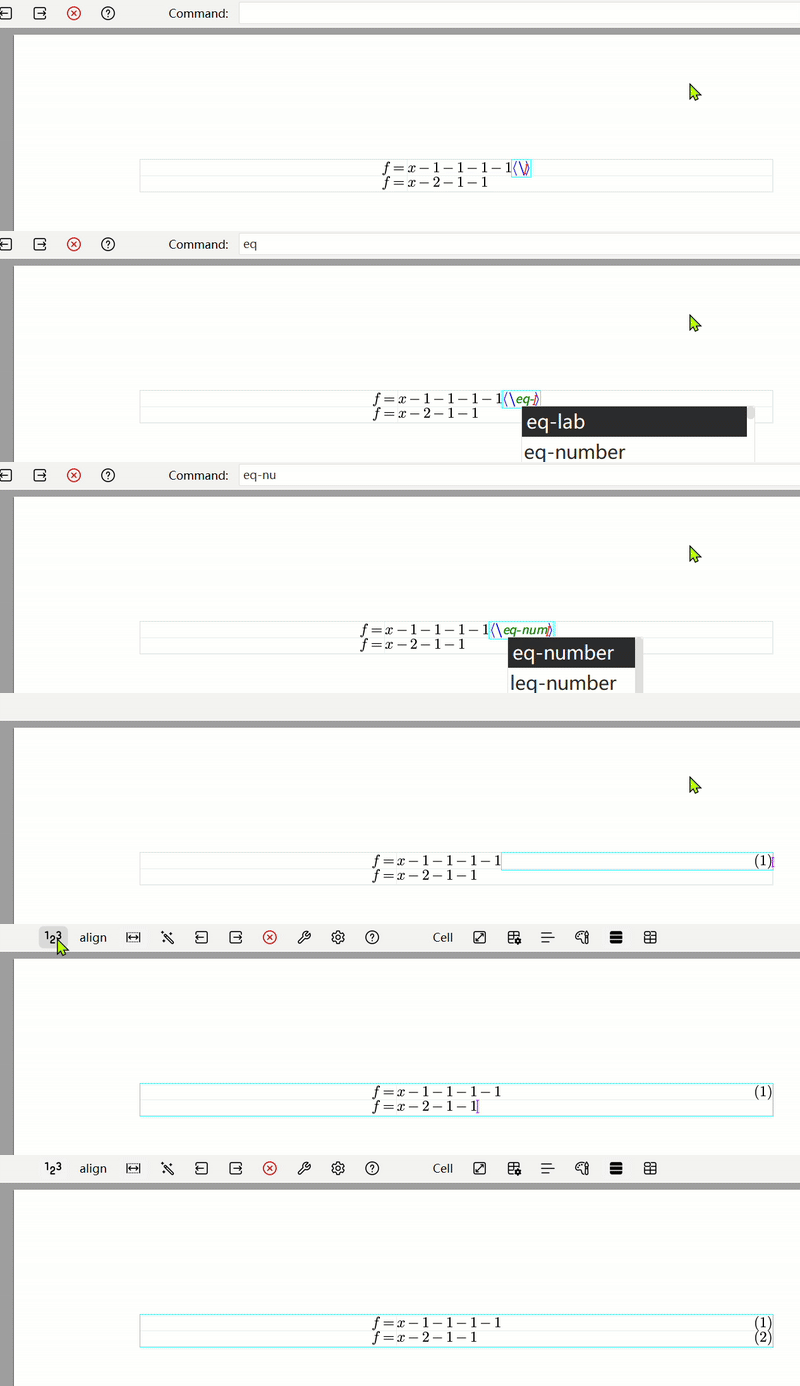
alignformat supports only line-by-line numbering.
Label and reference equations
You can add labels to numbered equations in Liii STEM so that they can be referenced later in the document. For detailed guidance, please refer to the following tutorial: