Skip to content

Cross-Referencing

In Liii STEM, environments such as formulas, images, tables, and sections provide the numbered feature. You can conveniently reference these environments later in your document.

The numbered environments supported in Liii STEM include: Figures, Tables, Ordered Lists, Sections, Subsections, all Enunciations, Single-line Formulas, and Multi-line Formulas.

1 Basic Numbering and Labeling Methods

1.1 Inserting an Environment

You can insert the numbered environment via the menu bar or the mode toolbar. The following section introduces these two methods in order.

Method 1: Insert via Menu

Click Insert in the menu bar, then select Section / Table / Image / Formula, and choose the environment you wish to insert.

Method 2: Insert via Mode Toolbar

You can directly select the environment you want to insert from the mode toolbar in Text Mode, as shown in the figure below:

Note! When inserting Tables or Images, please select from the following two environments. Other environments do not support the numbered feature.

Example:

1.2 Numbering Content

In Math Mode, click the 123 button (or use the shortcut Ctrl + #) in the focus toolbar to add a number.

Figures, tables, and sections are numbered automatically upon insertion. If not, you can click the 123 button to manually add one.

1.3 Using the \label Command to Tag Content

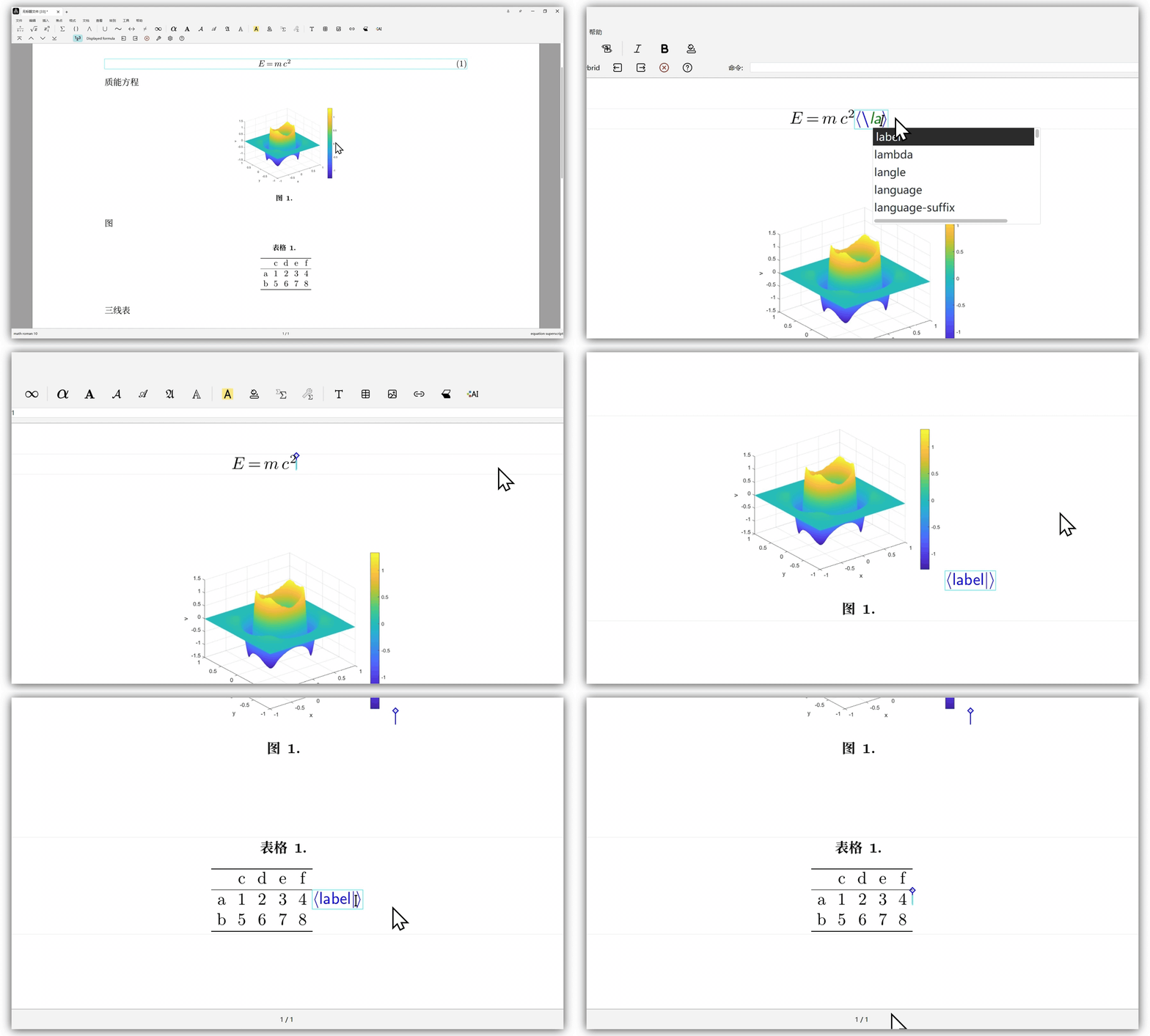
At the numbered content you inserted, type \label and press Enter (or use the shortcut Ctrl + !).

  • Enter a custom name. It is recommended to use the "category:name" format, such as fig:model-arch. A blue marker, will appear to the right of the successfully labeled content. Then, press Enter.

1.4 Viewing Labels Inserted in Formulas

In Liii STEM, after inserting a label in a formula, you can view the label name in two ways:

  1. By Showing Hidden Content

    • Move the cursor to the label position at the end of the formula.
    • Click FocusShow Hidden.
    • The label will then be displayed in the editing area.
    • Move the cursor to the label position at the end of the formula.
    • Click DocumentInformative flagsDetailed.
    • The label (e.g., eq-square) will be displayed above the formula.

2. Basic Referencing Methods

Liii STEM provides two referencing methods. You can use the traditional approach via the \ref command. You can utilize our \smart-ref for greater efficiency, a feature that will be discussed in Section 3.

2.1 Using the \ref Command

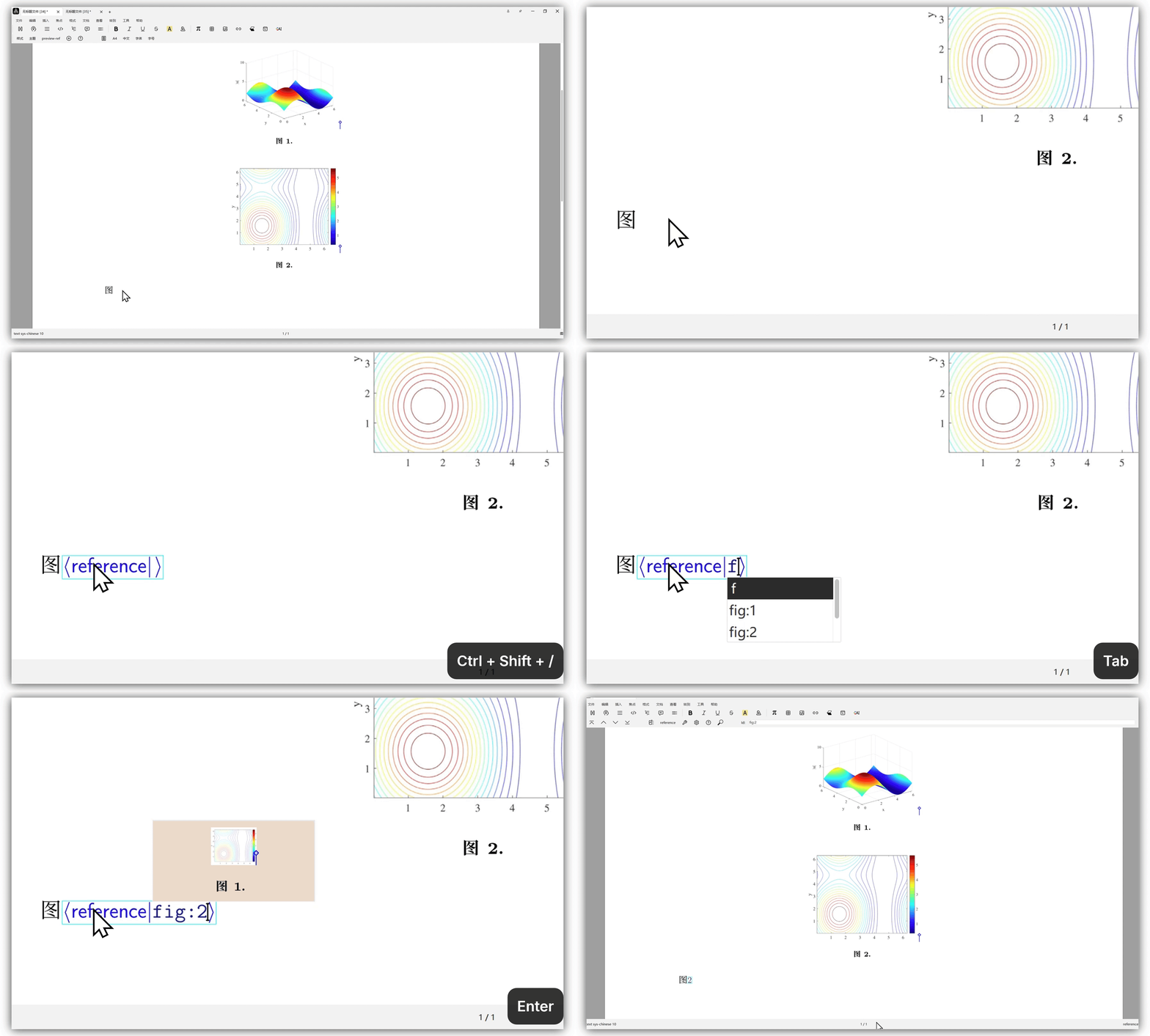
  1. Type \ref and press Enter.
  2. Enter the labeled name of the content you wish to reference and press Enter again.

Note:

  • Ensure your input exactly matches the labeled name you defined previously.
  • Use Space + Tab to insert a Non-breaking Space.

3 Using smart-ref to speed up referencing

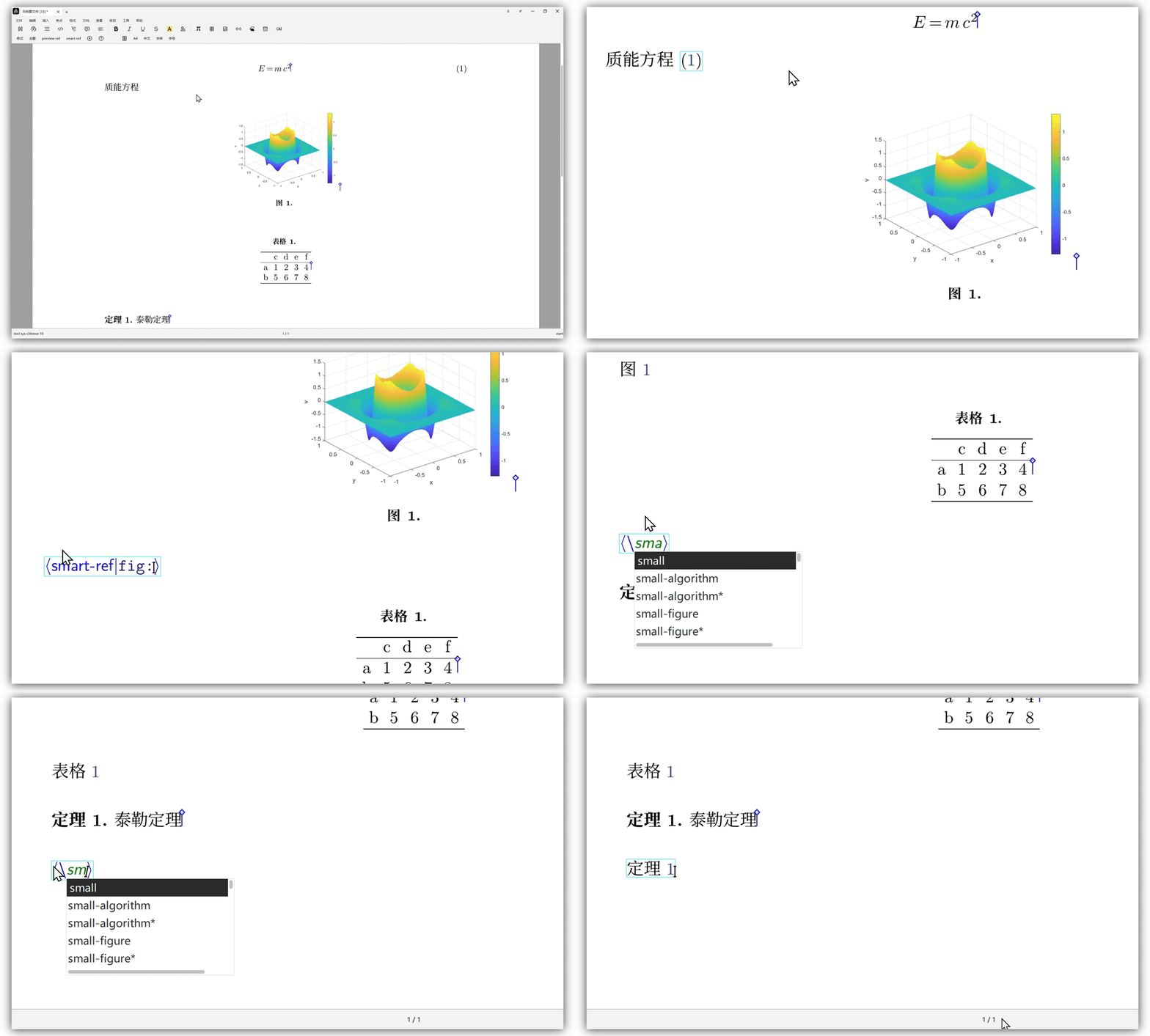
The smart-ref feature automatically identifies the type of content you are referencing and generates the appropriate reference, eliminating the need to manually type the type name and the non-breaking space.

3.1 Enabling smart-ref

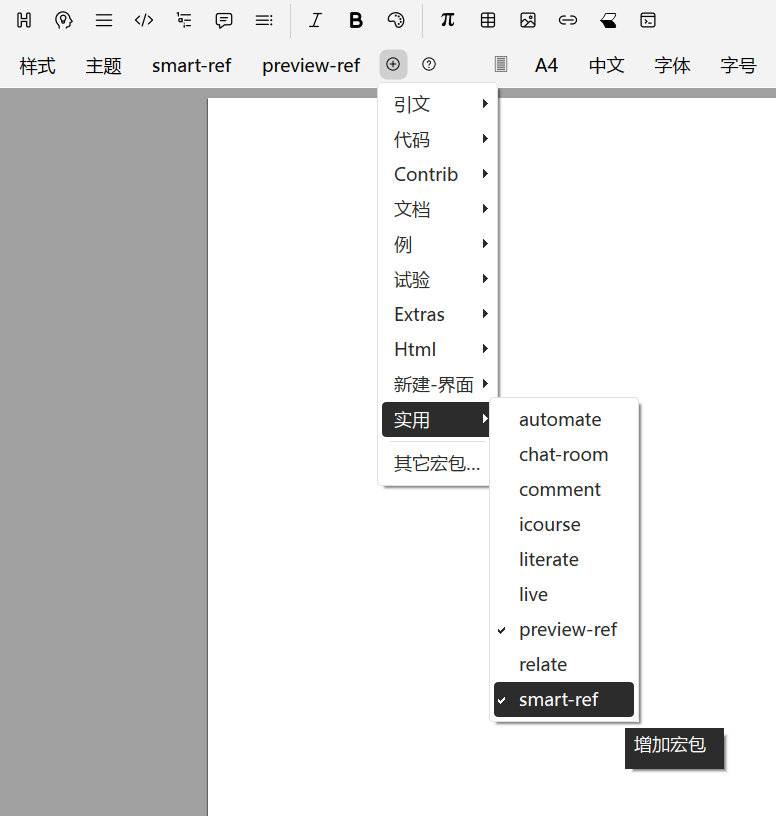
  1. In Text Mode, click the button on the focus toolbar.
  2. Under the Utilities category, check the box for smart-ref.

3.2 Implement a Quick Reference

  1. Type \smart-ref and press Enter.
  2. Enter the label name of the content you wish to reference and press Enter.

Note: To disable this plugin, click its name in the focus toolbar while in Text Mode and select Remove Package.

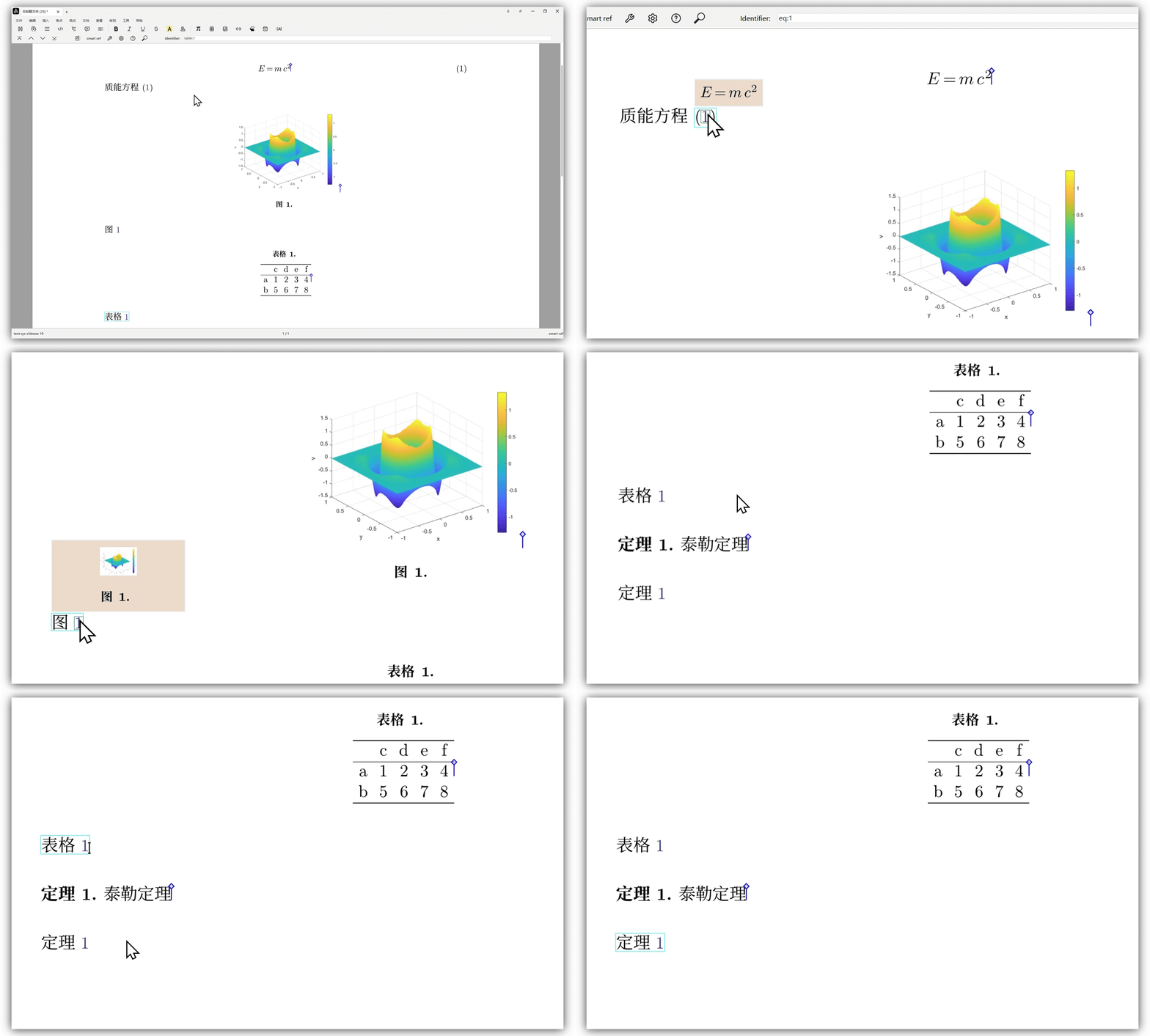
4 Using the preview-ref for reference previews

4.1 Enabling preview-ref

  1. In Text Mode, click the button on the_ focus toolbar_.
  2. Under the Utilities category, check the box for preview-ref.

4.2 Real-time preview

Hover your mouse pointer over any reference number to preview the corresponding labeled or referenced content.