Appearance
Conda Installation
1. Choose a Python distribution
To run executable Python code blocks in Liii STEM, make sure at least one Python environment is available. For beginners, Anaconda is recommended because it is easy to install and manage.
2. Download and install
2.1 A. Terminal package manager (advanced users)
macOS (zsh + Homebrew)
bash
# Install Anaconda
brew install --cask anaconda
# Enable conda auto-activation
conda init zsh
# Restart terminal and verify
conda --version
2.1 B. Download installer package
Go to https://www.anaconda.com/download and download the installer for your OS.
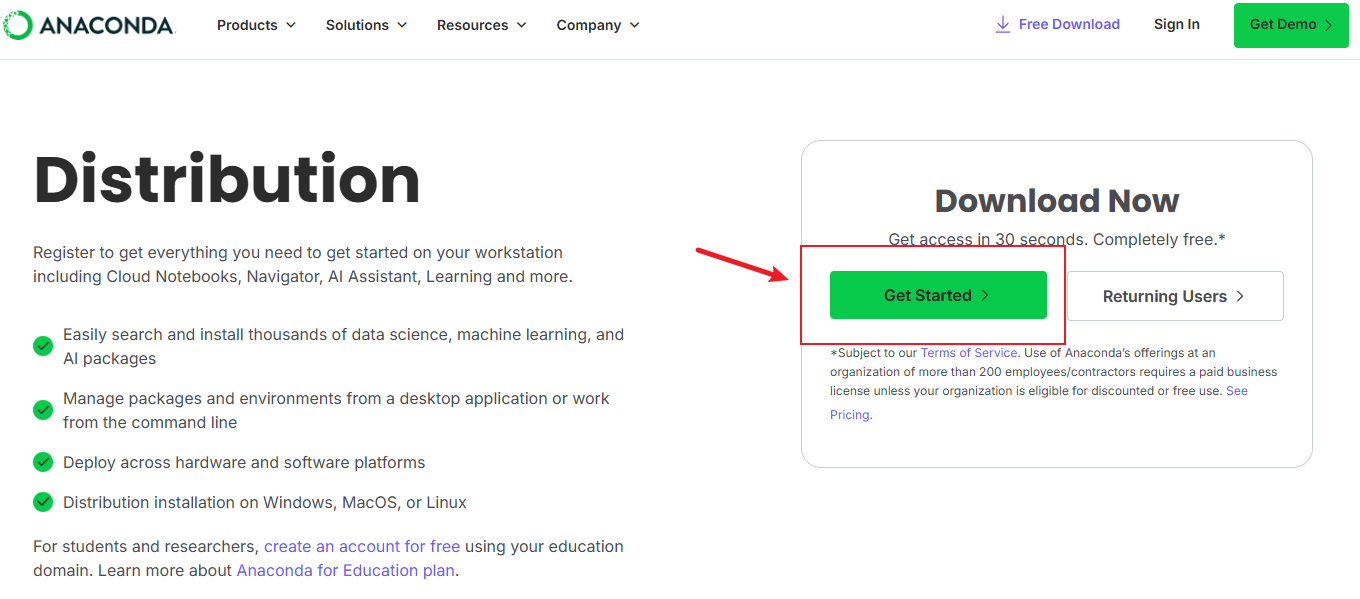
Sign in or register first.

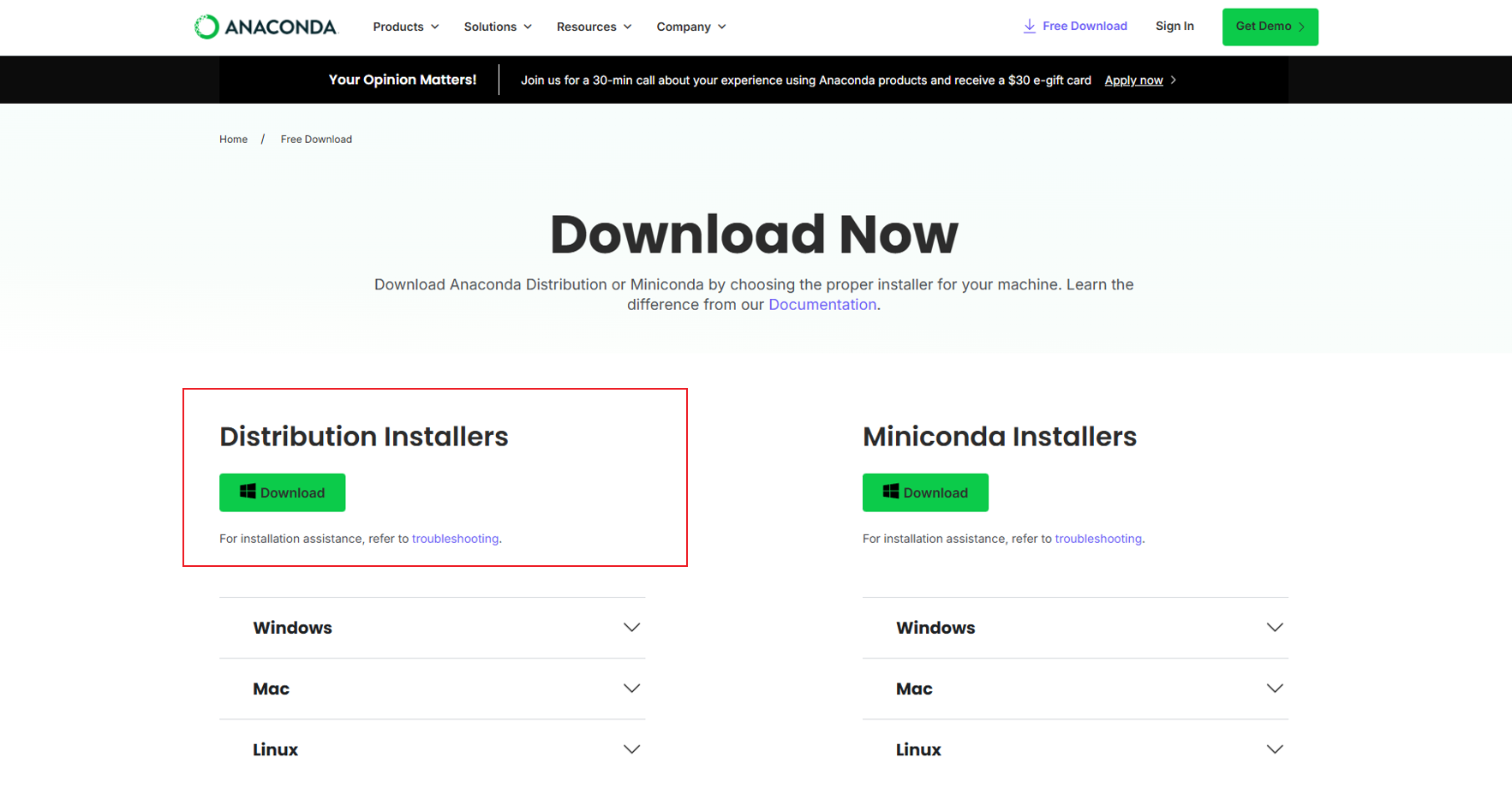
Choose Anaconda on the left and download.
2.2 Windows installation
Run the installer.
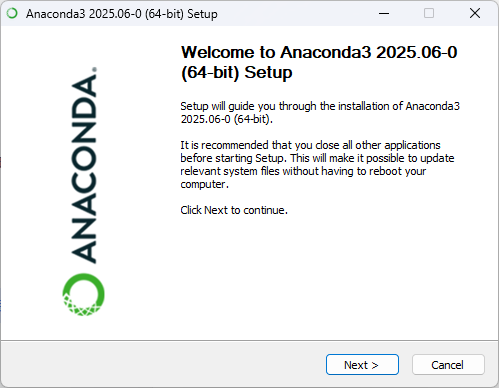
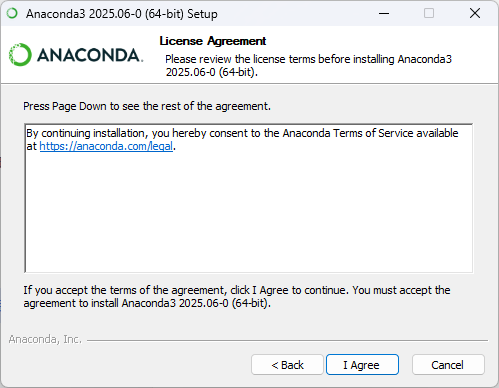
Click I Agree.
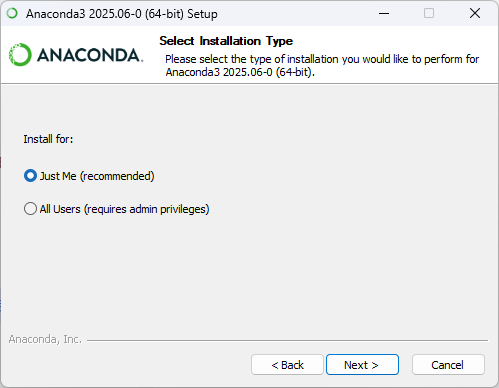
Choose Just Me.
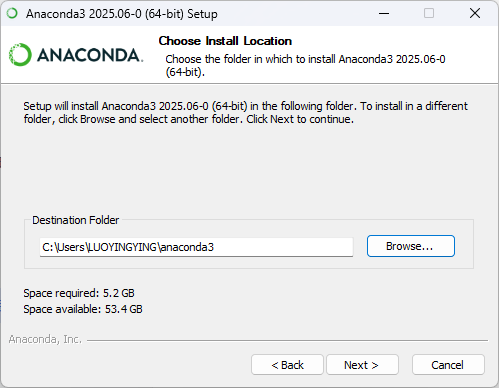
Liii STEM can detect the default install path automatically.
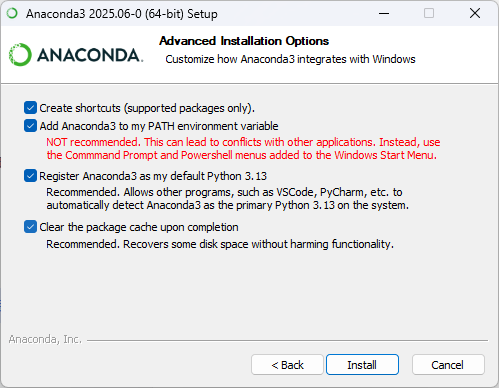
Select all options and click
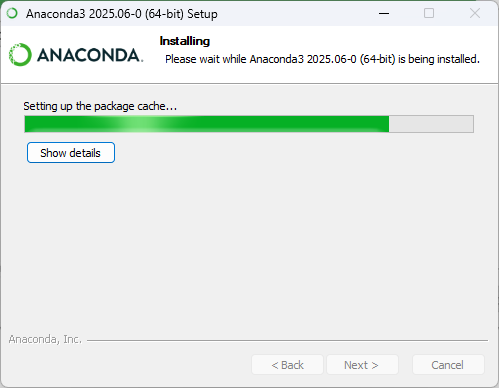
Install. EnsureAdd Anaconda to my PATH environment variableis checked.
Installation may take 5-10 minutes.
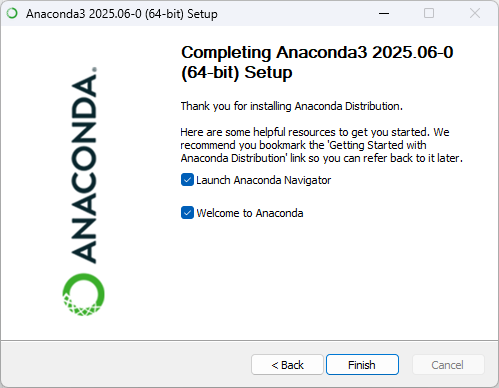
Click Finish.
2.3 macOS installation
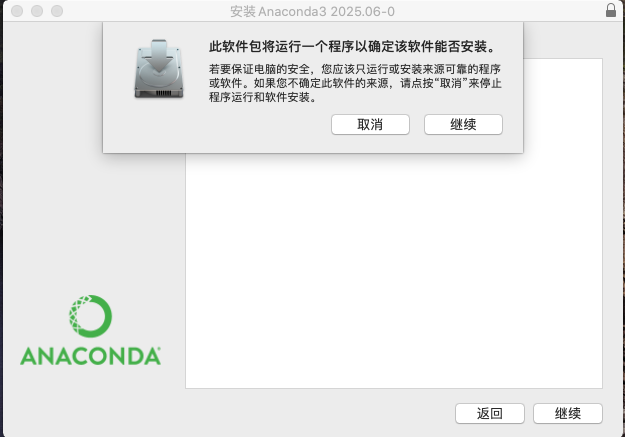
Run the installer and click Continue.
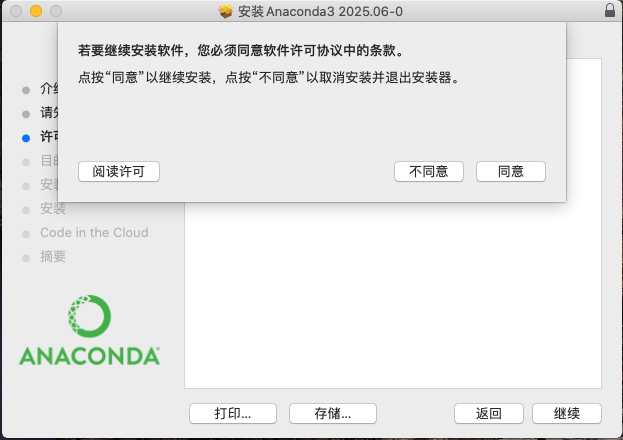
Accept the license.
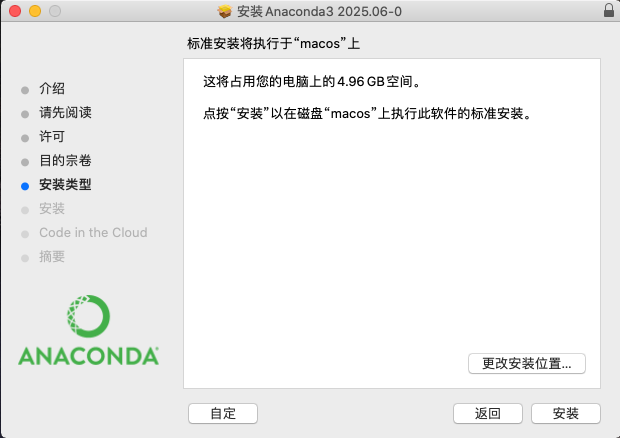
Use the default path and click Install.
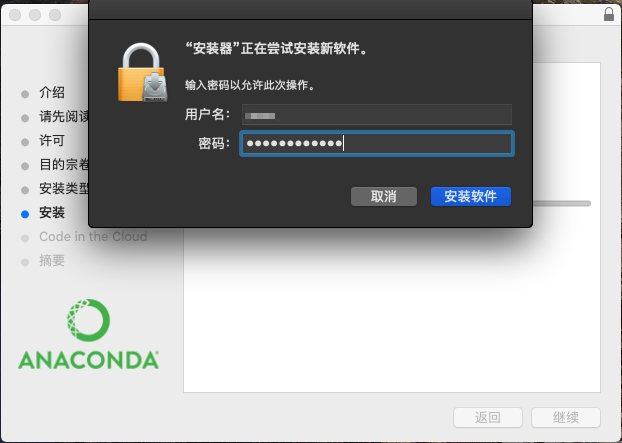
Enter your password and continue.
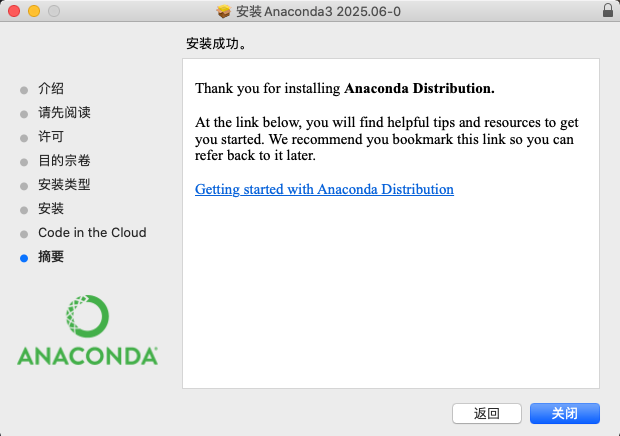
Click Close when done.
3. Verify installation
3.1 Windows
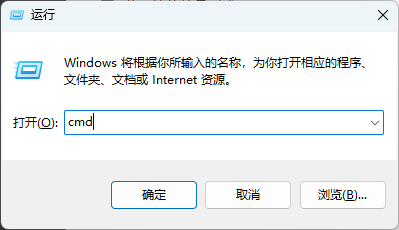
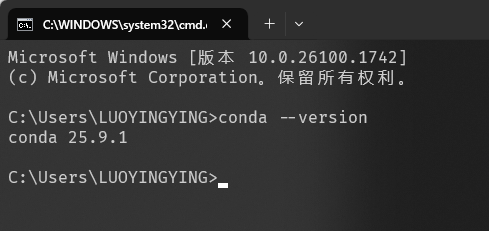
Press Win + R, run cmd.
Run:
bash
conda --versionIf output looks like the screenshot below, installation succeeded.
3.2 macOS
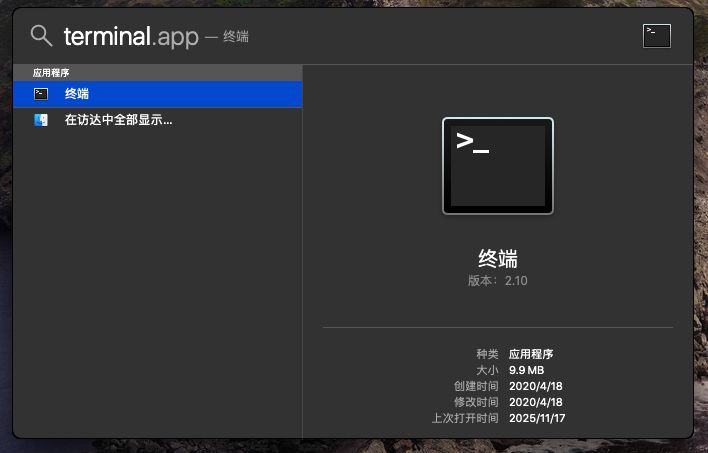
Press Command + Space, search terminal.
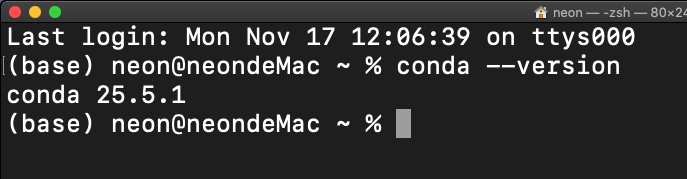
Run:
bash
conda --versionIf output is normal, installation succeeded.
4. Create a conda environment
Liii STEM supports both base and custom conda environments.
Open Anaconda Navigator:
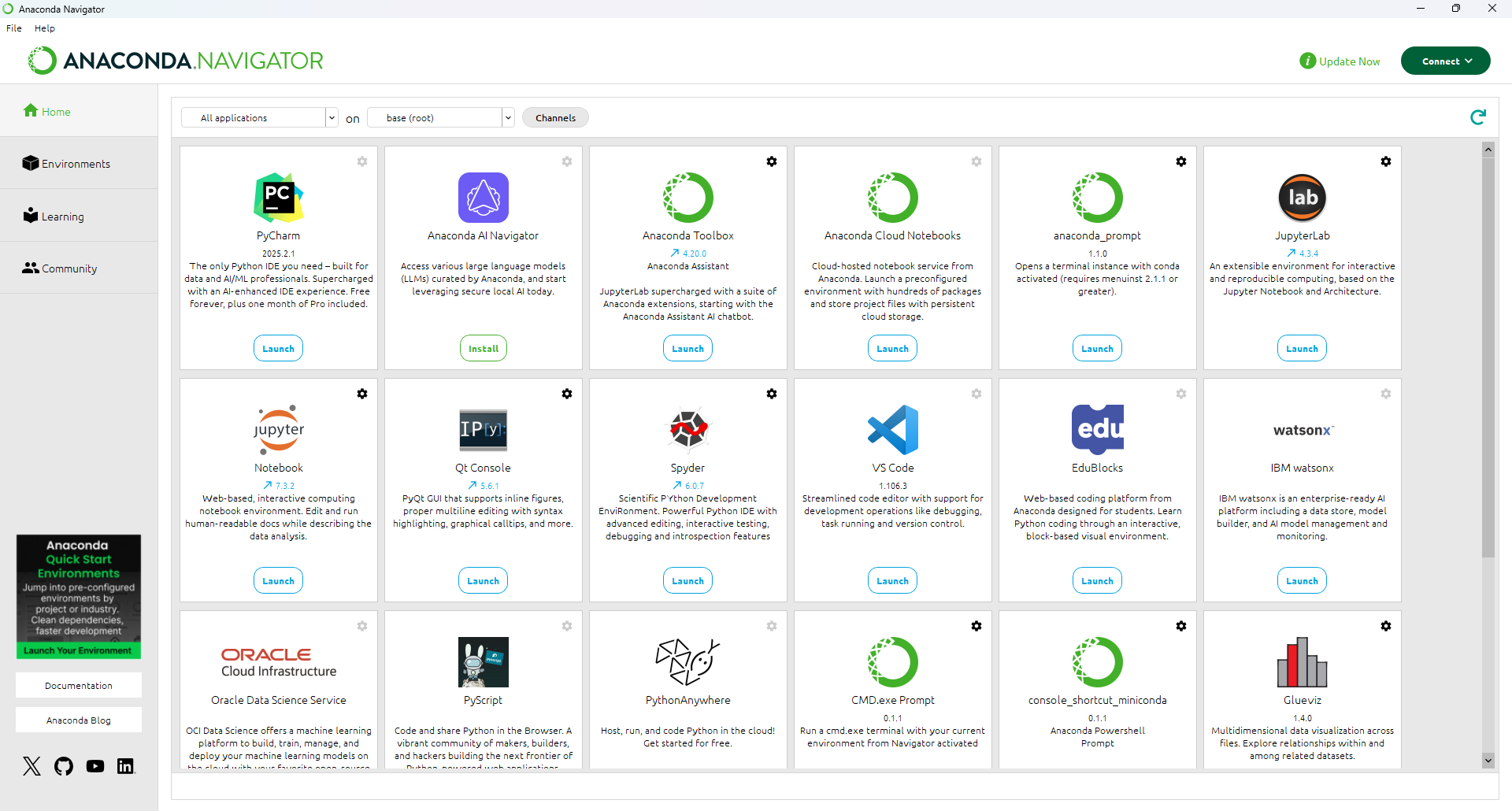
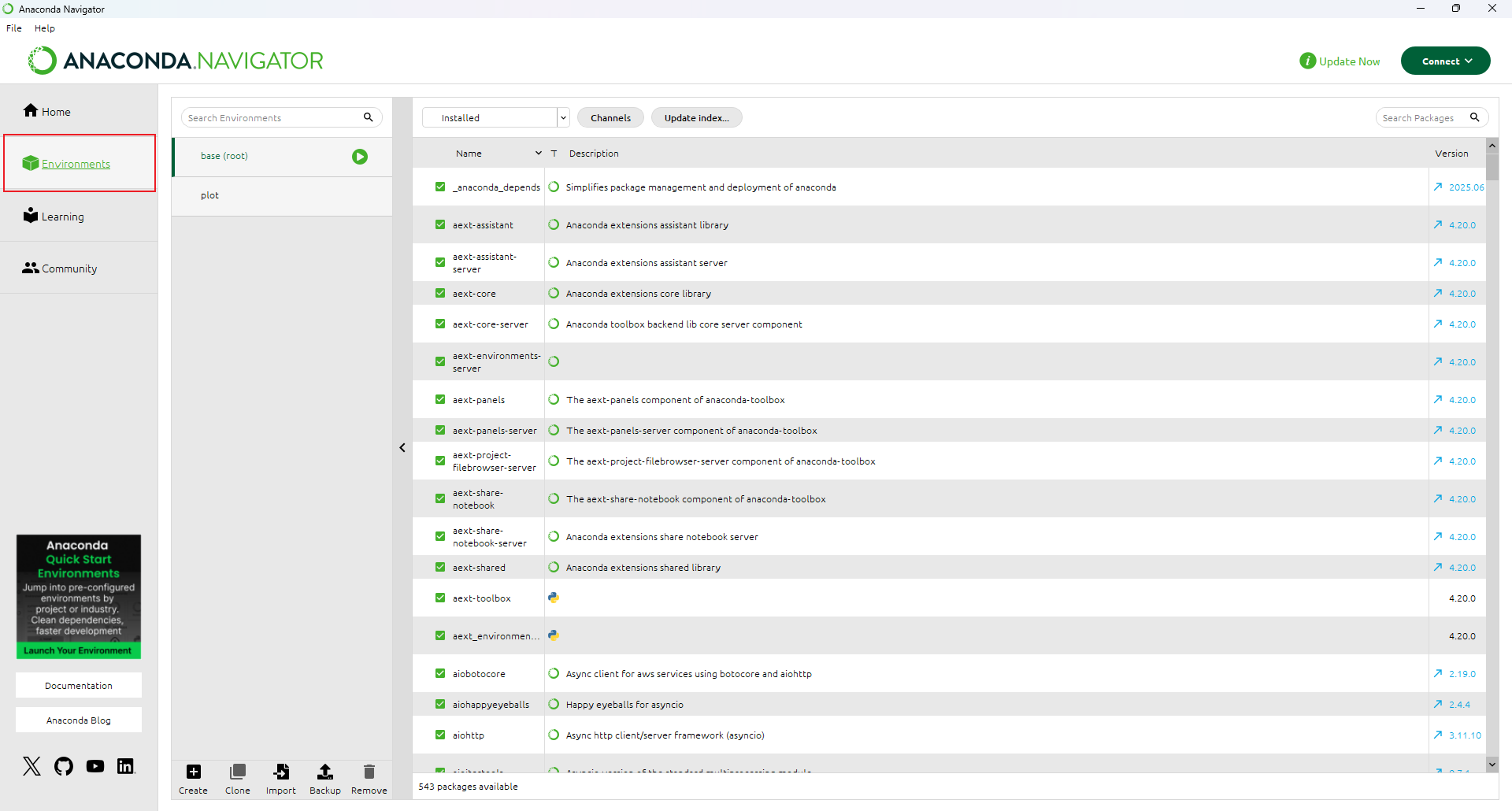
Go to Environments:
Click Create, set environment name and Python version, and create it.
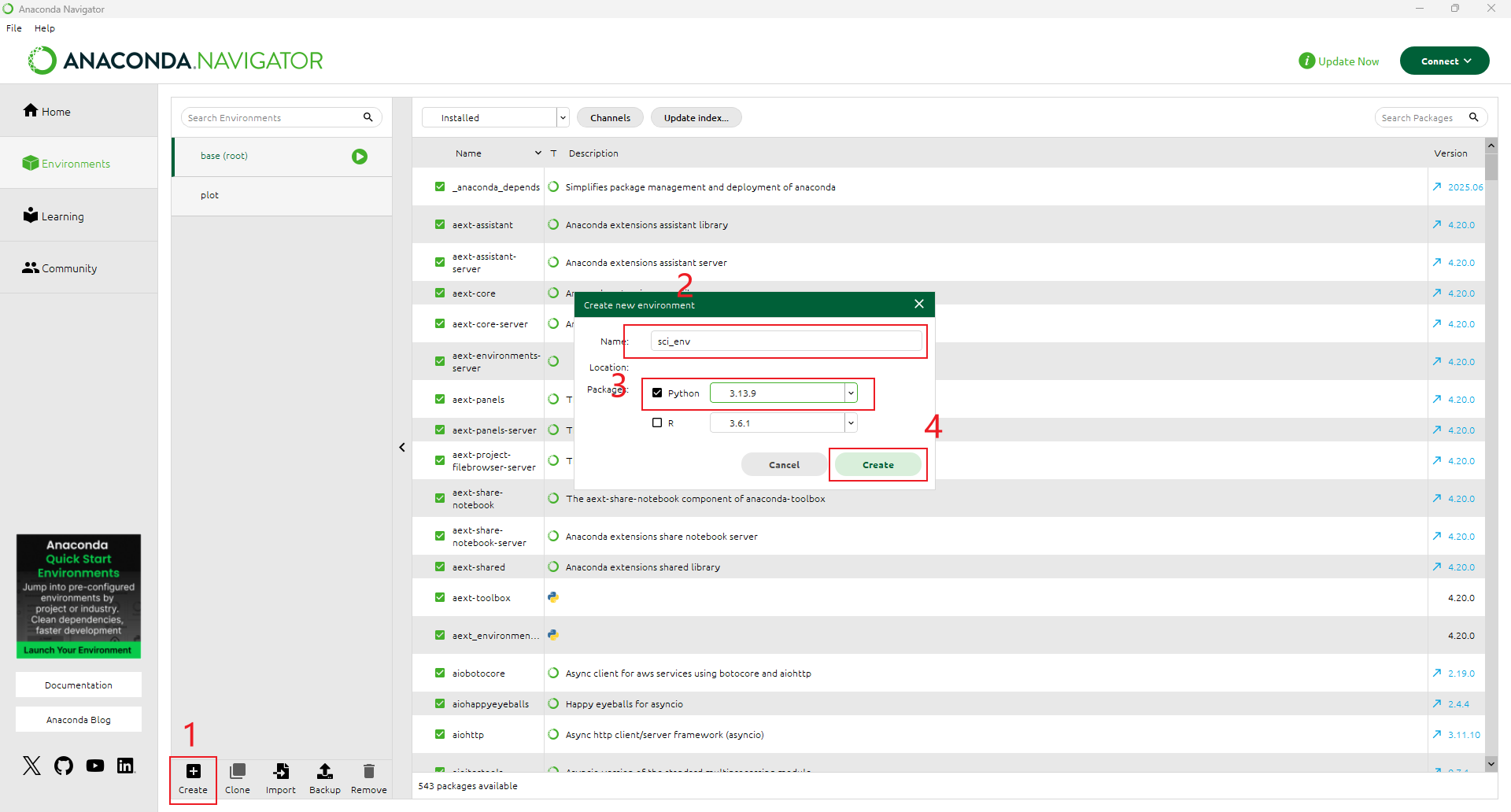
sympycurrently does not support Python 3.14. Use Python 3.13 or earlier.
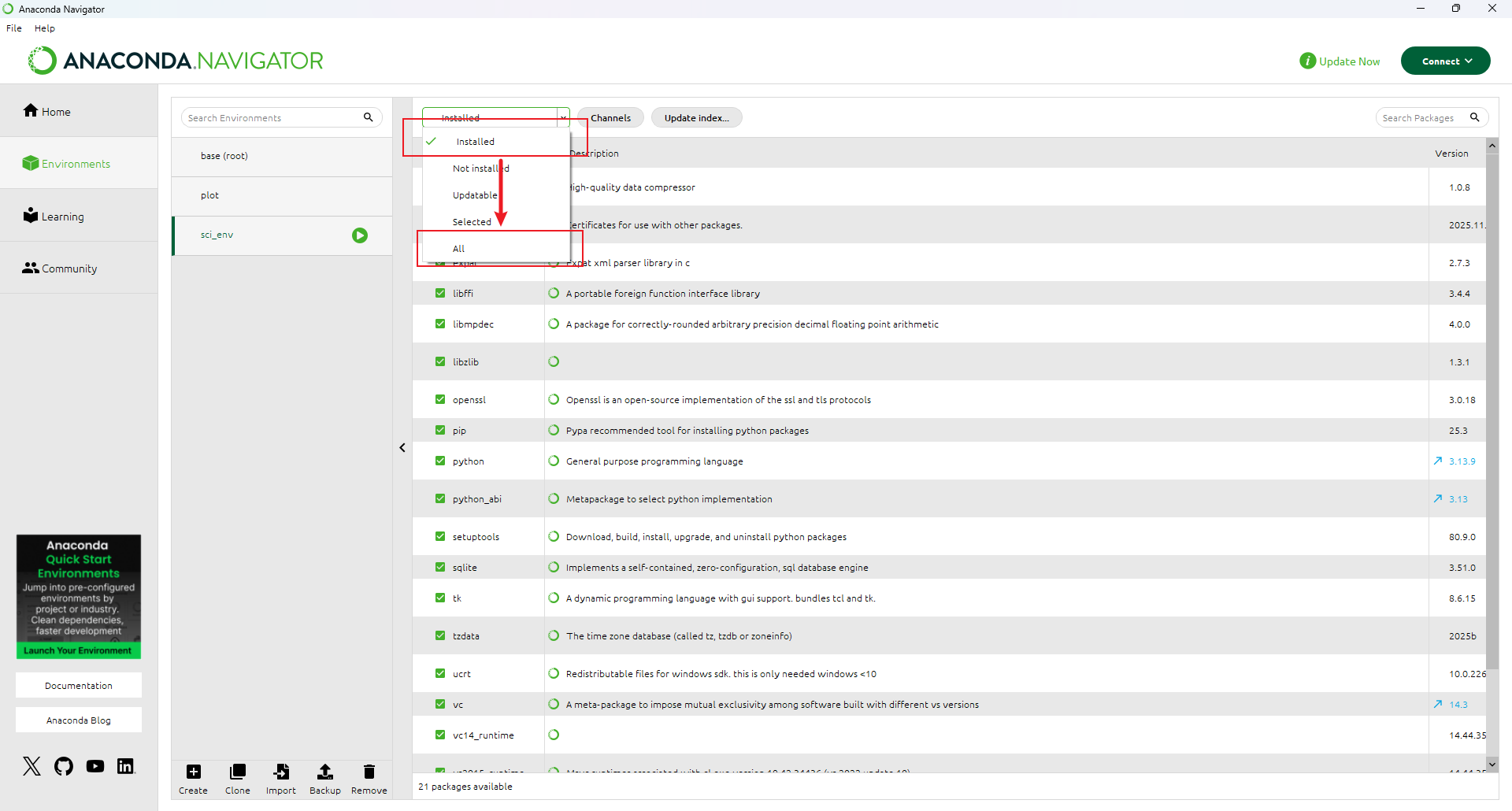
Select the new environment. Switch the filter from Installed to All.
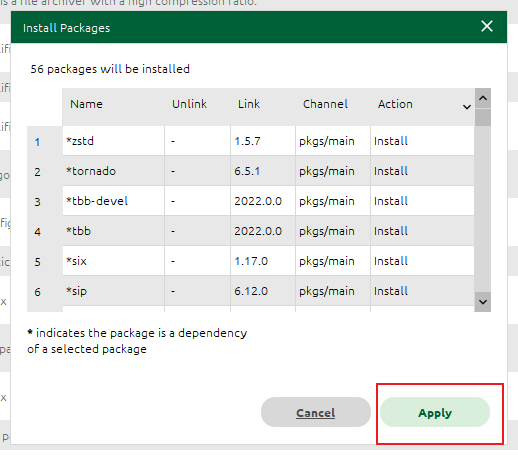
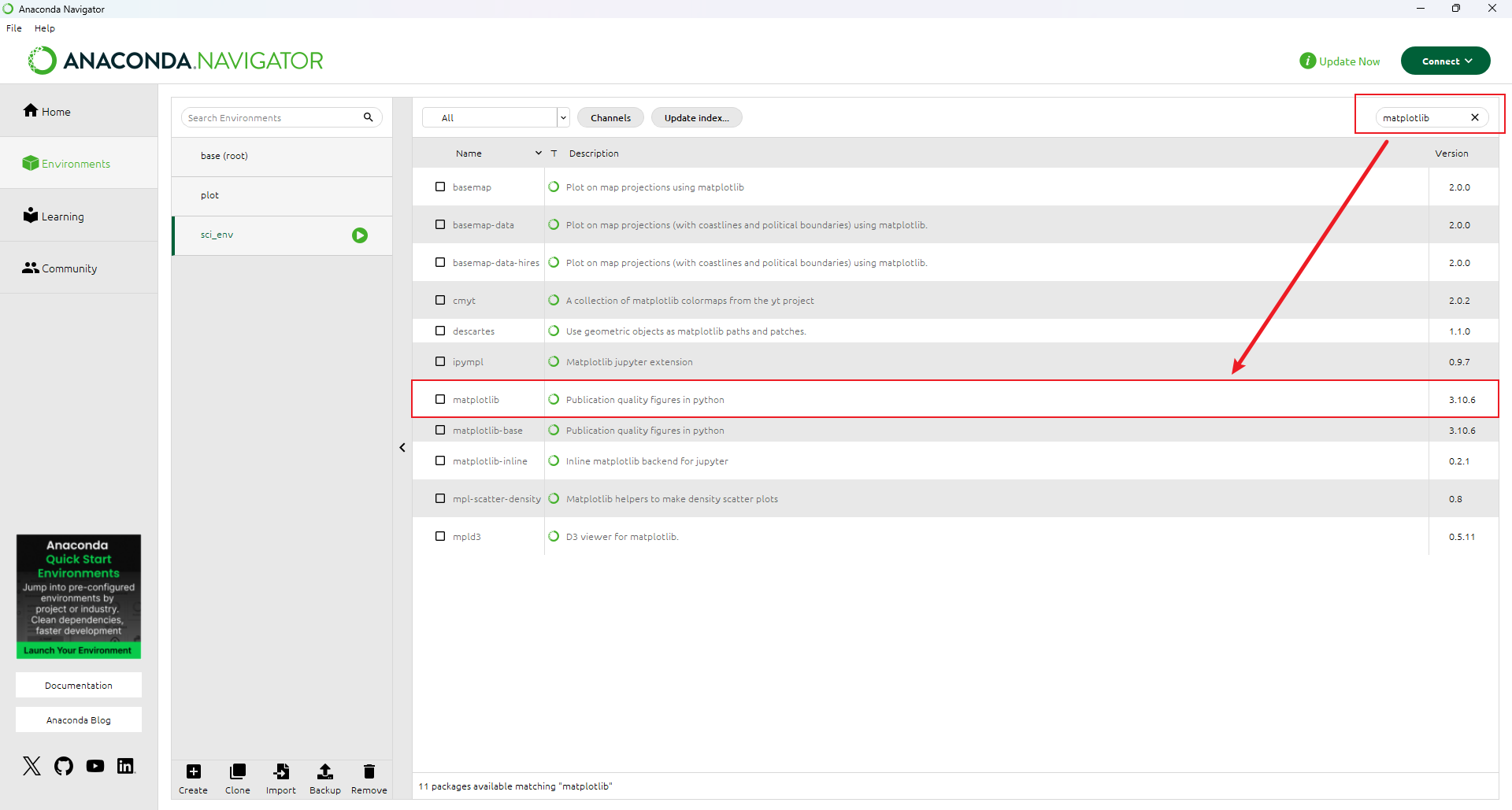
Install these packages: matplotlib, pandas, numpy, sympy.



Click Apply.
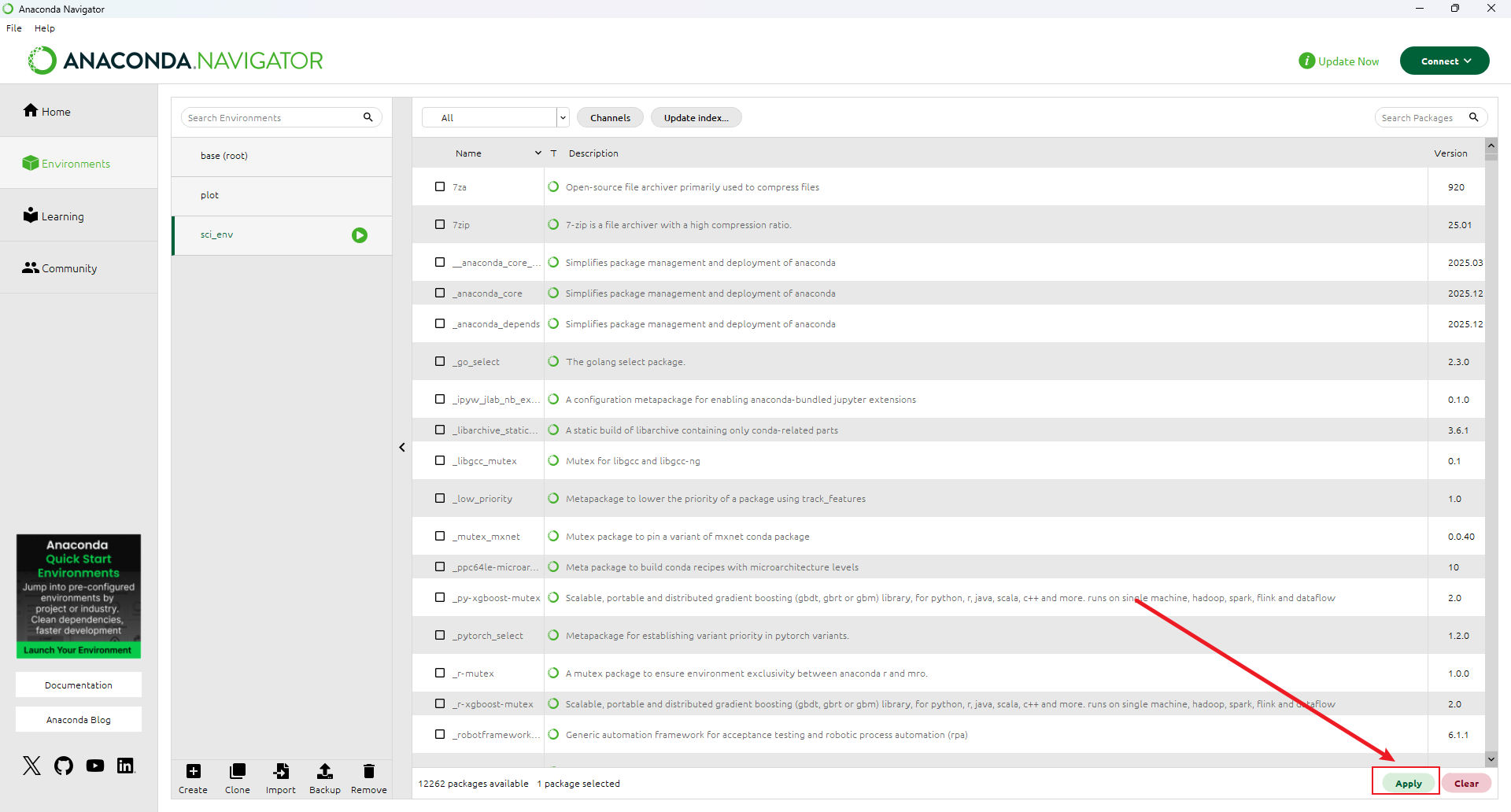
Confirm again and wait for installation.