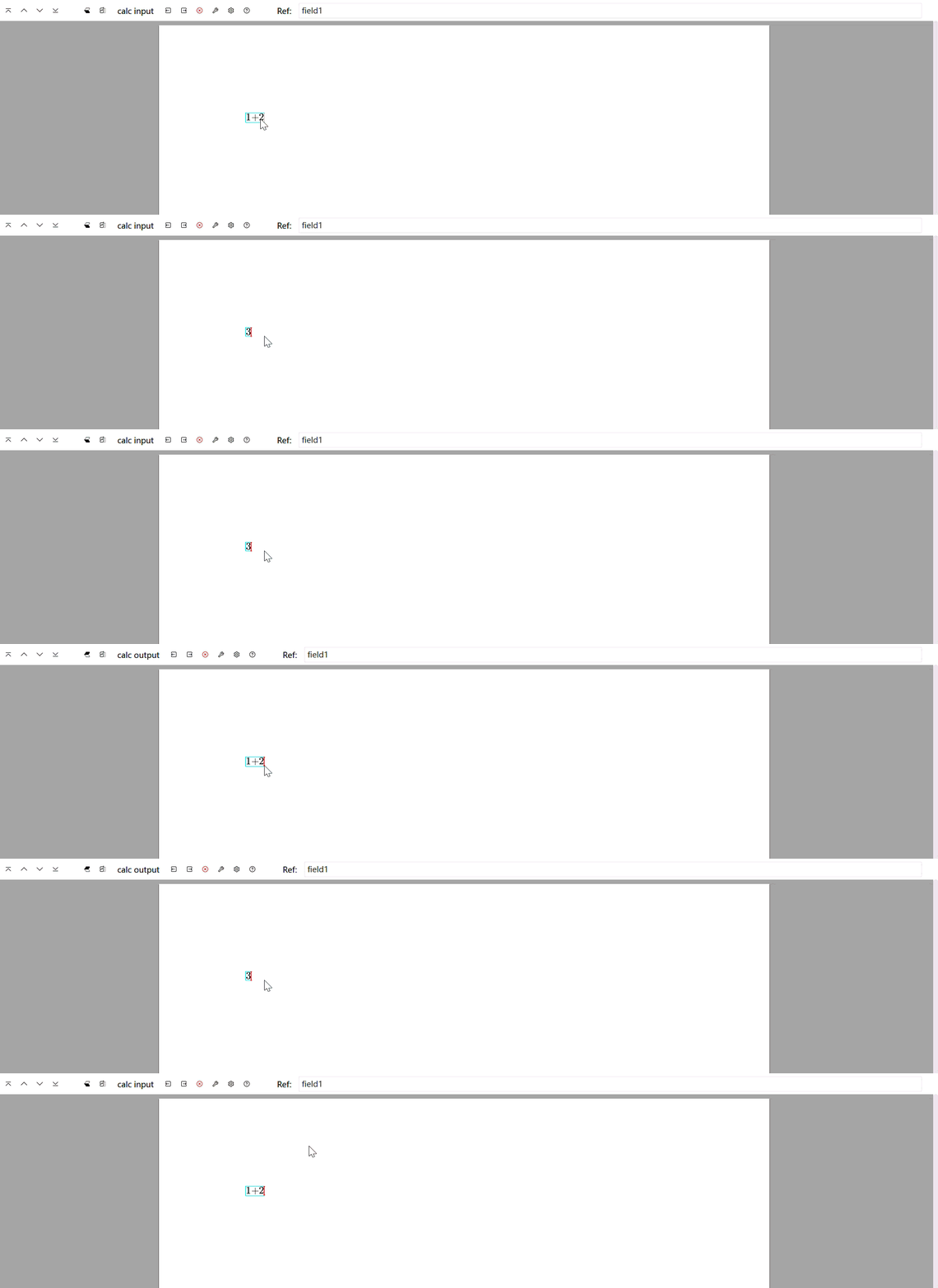
Appearance
Python Session Plugin
In Liii STEM, you can run Python code by inserting a Python session block.
Enter a Python session
First, make sure Python is installed on your computer. Then click Insert session -> Python in the mode toolbar.
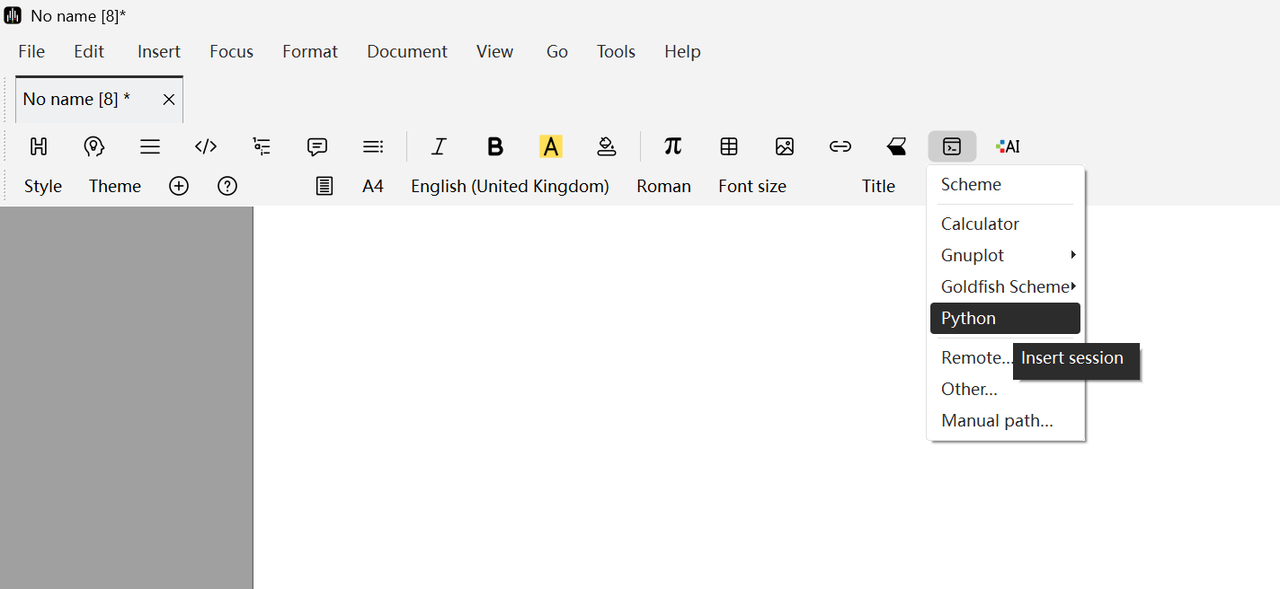
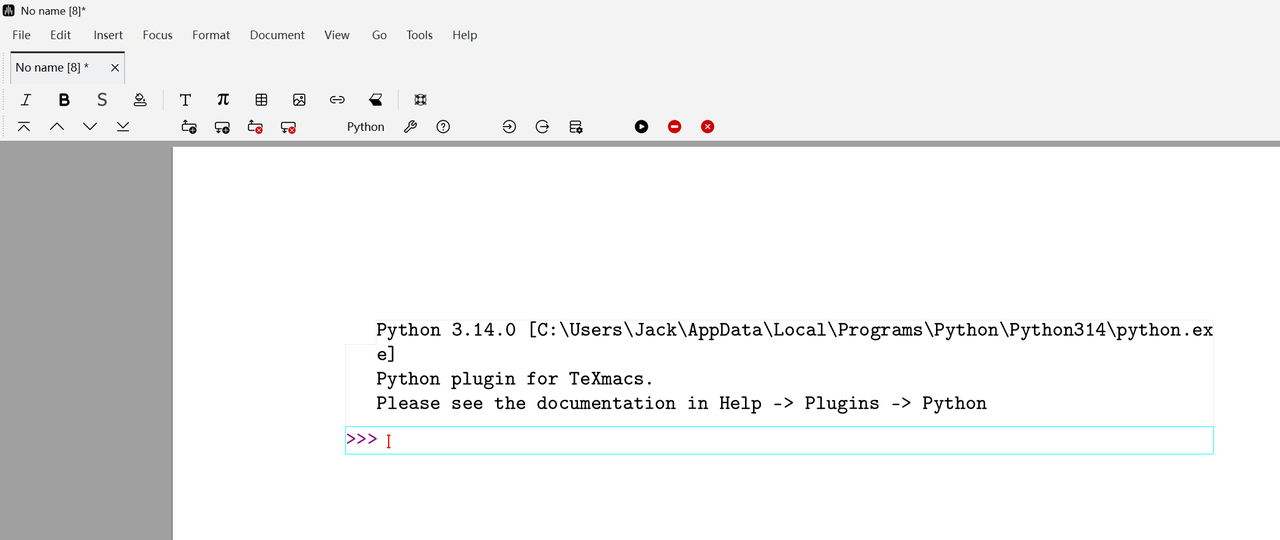
After first insertion, the page will look like this:
Run code
Type code in the block and run it.
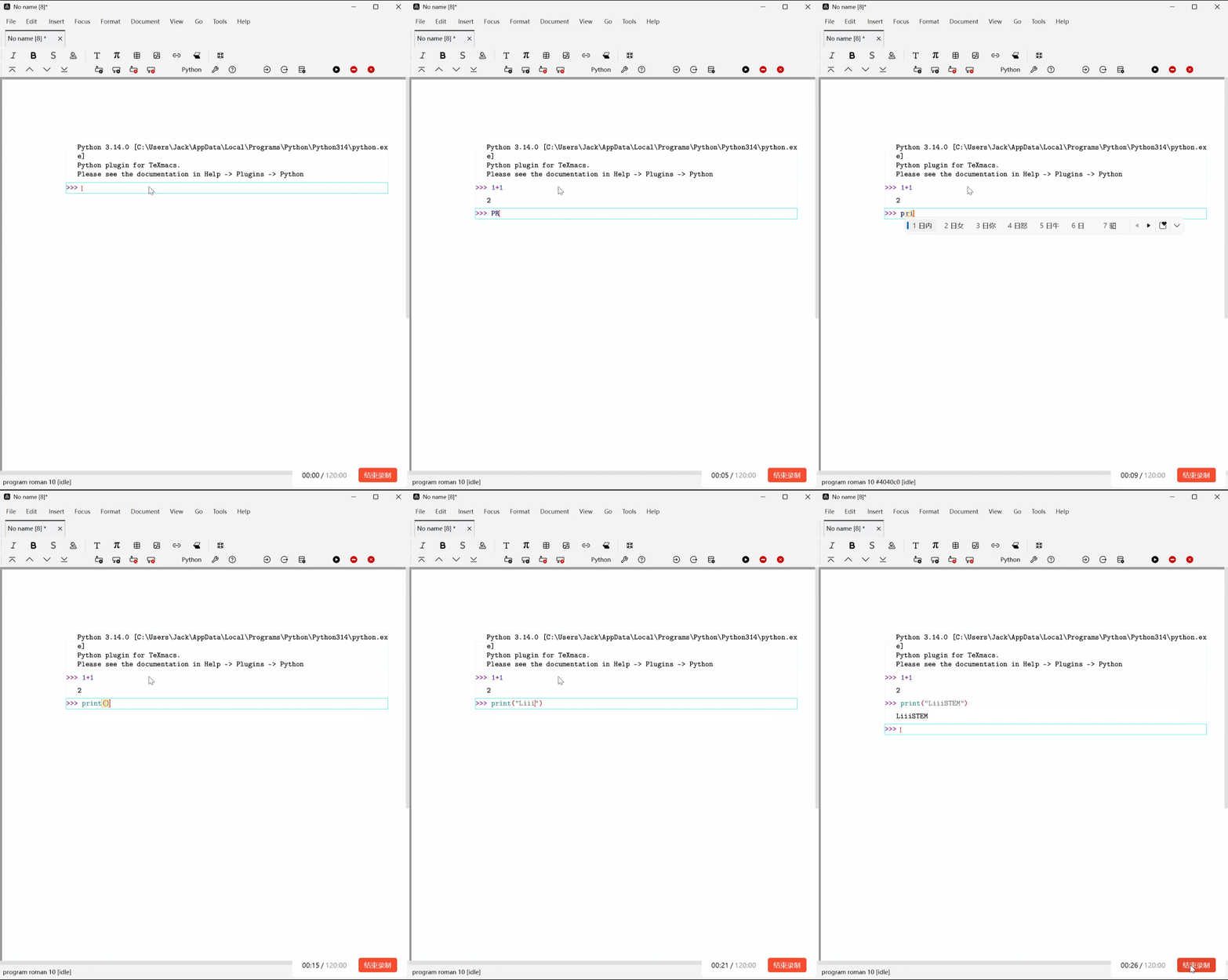
Liii STEM supports all available conda environments.
Plugin usage notes
Open Help -> Plugins -> Python to view the full plugin guide.
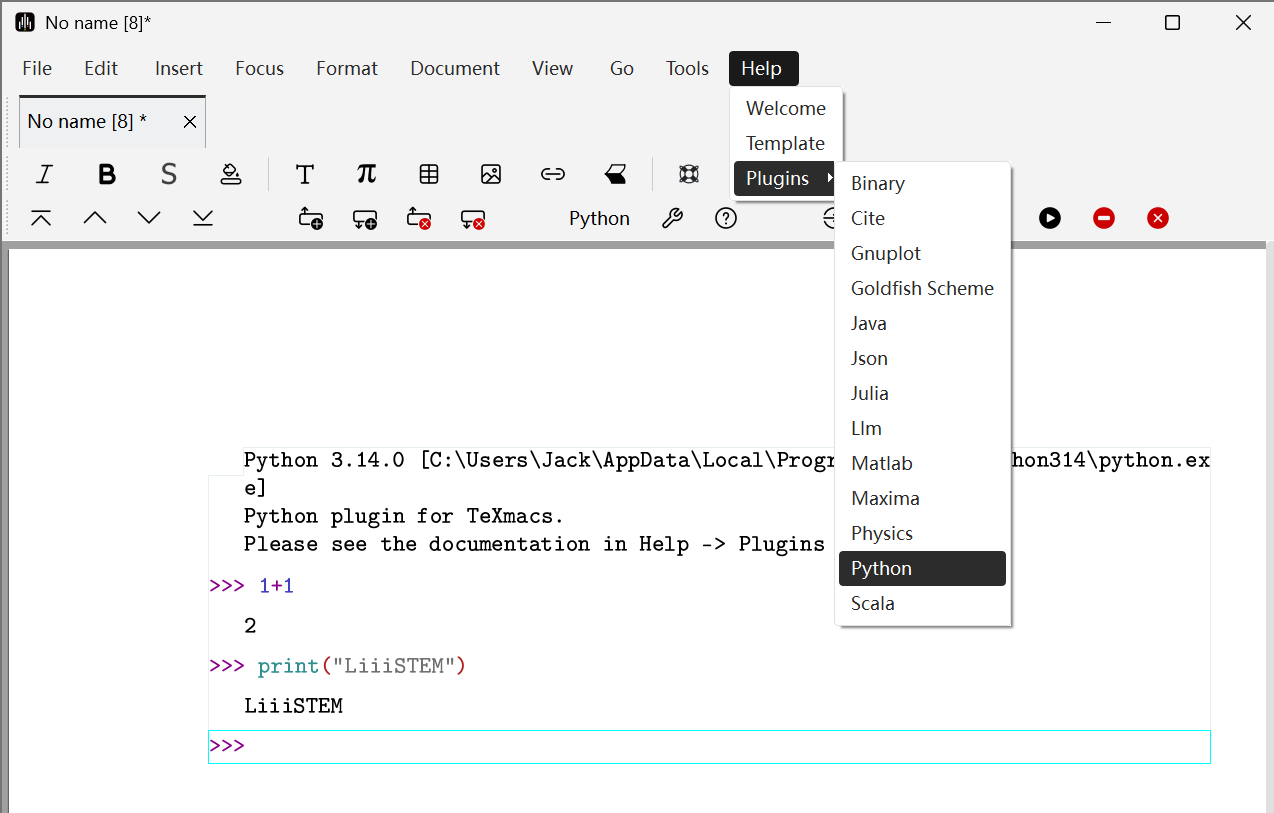
Statement input
Use Shift + Return/Enter to separate statements.
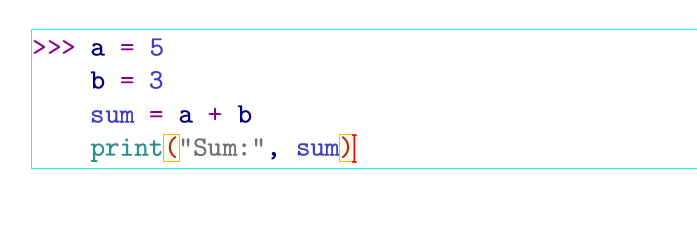
When ready to evaluate code, press Enter / Return.
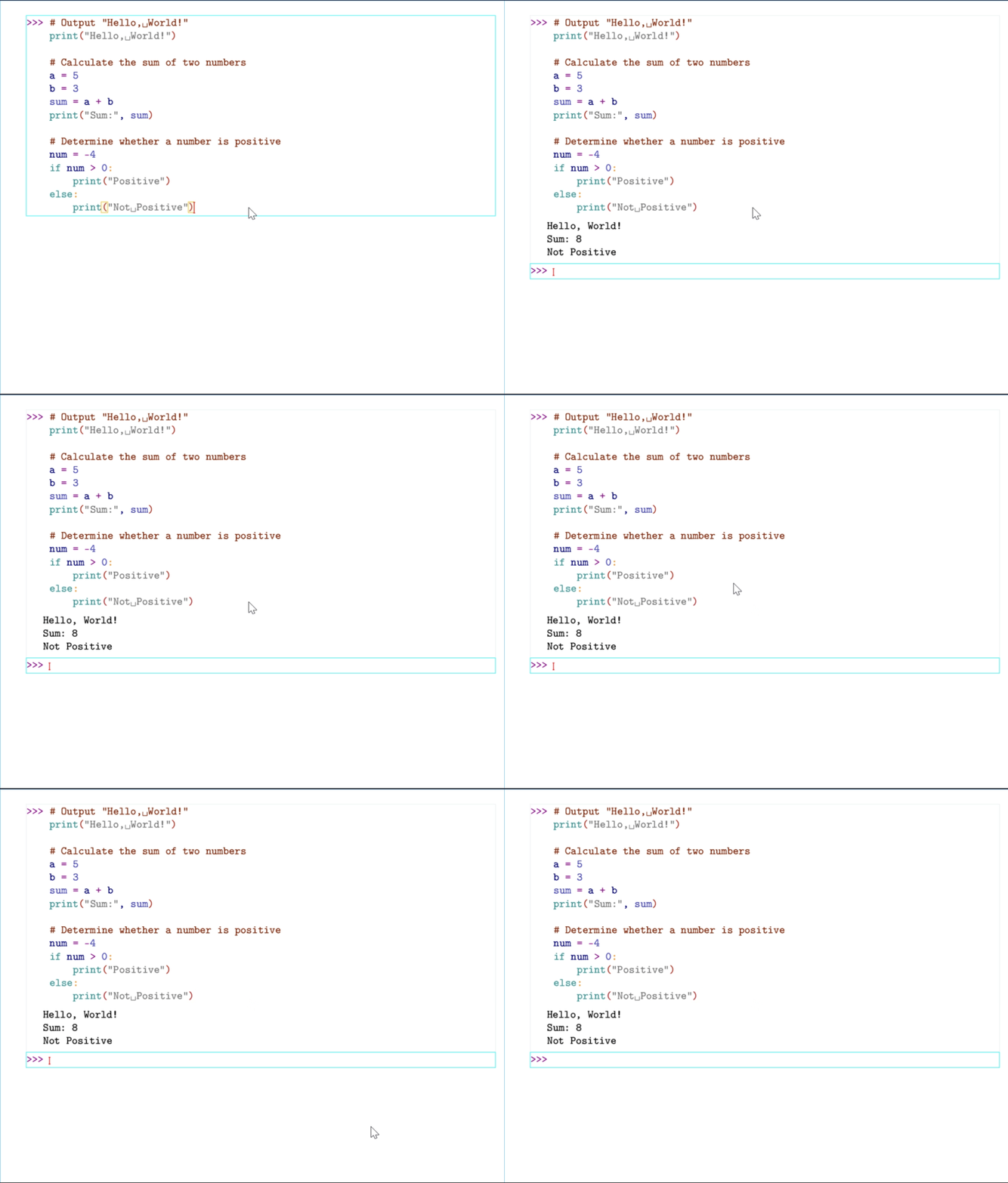
For multi-line input, enable Focus -> Input options -> Multiline input, then use Enter to add new lines.
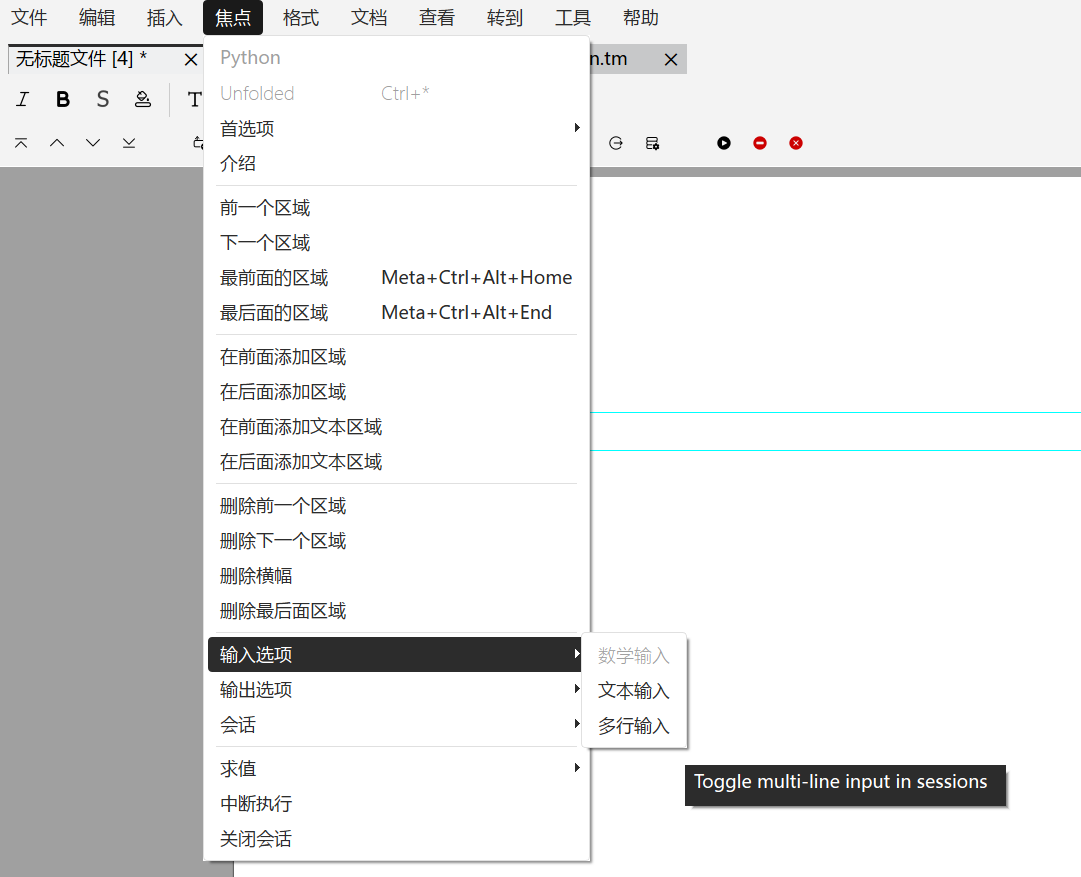
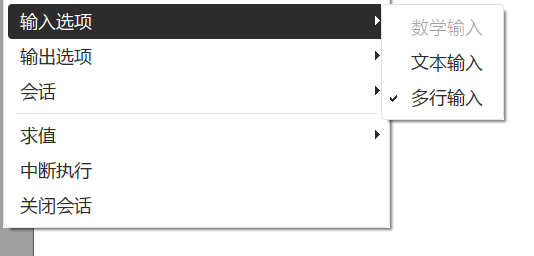
If you see the state above, multiline input is enabled.
Command auto-completion
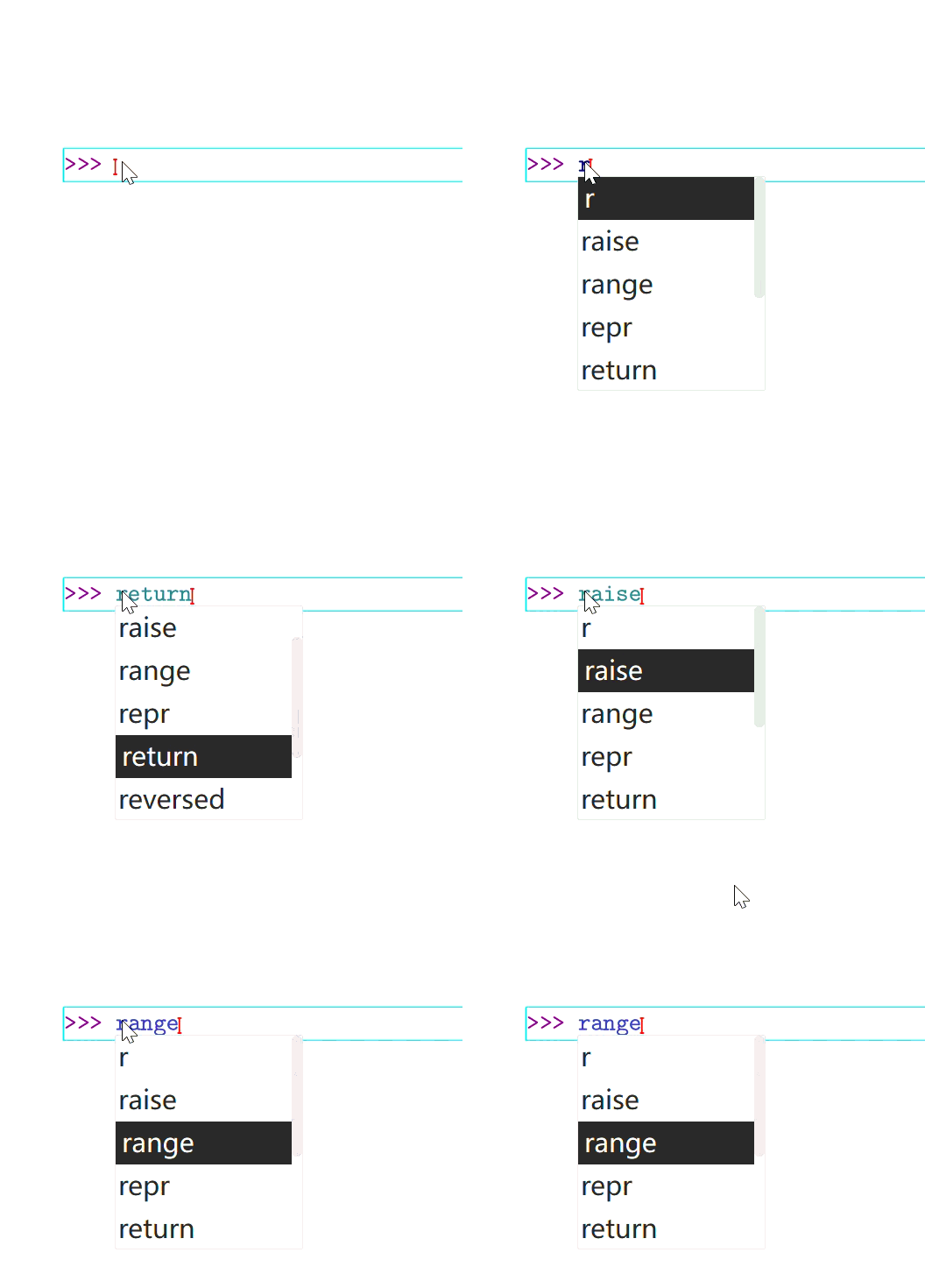
Type the first character(s) of built-in or previously defined commands, then press Tab to cycle suggestions.
PostScript output and matplotlib support
Use ps_out(data) to output PostScript data directly to TeXmacs/Liii STEM:
- If
datais a multi-line string, it is treated as raw PostScript. - If
datais a single-line string, it is treated as a PostScript file path (.eps/.pscan be inferred). - If
datais amatplotlib.pyplot.Figure(with a PS-capable backend), the plugin callssavefig()and inserts the output. - If
datahas areadmethod, PostScript is read from it.
Help popup
If object source code is available via inspect.getsource(), typing the object name followed by ? opens a popup with help() and source.
As a scripting language
Click Insert -> Fold -> Executable -> Python to create a runnable field:


Enter Python expressions/statements in the yellow box:

Press Return / Enter to toggle between raw input and evaluated output.
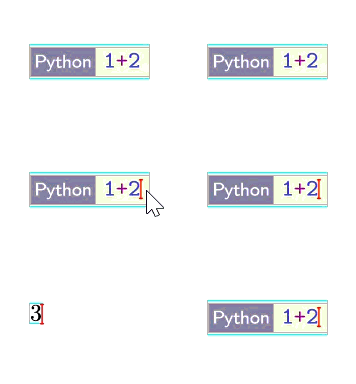
For complex code, use Shift + Return/Enter for multiline input.
Note:
- Expressions are evaluated via
eval()and can return inline output. - Statements are compiled via
compile(); the final return value is not shown. - For inline output in statement-heavy code, write to
os.sys.stdout.
You can also use Document -> Scripts -> Python, or insert evaluable fields via Insert -> Link.
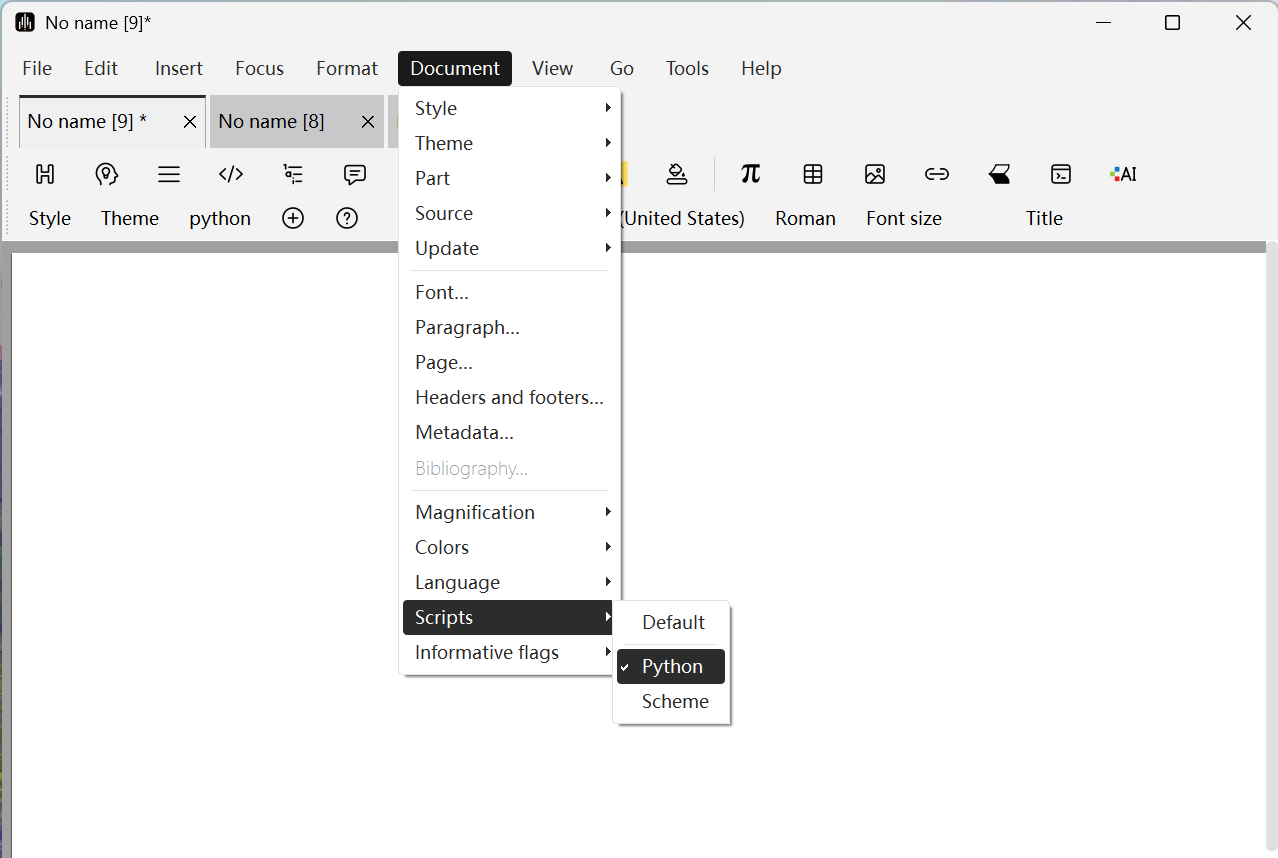
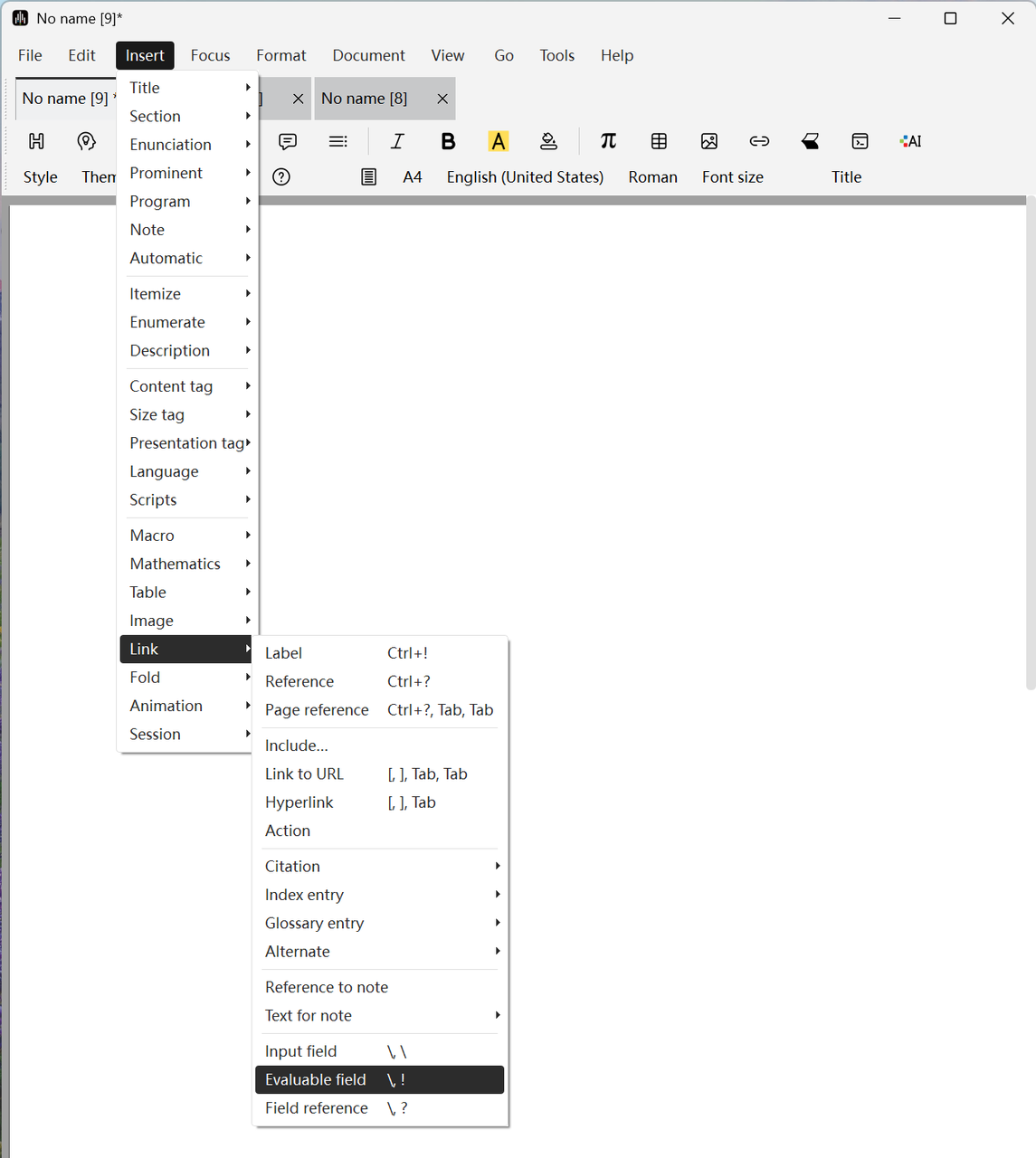
Again, Return/Enter toggles calculated vs. uncalculated view.