Appearance
OCR: Smart Paste and Selective Paste
Smart paste and selective paste are introduced in this guide, which allow you to seamlessly organize handwritten notes, PDF textbook/papers into Liii STEM.
Smart Paste
Shortcut: Ctrl + Shift + V/Command + Shift + V
Smart Paste automatically selects the appropriate format to paste based on the current environment and clipboard content, such as pasting code snippets or images into Liii STEM.
Refer to "Magic Paste." , which do lossless copy-paste from LLMs to Liii STEM.
Image OCR (In Text Mode)
Using the smart paste, Liii STEM automatically detects clipboard content and calls OCR to convert image content into Liii STEM format.
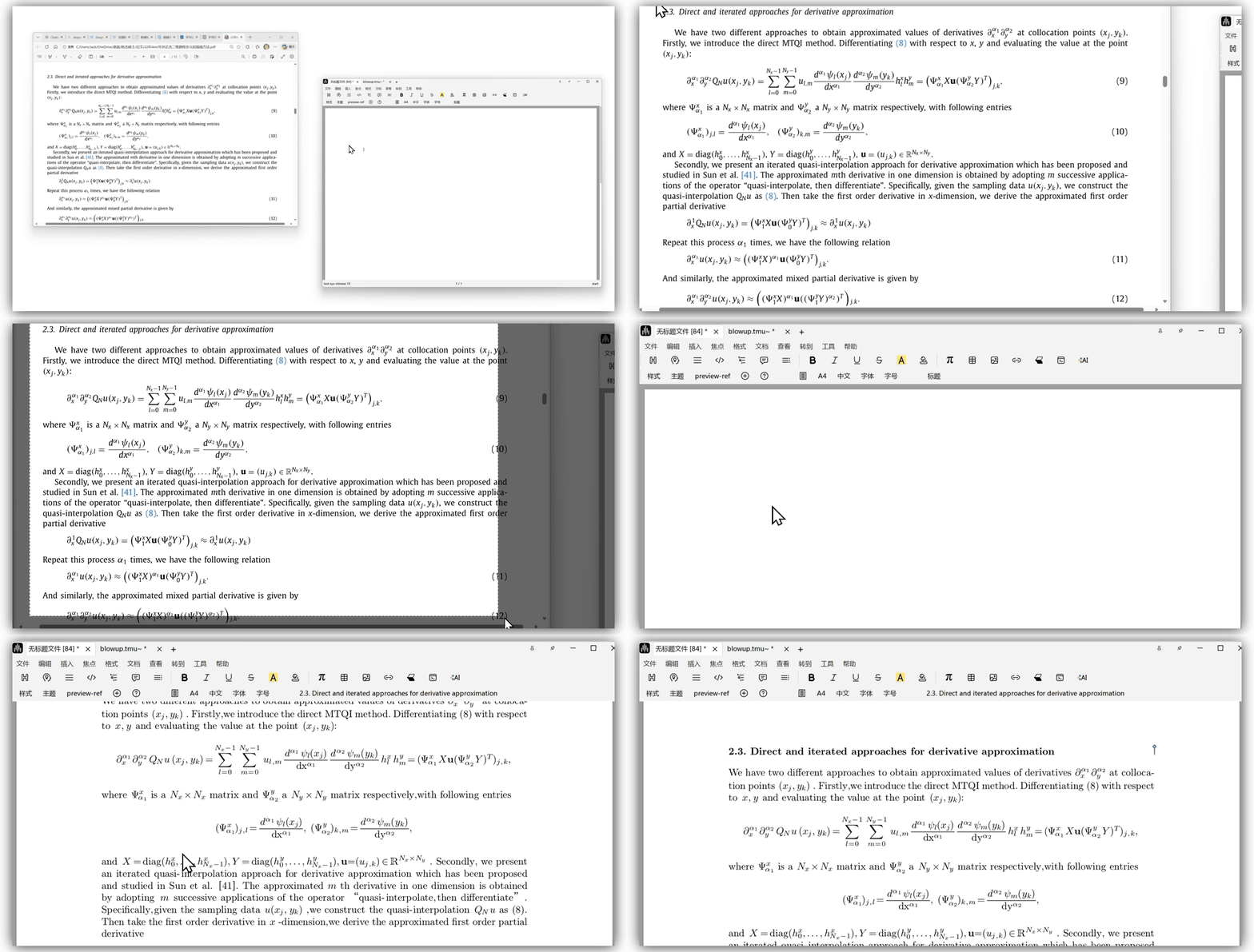
1.Paste from PDF
Note:
- large image files may cause network issues
- For macOS built-in screenshots, use Command + Ctrl + Shift + 4 (Command + Shift + 4 is known to cause issues)
Image OCR (In Math Mode)
In math mode, we provide a more convenient shortcut- no need to press Shift. Simply use Ctrl+V/Command+V to call OCR to do its smart paste job.
Note:
Ctrl+Shift+V/Command+Shift+Valso works in math mode- This method is recommended when the image content consists entirely of mathematical formulas.
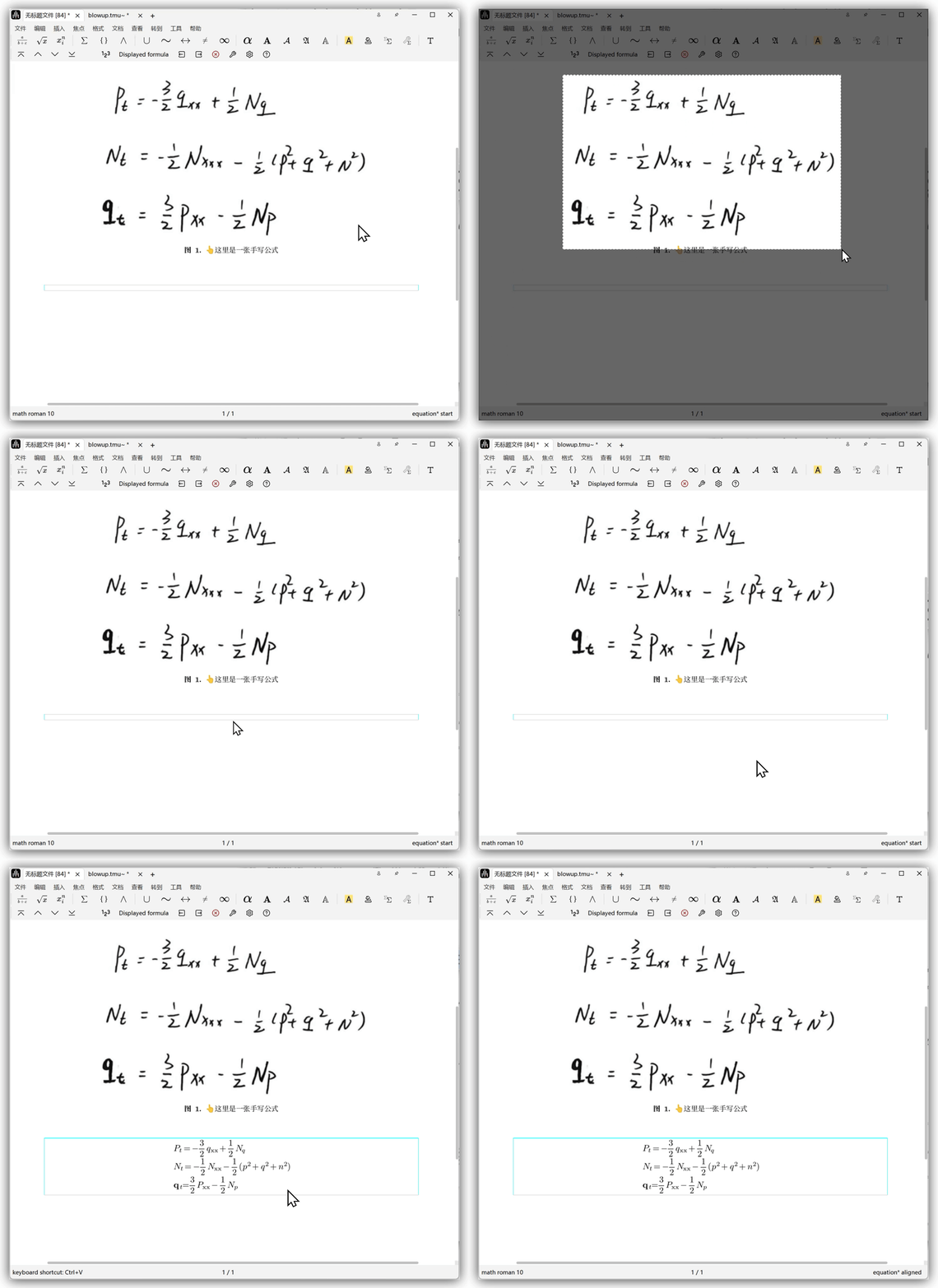
2.Paste handwritten notes into Liii STEM format
Code (in Math Mode)
In math mode, if you are working with code instead of images of text or formulas, you can copy code and directly use Smart Paste. Liii STEM will automatically convert into corresponding formulas in math mode.
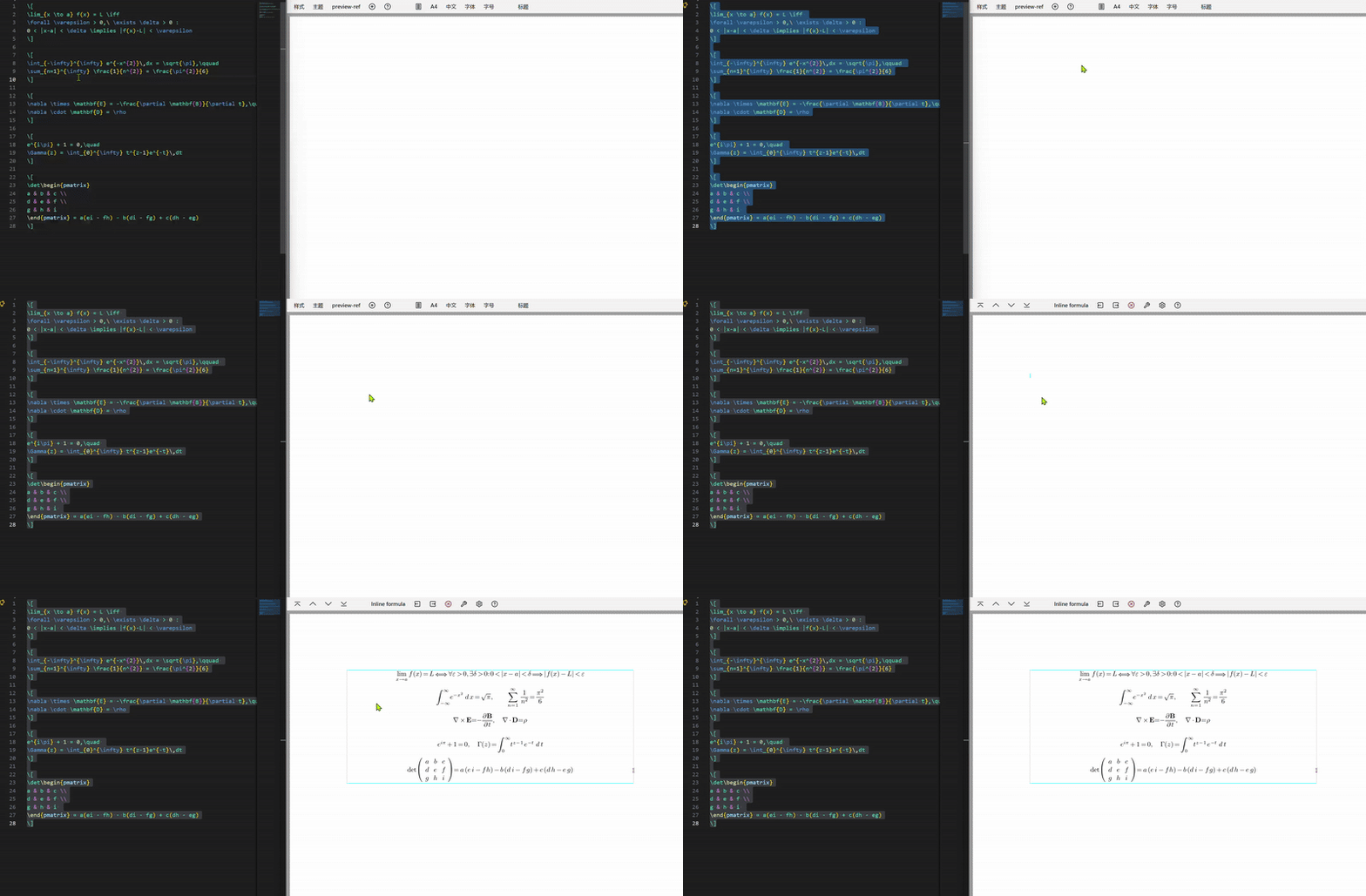
3.Paste from LaTeX
Summary
There are Three ways to use smart paste, here are differences:
Working with LaTeX code: Use smart paste (
Ctrl+Shift+v) in math mode.Working with images whose content are text and formulas: Use smart paste in text mode.
Working with images whose content are formulas only: Use smart paste or just
Ctrl+vin math mode.
Selective Paste
Selective Paste provides different document type options based on your clipboard content and current environment.
- such as pasting Markdown content directly into Liii STEM.
Shortcut: Ctrl + Alt + V/Command + Option + V
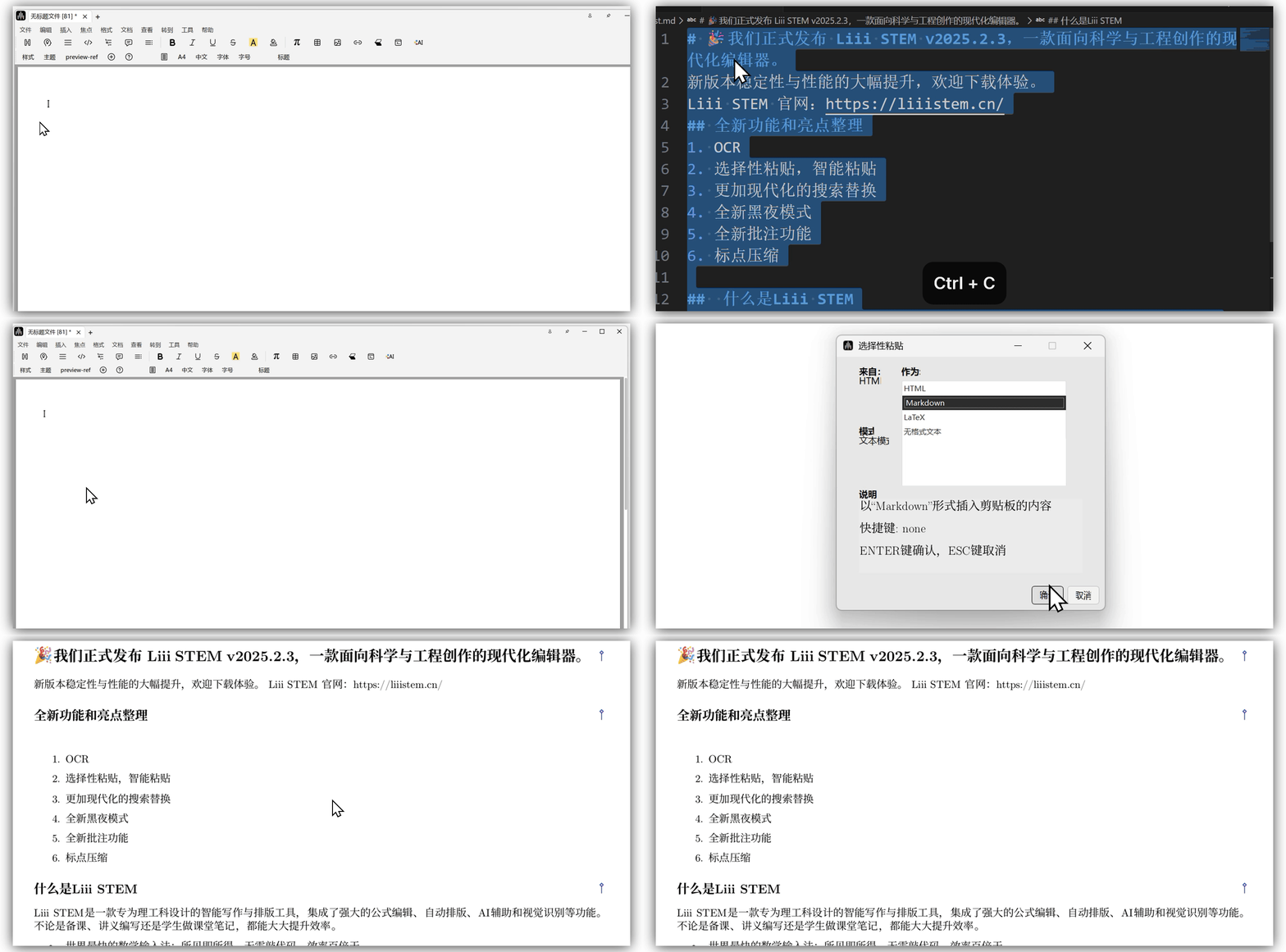
4.Select Markdown option to paste
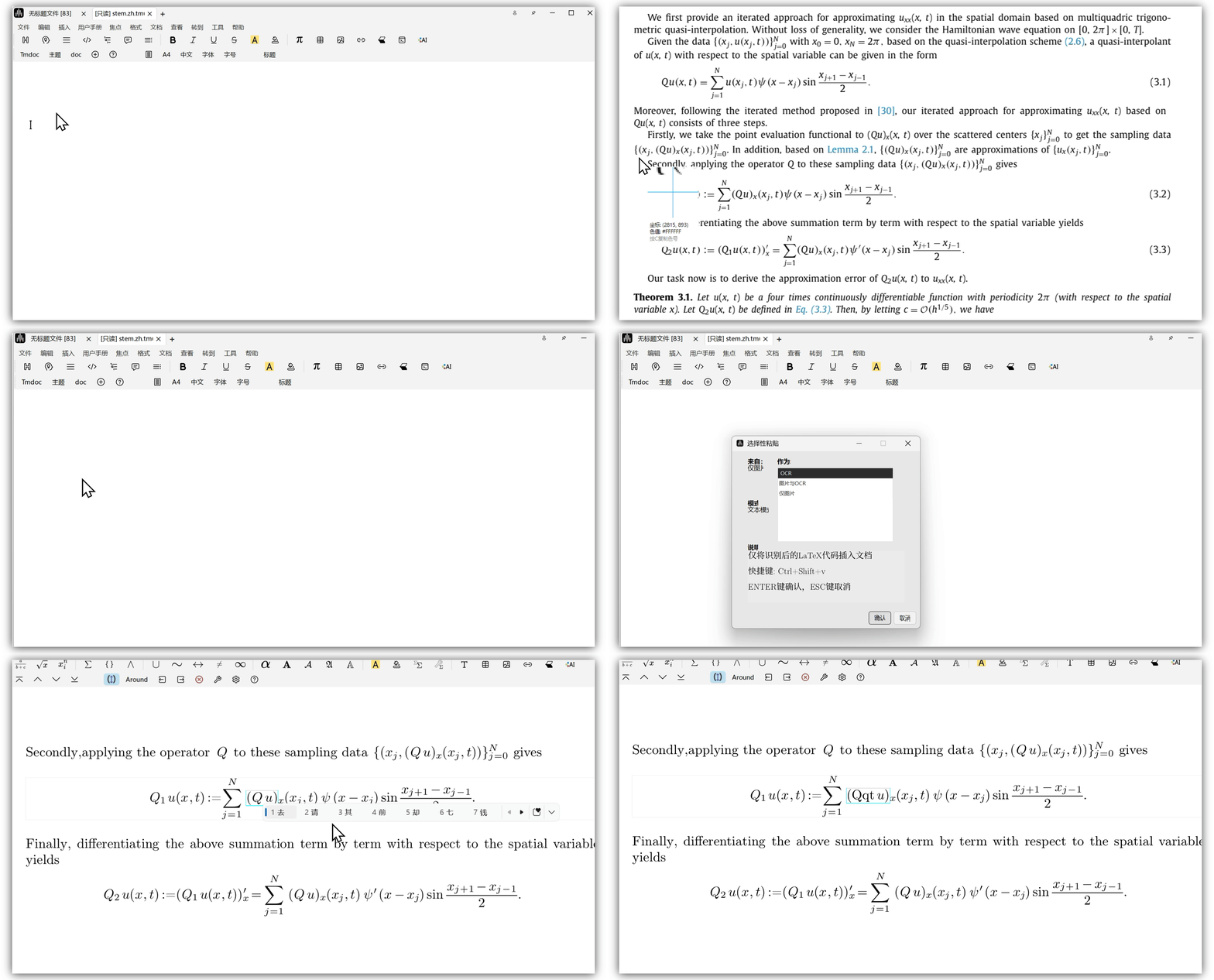
5.Paste content of image by Selecting `OCR` option