Appearance
Conda Installation
1 Python Version Selection
To use executable Python Code Blocks in Liii STEM, you need to ensure that at least one Python binary exists on your computer. For those new to Python, it is recommended to install Anaconda, a free package manager that helps you easily install, update, and remove Python.
2 Installation Guide
We only provide installation guides for Windows and macOS users here.
2.1 Installation Package Download
The installation image can be downloaded from the official website: https://www.anaconda.com/download.
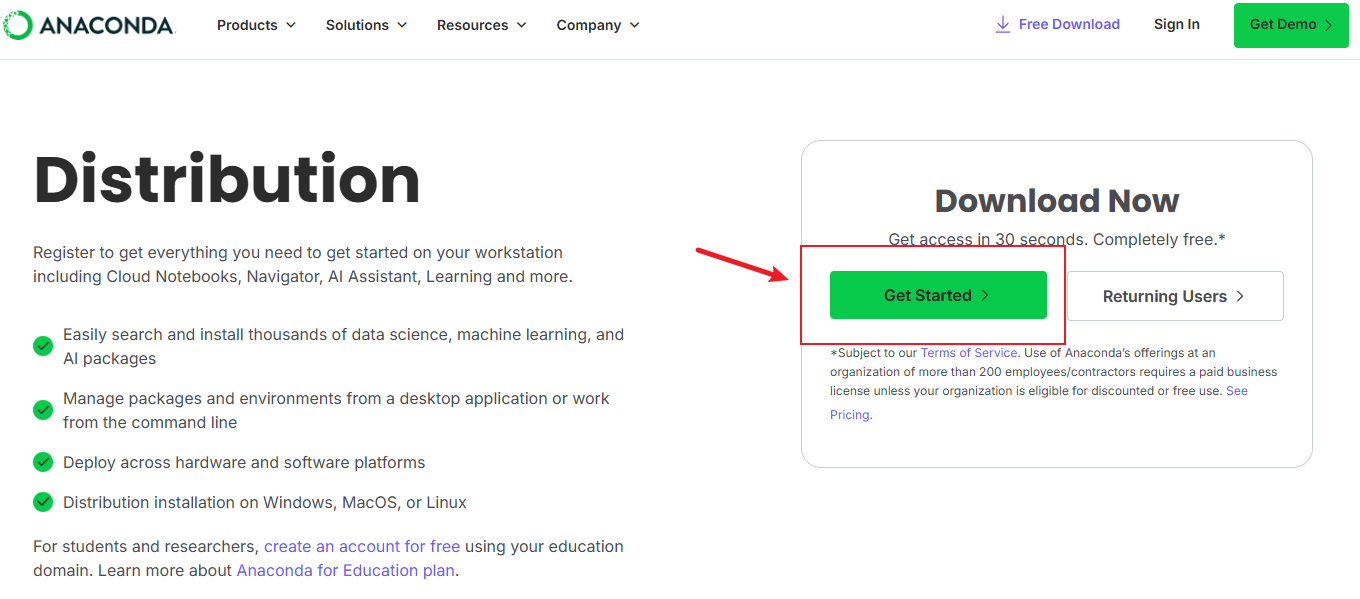
To download, you need to log in or register.

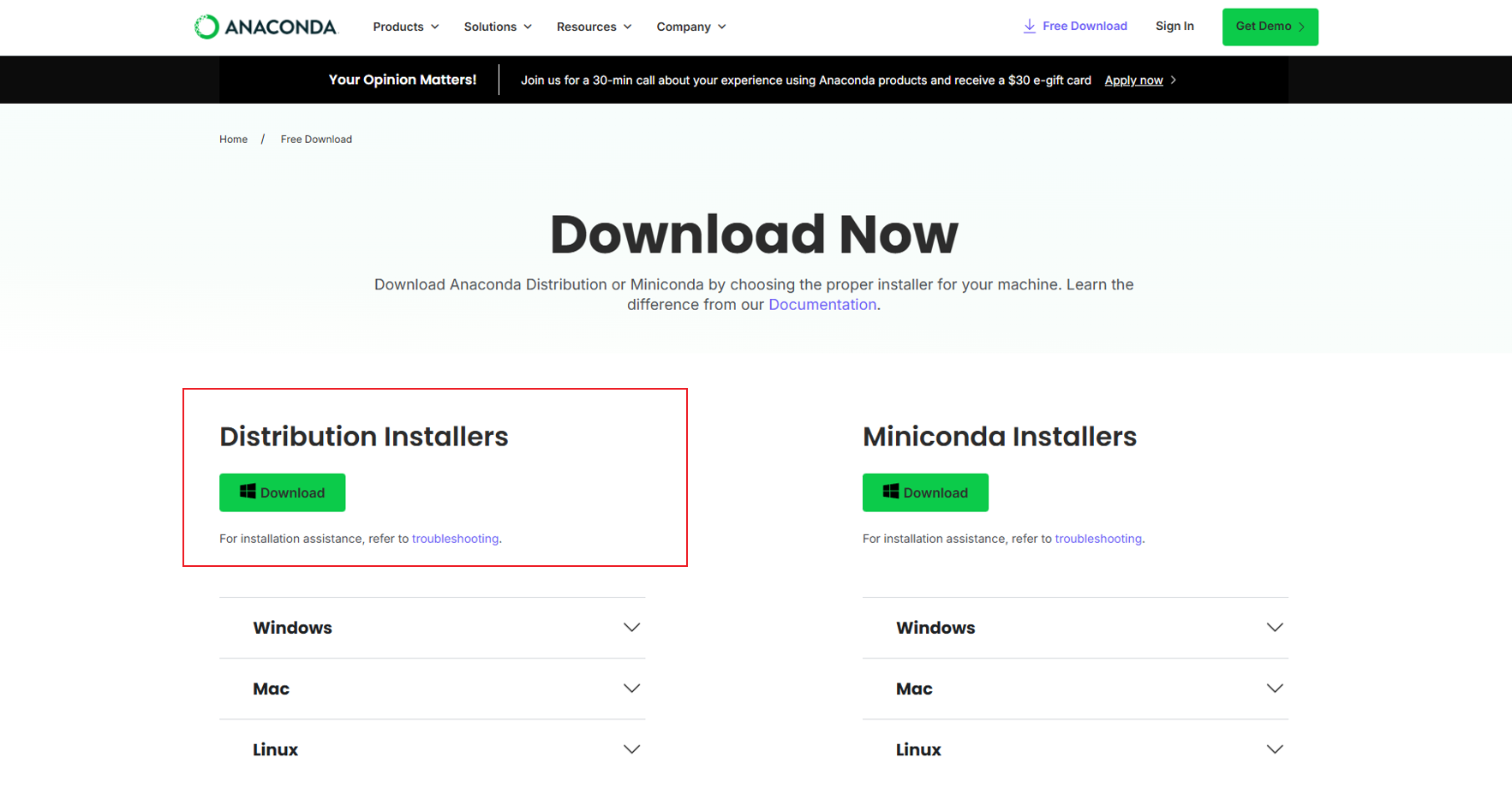
After registering, select Anaconda on the left to download:
2.2 Windows Installation
Open the installation package to start the installation process.
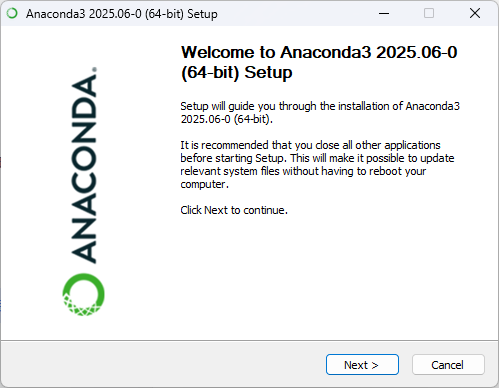
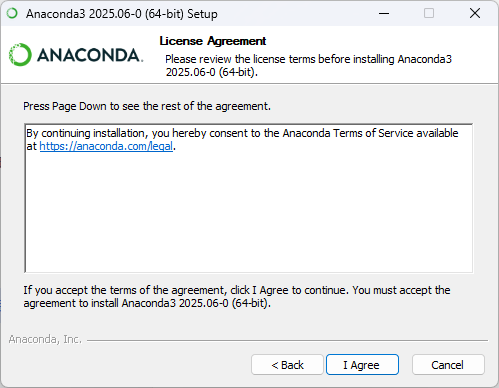
Click I Agree.
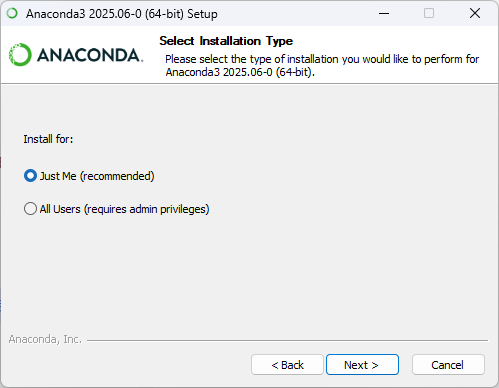
Select Just Me.
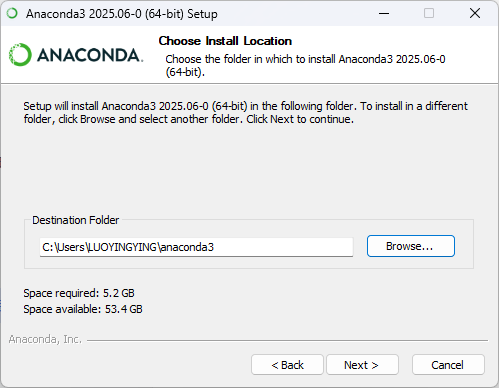
Liii STEM can automatically recognize the default installation location. However, if you want to install Anaconda elsewhere, please follow the instructions in the optional blocks in below.
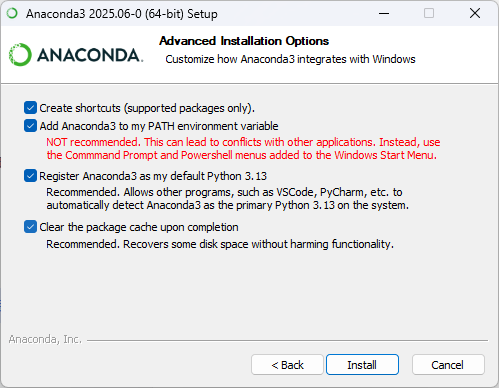
Optional: Check all options and click
Install. Make sure to checkAdd Anaconda to my PATH environment variable,even if it says it is not recommended. Please check it, as this option can help Liii STEM find Anaconda if the software is not installed in the default location.
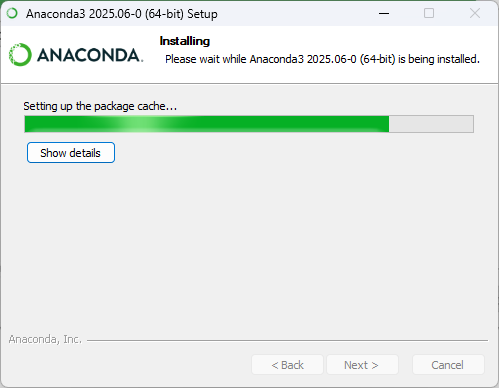
The installation process may take 5-10 minutes, depending on the performance of your computer.
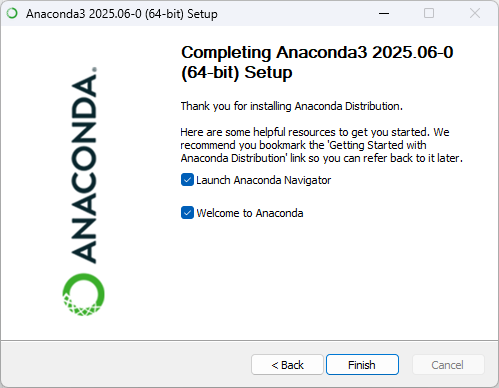
Click Finish to complete the installation.
2.3 macOS Installation
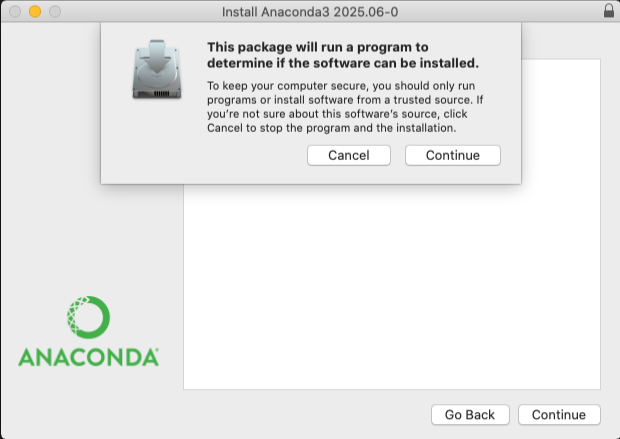
Open the installation package to start the installation process, and click Continue.
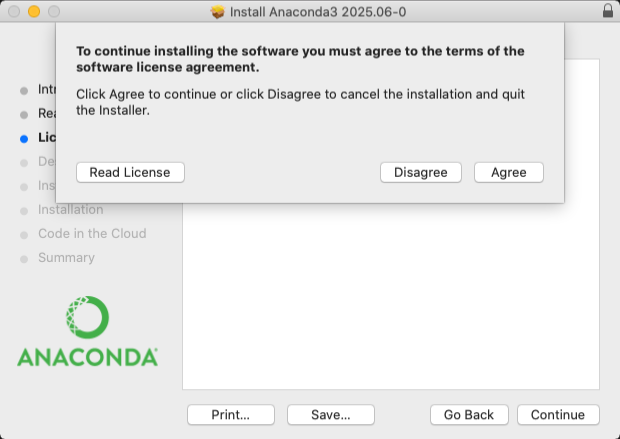
In License, click Agree.
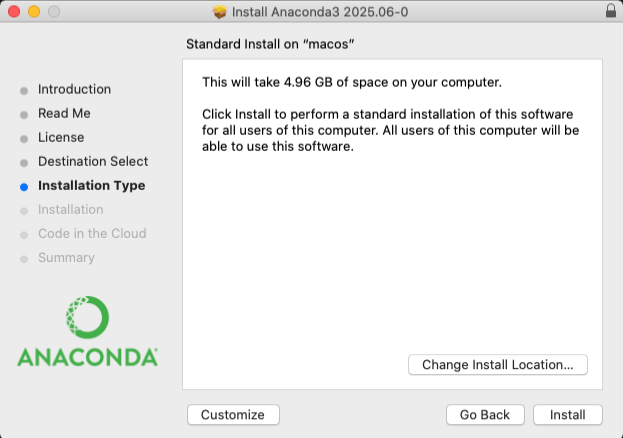
It is recommended to keep the default settings and click Install.
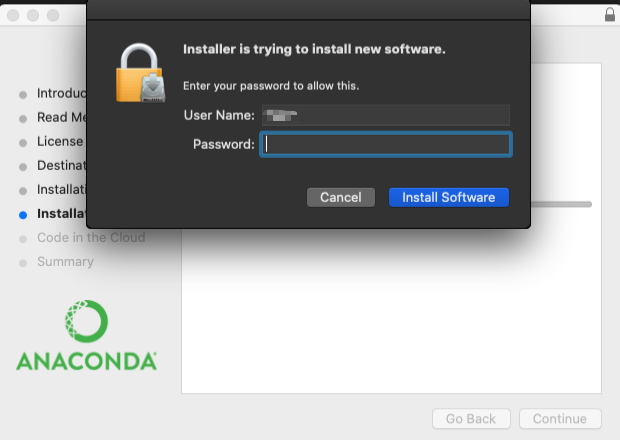
Enter your password, click Install Software to start the installation.
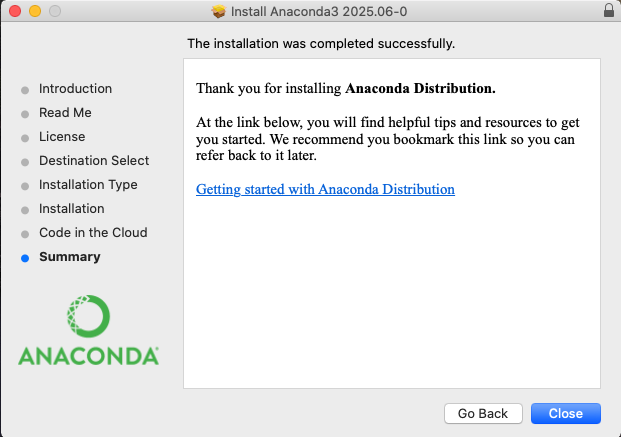
Click Close to complete the installation.
3 Installation Verification
In this section, we provide methods to verify whether the anaconda installation is successful for Windows and macOS users.
3.1 Windows Verification
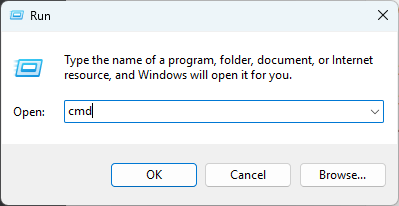
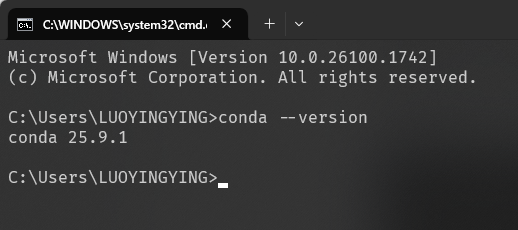
Press the Win+R keys, type cmd, and click OK to open the command prompt window.
Enter conda --version, Check the output. If the output is similar to the image below, it means Anaconda has been successfully installed on your device.
3.2 macOS Verification
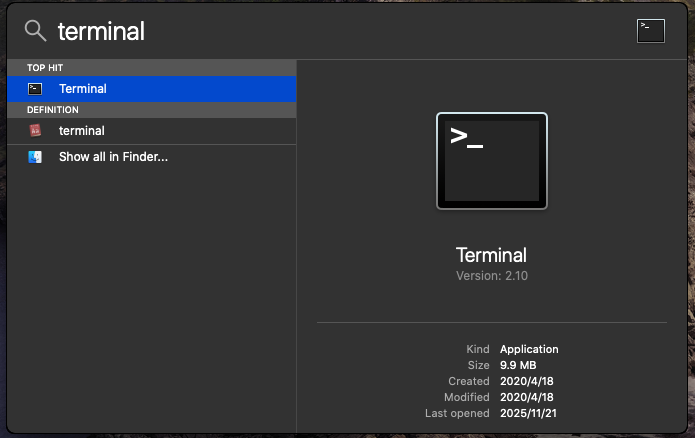
Press Cmd+Space, type terminal to find the Terminal application.
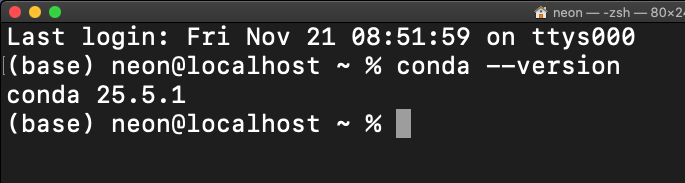
Enter conda --version, Check the output. If the output is similar to the image below, it means Anaconda has been successfully installed on your device.
4 Create a Conda Environment
Liii STEM not only supports the base environments installed by Anaconda, we also supports user-created conda environments. To create a conda environment, launch the Anaconda Navigator application.
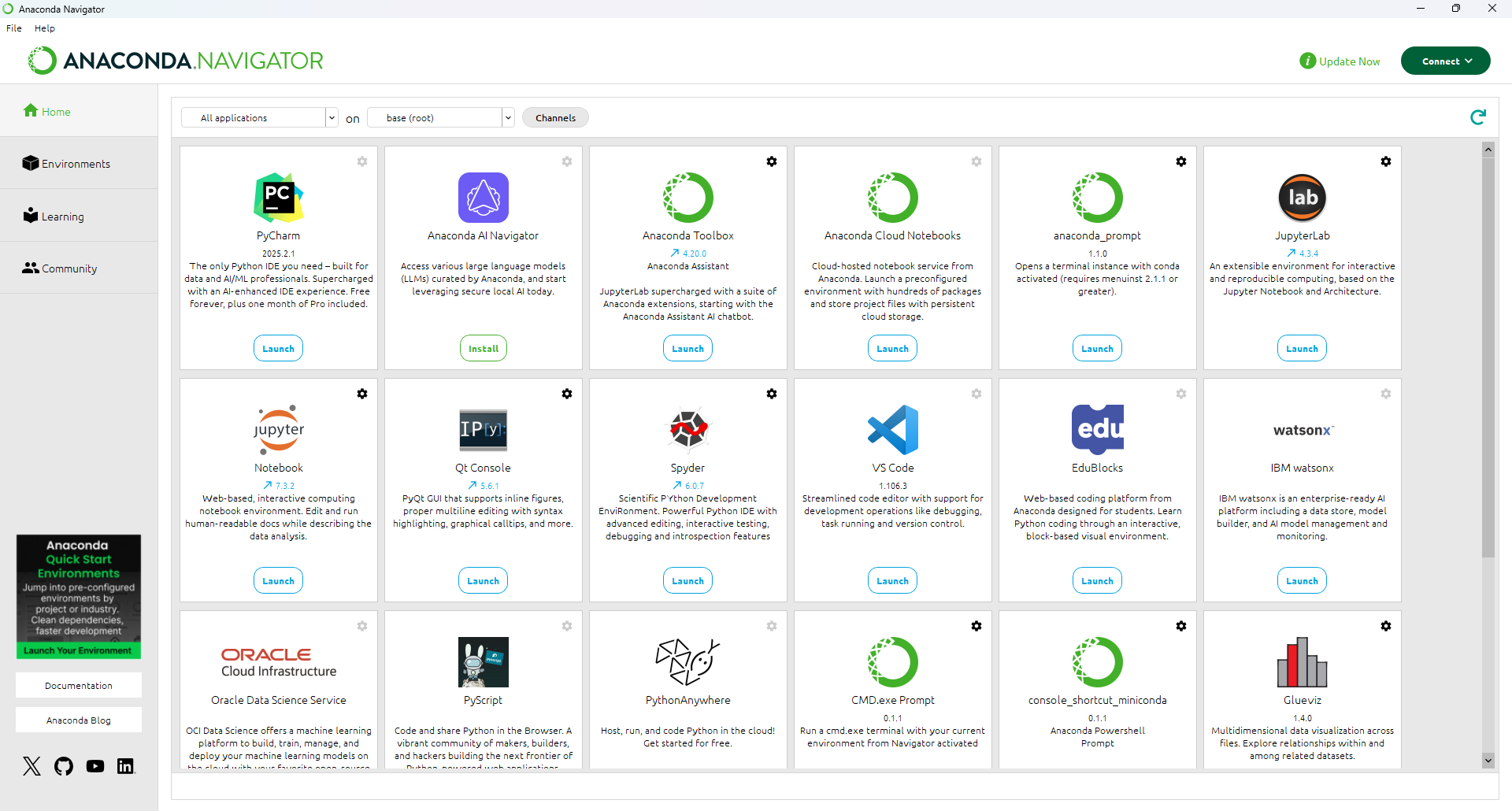
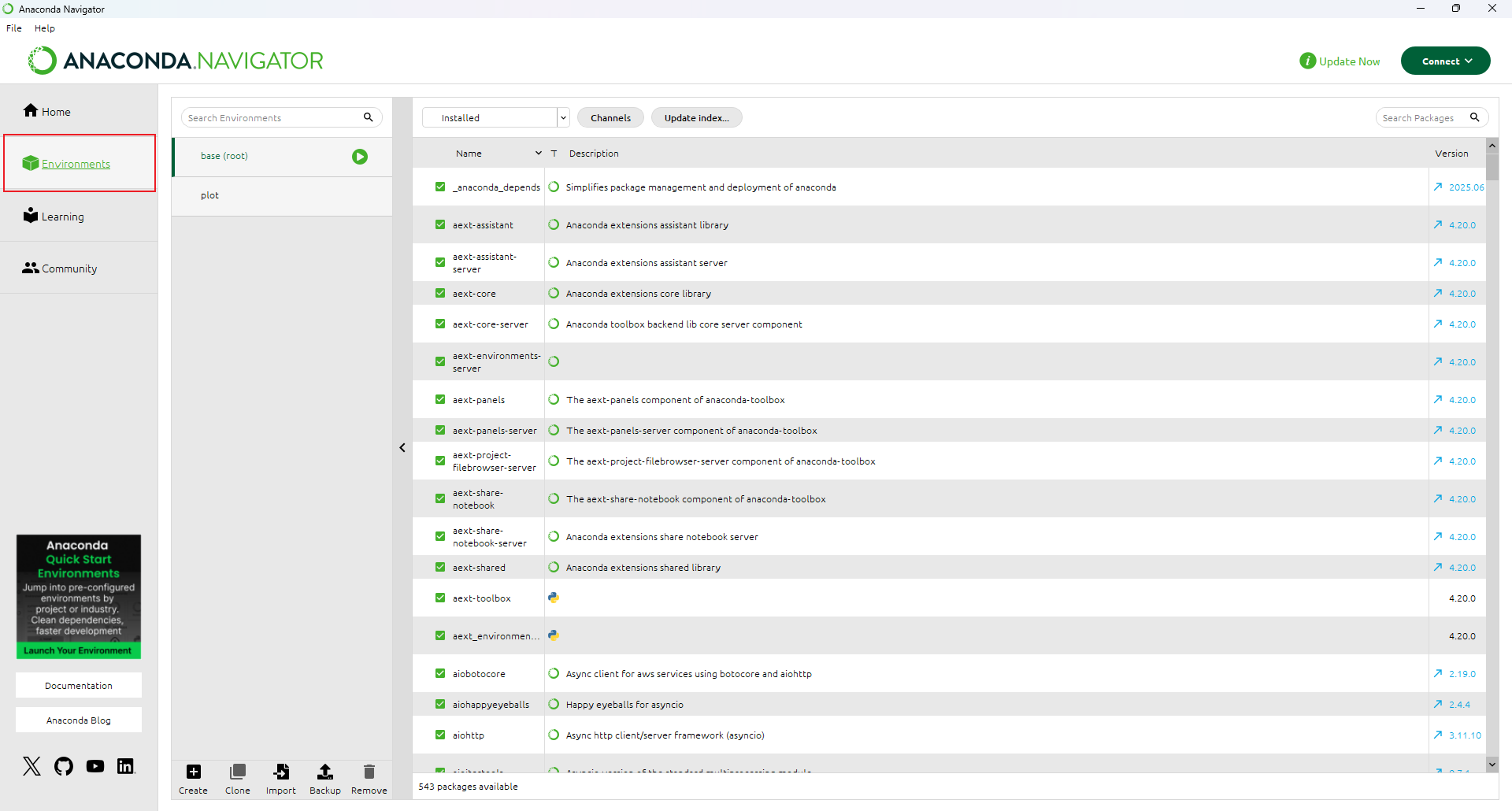
Select Environments in the left sidebar.
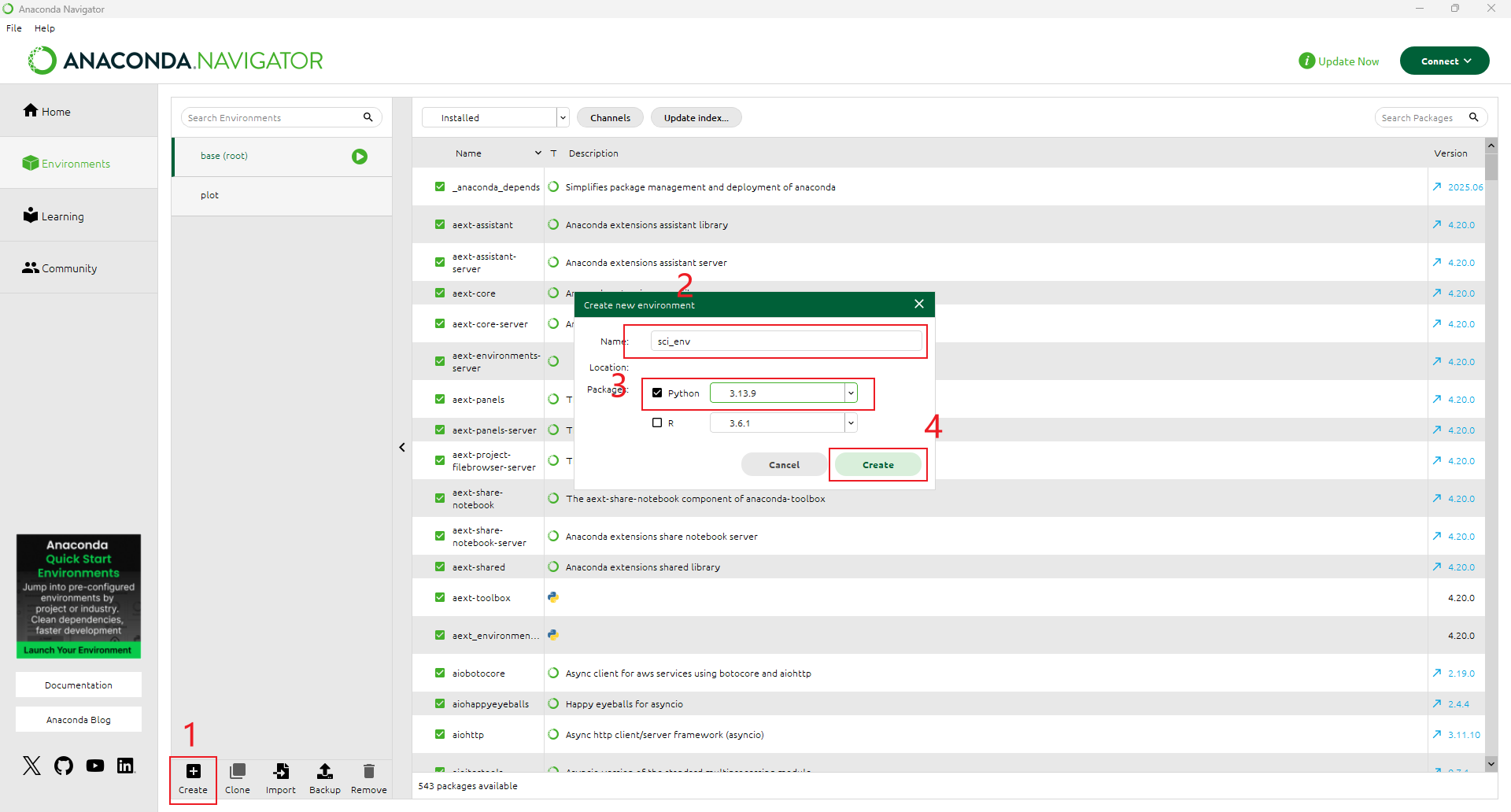
Click Create at the bottom of its page, set the name and Python version, then click Create again, and wait for the creation to complete. Since sympy does not support Python 3.14, it is recommended to choose any version below Python 3.13.
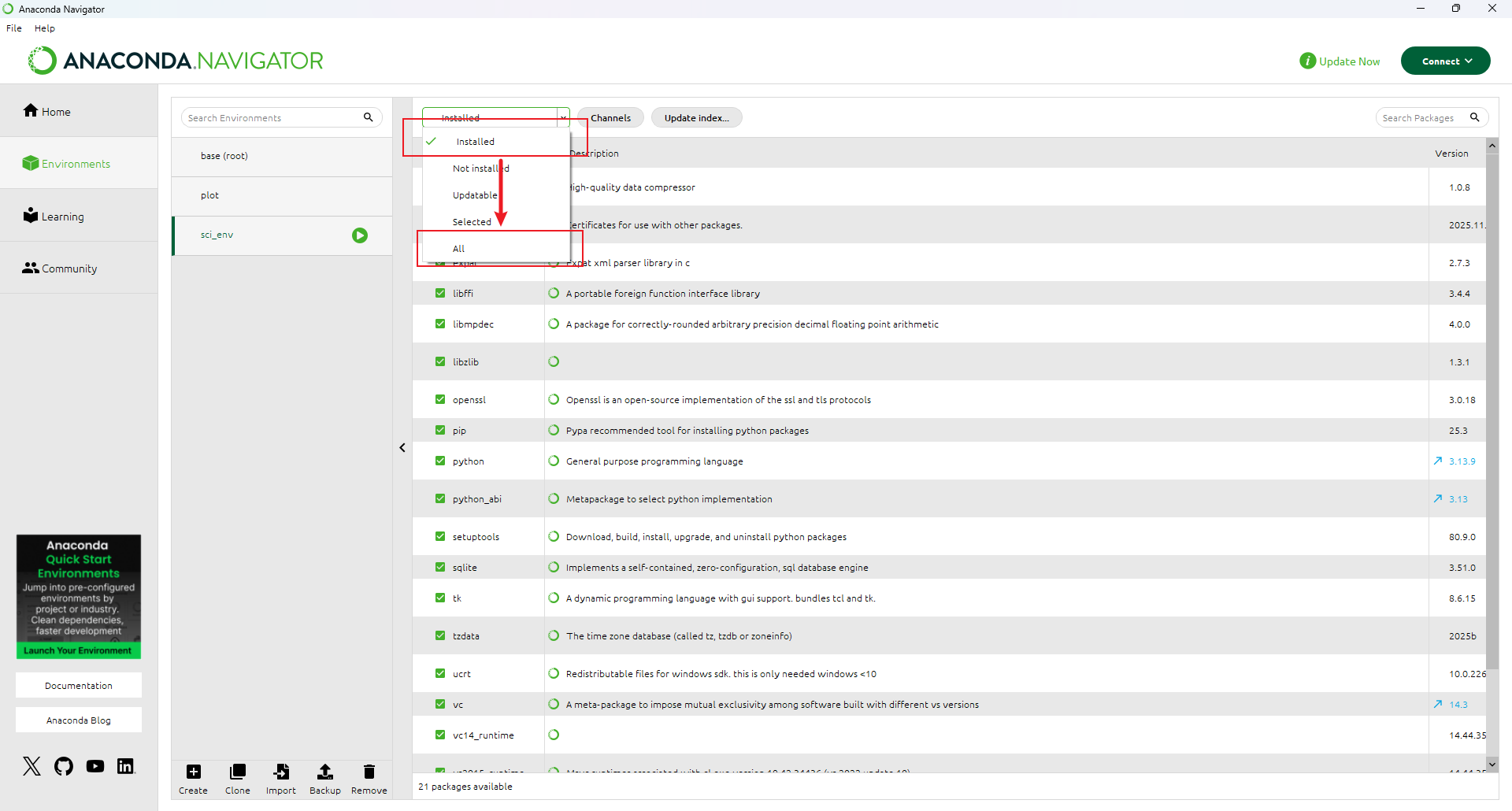
Ensure that the new conda environment is selected in the environment list on the left. Switch the filter in the upper left corner of the interface from Installed to All.
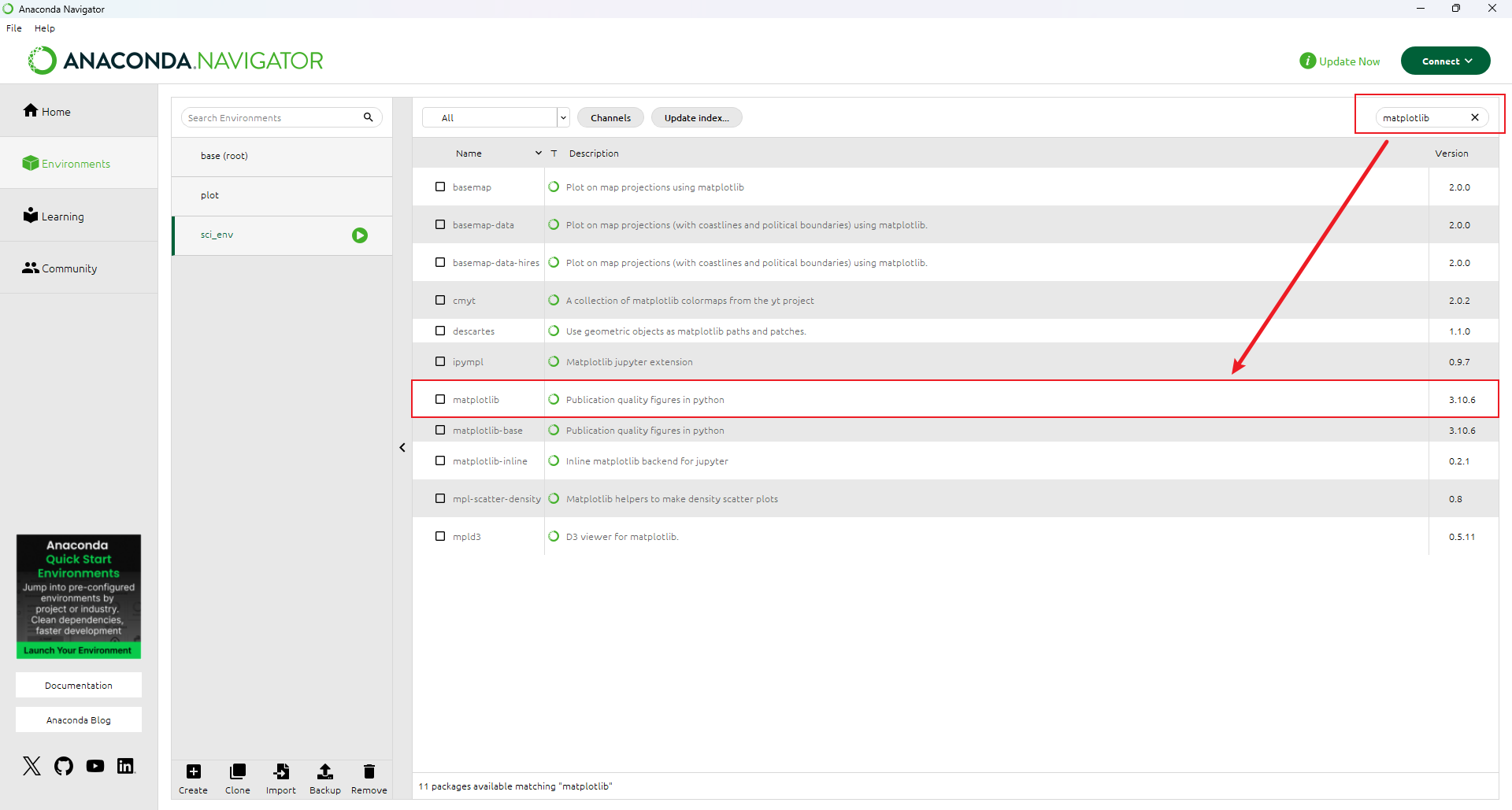
In the search box above, search for and verify that the following packages are installed in sequence: matplotlib, pandas, numpy, sympy. The four packages are required in Liii STEM.



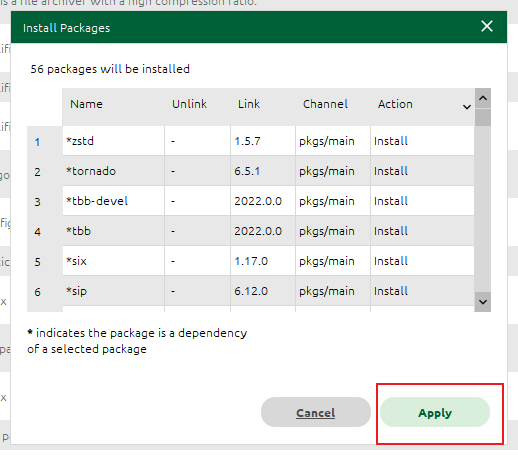
Click Apply in the bottom right corner.
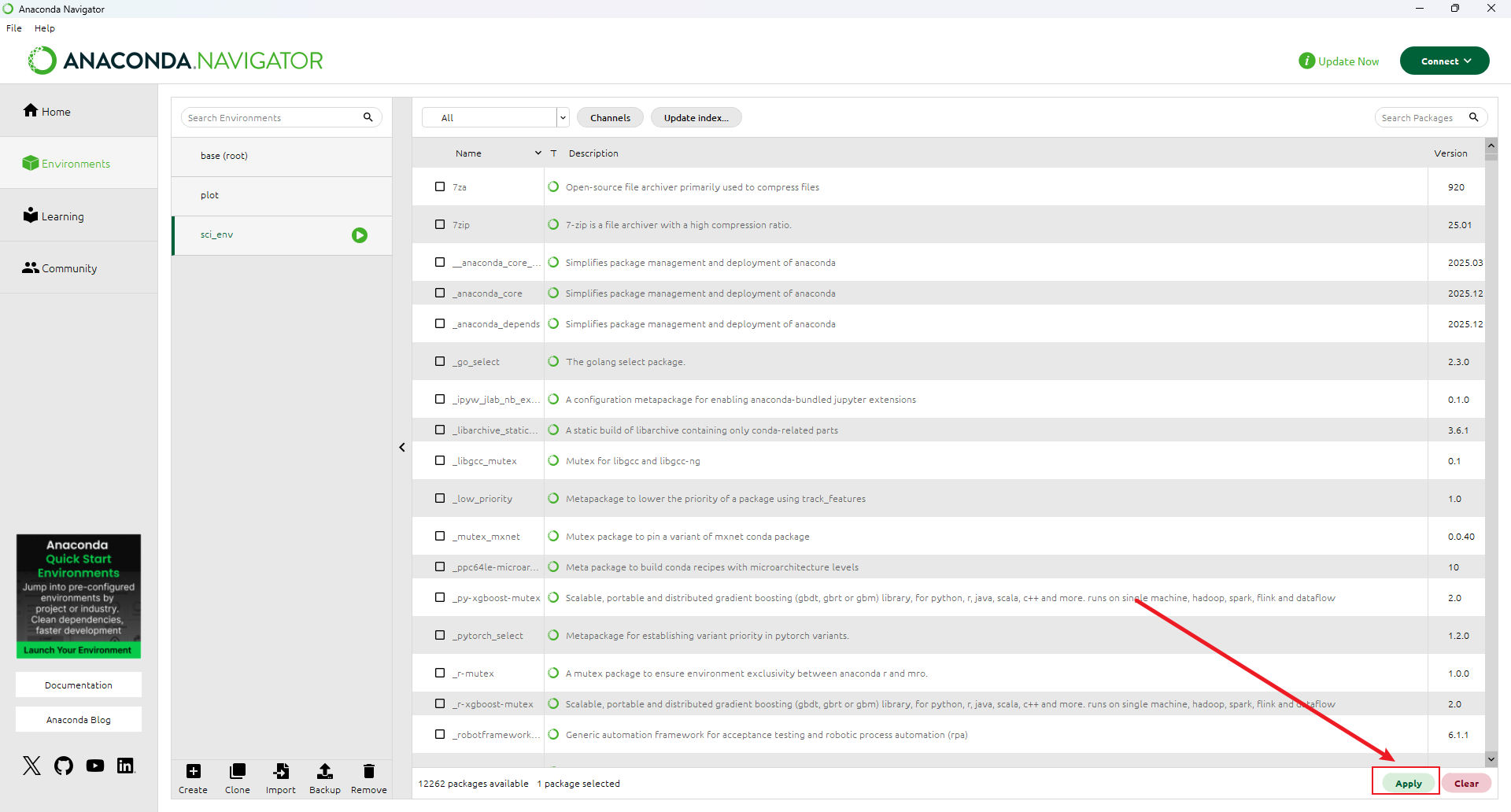
Click Apply and wait for the installing process to complete.