Appearance
Tutorial for Customizing Keyboard Shortcuts for Marked Structures
This tutorial is based on a Mogan Salon presentation and explains how to customize keyboard shortcuts for marked structures. Note that the same shortcut may produce different effects in different modes. There are currently two configuration methods:
1. Configure Shortcuts Through the Menu Bar
- Insert a marked structure: Click [Insert] and insert the marked structure for which you want to define a shortcut.
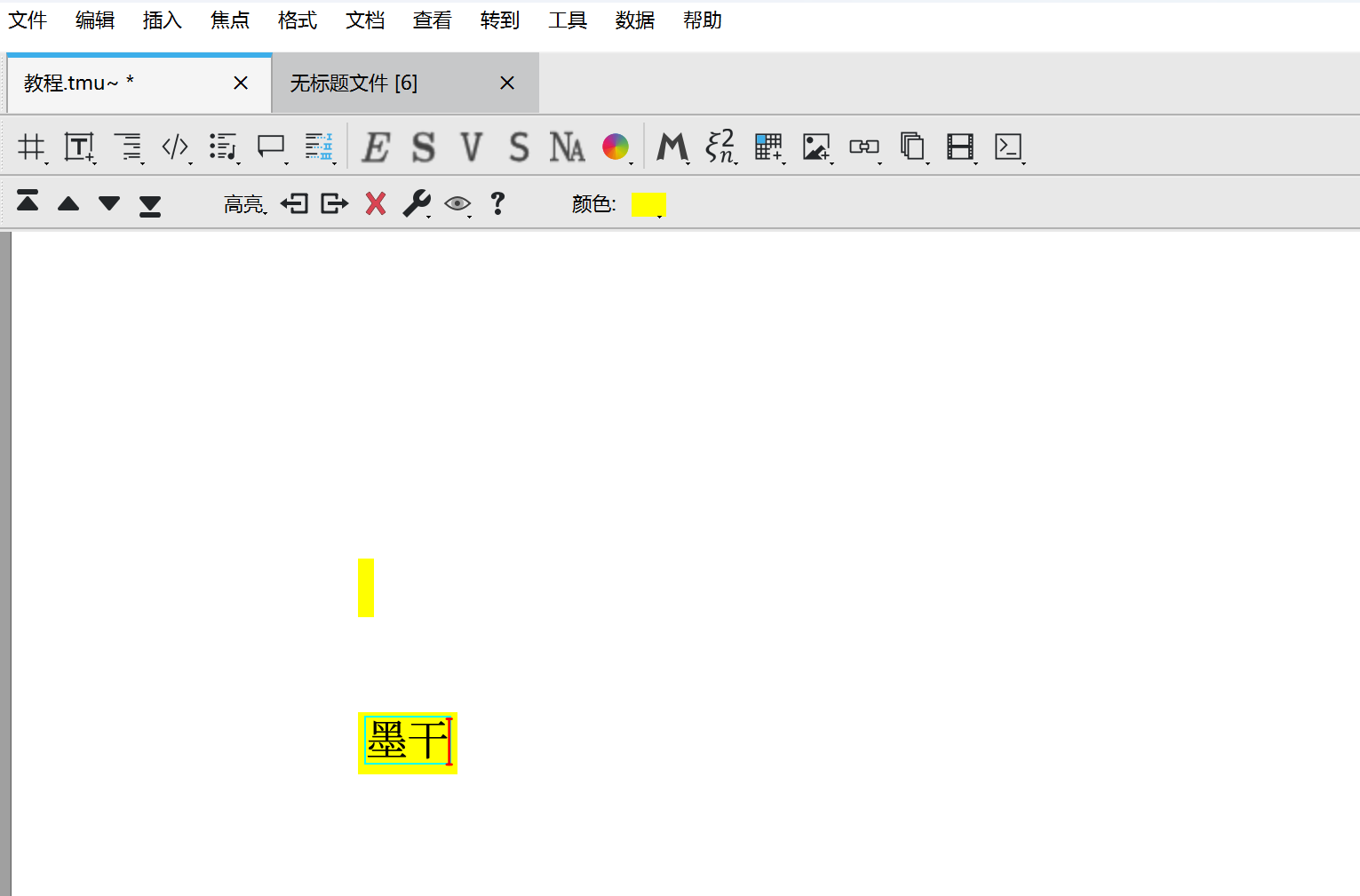
- Open shortcut settings: Click [Marked Preferences] in the menu bar (wrench icon), then select [New Shortcut].
- Set the shortcut: Enter your custom shortcut in the shortcut input area, click [Add], and then click [Exit] when finished.
2. Configure Shortcuts Through the Tools Menu
In [Tools] -> [Keyboard] -> [Edit Keyboard Shortcuts], enter commands in the (make 'corresponding-marked-code) format to configure them. For example, if you want to assign a shortcut to the highlight marker, enter (make 'marked).
[Example] Configuring a [Highlight] Shortcut Through the Menu Bar
The following example uses [Highlight] in semantic markers to illustrate the menu-bar configuration process.
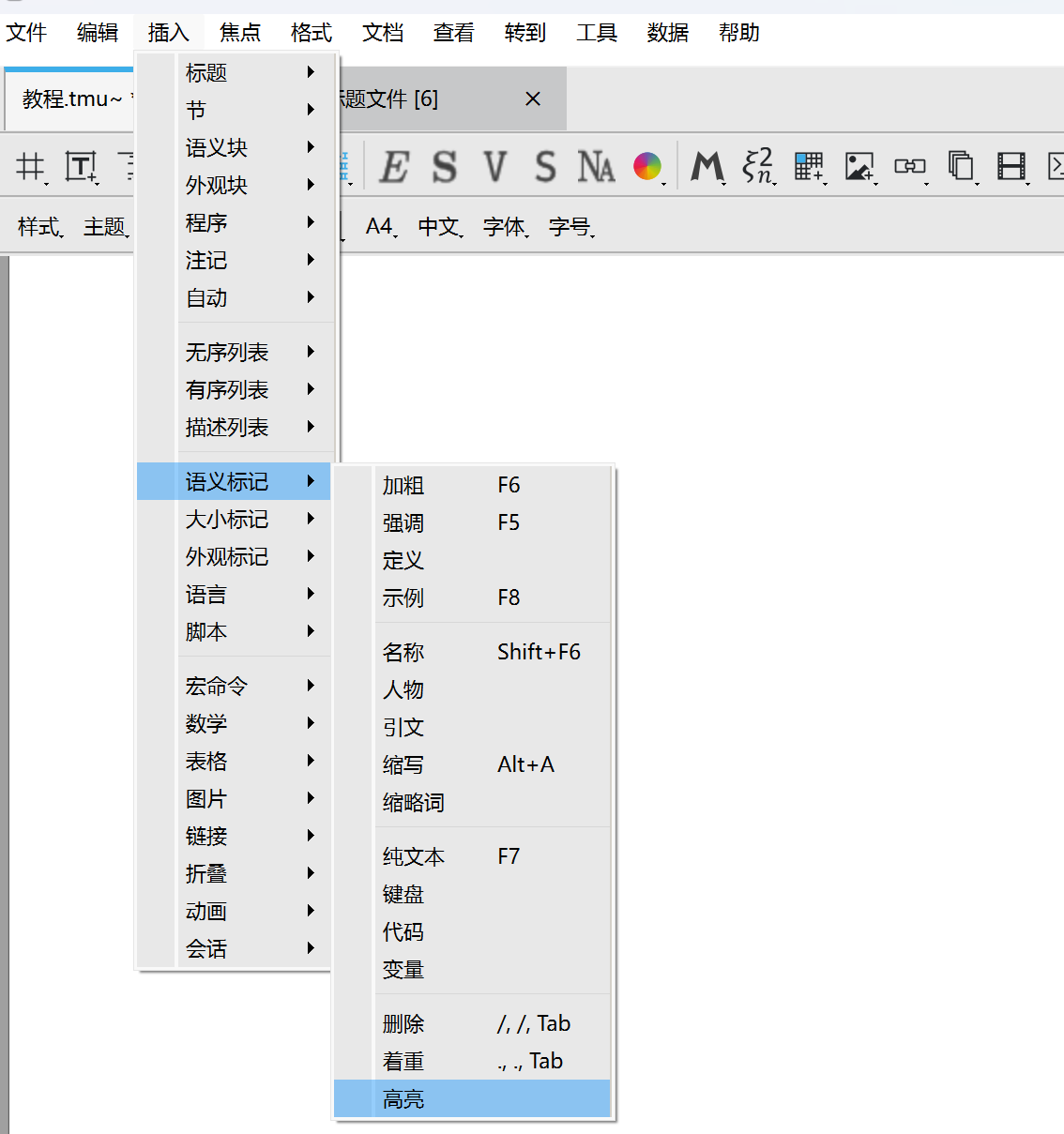
- Insert a marked structure: Click [Insert] -> [Semantic Markers] -> [Highlight] to insert the marked structure for which you want to define a shortcut.
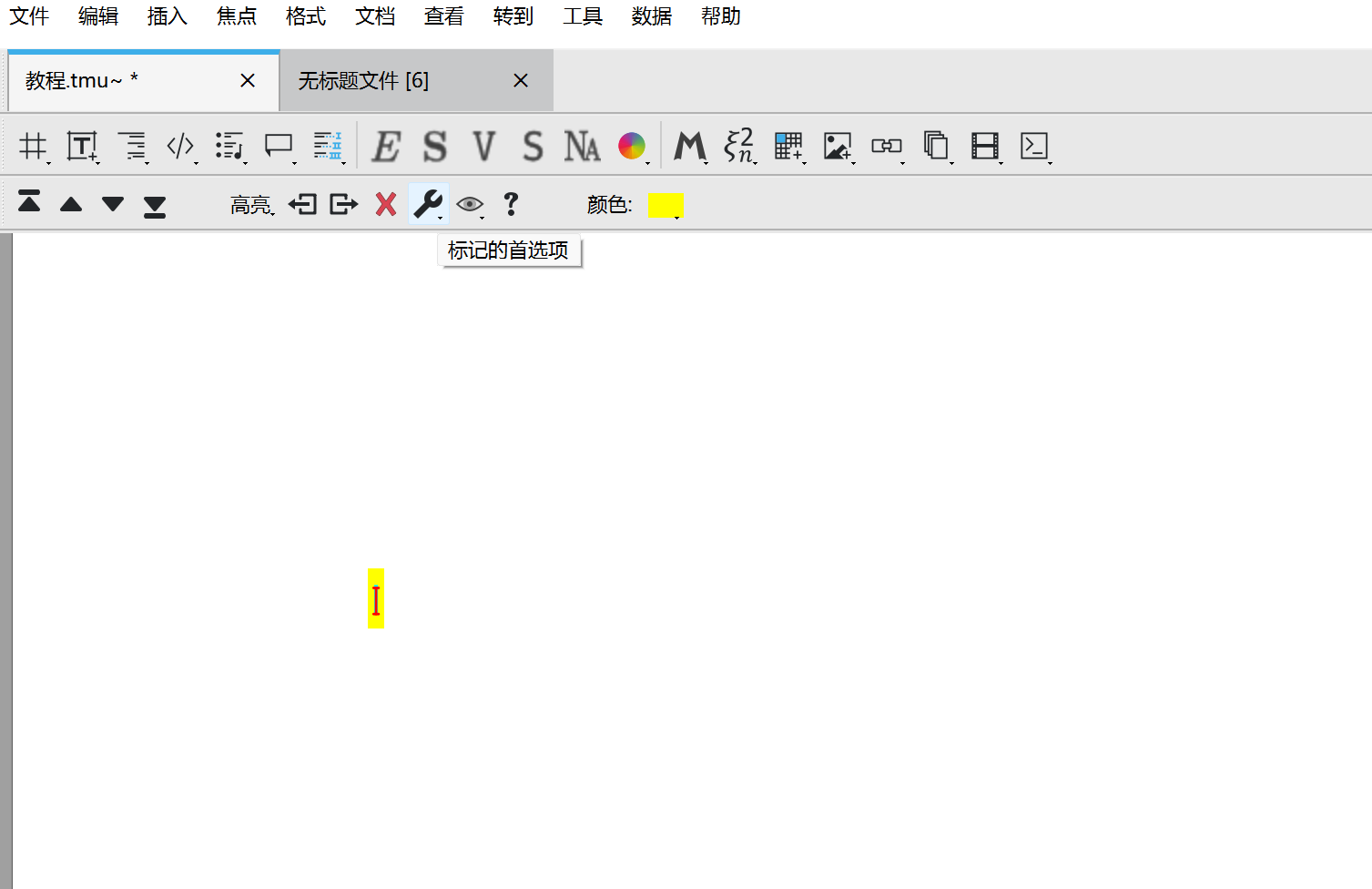
- Open shortcut settings: Click [Marked Preferences] in the menu bar (wrench icon), then select [New Shortcut].
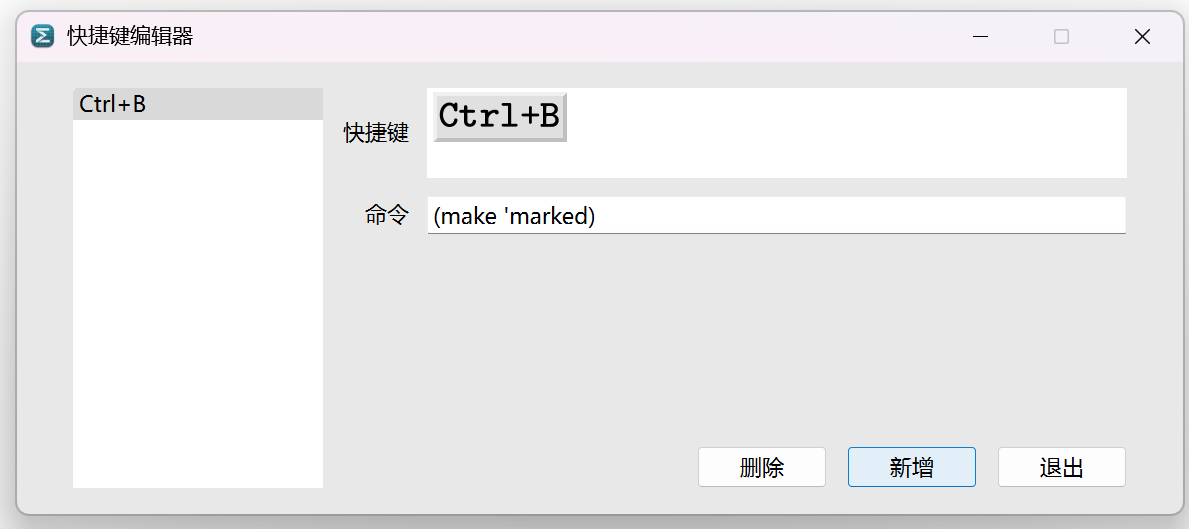
- Set the shortcut: Enter your custom shortcut in the shortcut input area, such as
Ctrl+B, click [Add], and then click [Exit] when finished.
- Apply the shortcut: Select the target text and press the assigned shortcut to highlight the text.
 If you want to learn more about the underlying technical principles and additional use cases, you can watch the related Mogan Salon video: Mogan Community Salon: Tutorial on Custom Shortcuts and Macro Definitions. The video provides a more comprehensive and in-depth explanation of the relevant techniques, helping you master and apply custom keyboard shortcuts for marked structures more efficiently.
You can scan the QR codes below to join the Mogan Community QQ group and Discord channel and participate in future salons.
QQ Group

Discord Channel